> ## Documentation Index
> Fetch the complete documentation index at: https://docs.adopt.ai/llms.txt
> Use this file to discover all available pages before exploring further.
# Connectors
> Authenticated access to the systems your agents act on — from a large catalogue or a custom connection you build.
Connectors are the foundation everything else is built on. Before an agent can reconcile a ledger or pull a tax document, the platform needs a way to reach the system that holds it. A Connector is that reach — a configured, authenticated bridge to an external application, API, or data source.
## What Are Connectors?
A Connector is the lowest-level capability on the platform. It's a live, authenticated connection to an external system — your general ledger, a document drive, a tax portal — exposed through the Model Context Protocol (MCP).
The important thing to understand is what a Connector *doesn't* do. It carries no intent. It doesn't know when or why to reconcile an account or file a return. It's purely an access wrapper that makes a system reachable. Deciding what to do with that access is the job of [Skills](/accounting/skills).
Think of Connectors like SDKs or client libraries — they give you the ability to reach a system, but carry no view on when or how to use it.
Connectors are platform-level resources. You define one once, and every skill and pipeline that needs that system references it. They're also the only layer that touches external systems directly — everything above them works through the connectors they inherit.
## How to Access Connectors
Click **Connectors** in the left navigation, under the **Build** group. This opens the connector gallery — your catalogue of every system the platform can reach.
 ## Inside the Connector Gallery
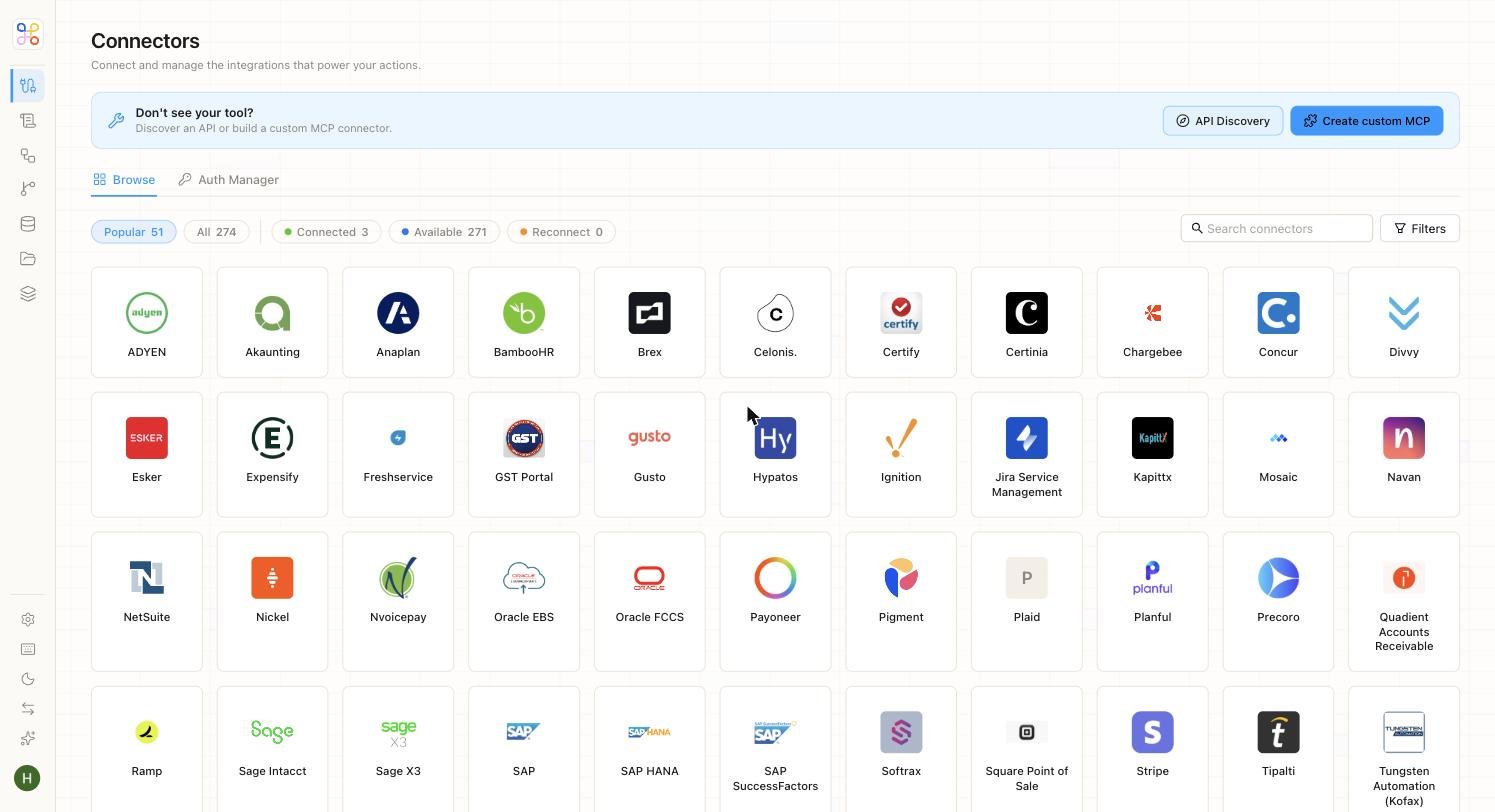
The gallery lists every available connector as a tile. Across the top, a row of filter chips lets you narrow the view, and a search bar finds a specific tool by name.
| Filter | What it shows |
| ------------- | -------------------------------------------------------------- |
| **Popular** | The most commonly used connectors — a curated starting set. |
| **All** | The full catalogue of every connector on the platform. |
| **Connected** | Connectors your firm has already authenticated and is using. |
| **Available** | Connectors in the catalogue you haven't set up yet. |
| **Reconnect** | Connectors whose authentication has lapsed and needs renewing. |
The catalogue spans the systems accounting and finance teams actually run on — ledgers and ERPs, document drives, expense and AP tools, tax portals, and data warehouses. Two tabs sit above the grid: **Browse** (the gallery itself) and **Auth Manager**, where you manage credentials for the connectors you've set up.
## Adding a Connector That Isn't Listed
If the tool you need isn't in the catalogue, you're not stuck. The **Create custom MCP** button (top right) lets you build your own connector. It offers two modes.
Build a connector with your own branding and configuration. You provide a name, a description of what the integration does, one or more categories, and an icon.
## Inside the Connector Gallery
The gallery lists every available connector as a tile. Across the top, a row of filter chips lets you narrow the view, and a search bar finds a specific tool by name.
| Filter | What it shows |
| ------------- | -------------------------------------------------------------- |
| **Popular** | The most commonly used connectors — a curated starting set. |
| **All** | The full catalogue of every connector on the platform. |
| **Connected** | Connectors your firm has already authenticated and is using. |
| **Available** | Connectors in the catalogue you haven't set up yet. |
| **Reconnect** | Connectors whose authentication has lapsed and needs renewing. |
The catalogue spans the systems accounting and finance teams actually run on — ledgers and ERPs, document drives, expense and AP tools, tax portals, and data warehouses. Two tabs sit above the grid: **Browse** (the gallery itself) and **Auth Manager**, where you manage credentials for the connectors you've set up.
## Adding a Connector That Isn't Listed
If the tool you need isn't in the catalogue, you're not stuck. The **Create custom MCP** button (top right) lets you build your own connector. It offers two modes.
Build a connector with your own branding and configuration. You provide a name, a description of what the integration does, one or more categories, and an icon.
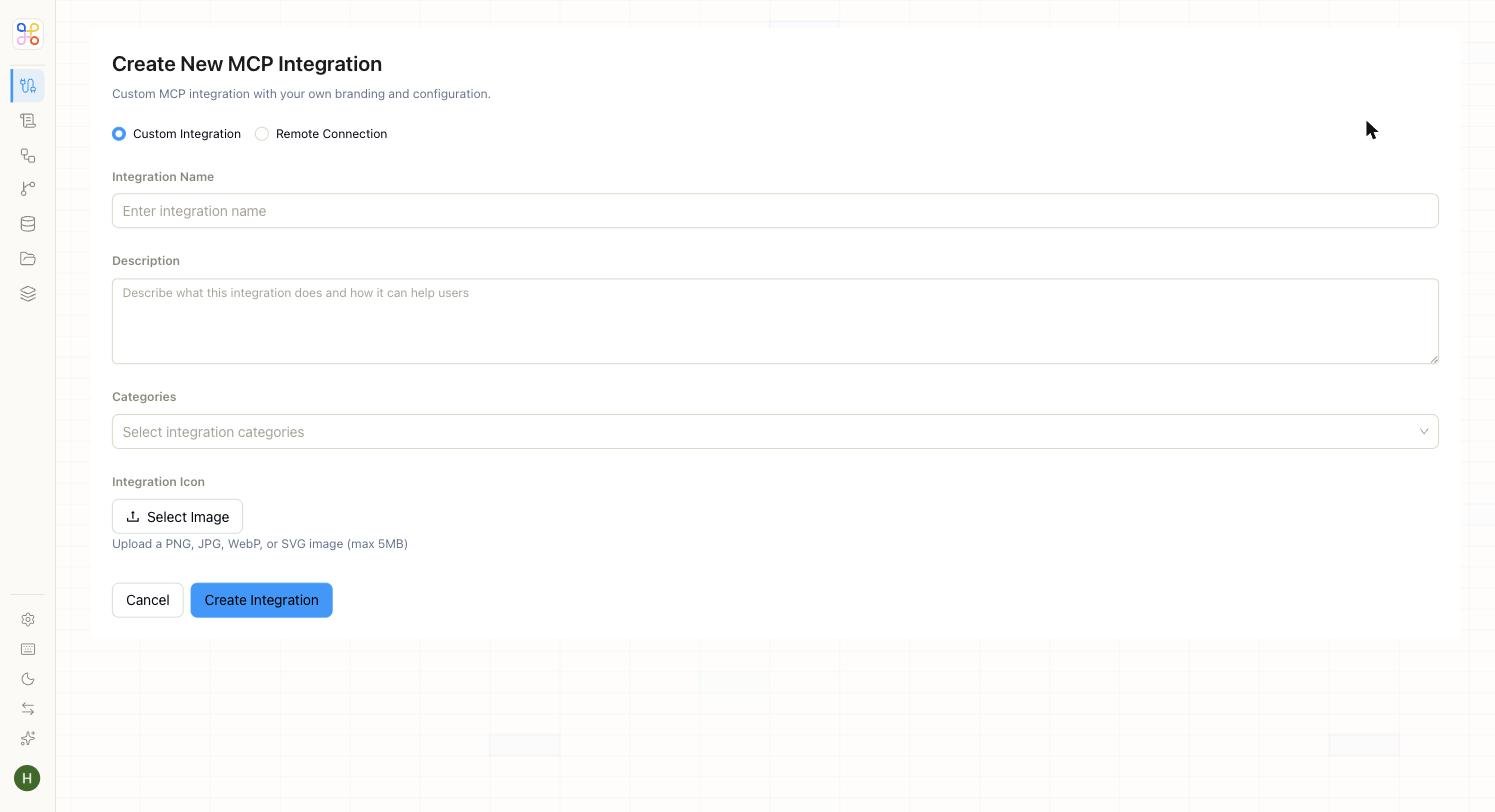 Connect to an external MCP server that already exists. Alongside the name and description, you provide the **MCP Link** (the connection URL), a **Connection Type**, an **Authentication Type** (such as Custom Headers), and any request **Headers** the server expects.
 ## Discovering APIs Automatically
Some systems don't publish clean API documentation — but that shouldn't stop you from connecting them. The **API Discovery** button opens Adopt's automatic discovery system, which explores an application like a power user and catalogues the APIs behind it, making them LLM-ready.
## Discovering APIs Automatically
Some systems don't publish clean API documentation — but that shouldn't stop you from connecting them. The **API Discovery** button opens Adopt's automatic discovery system, which explores an application like a power user and catalogues the APIs behind it, making them LLM-ready.
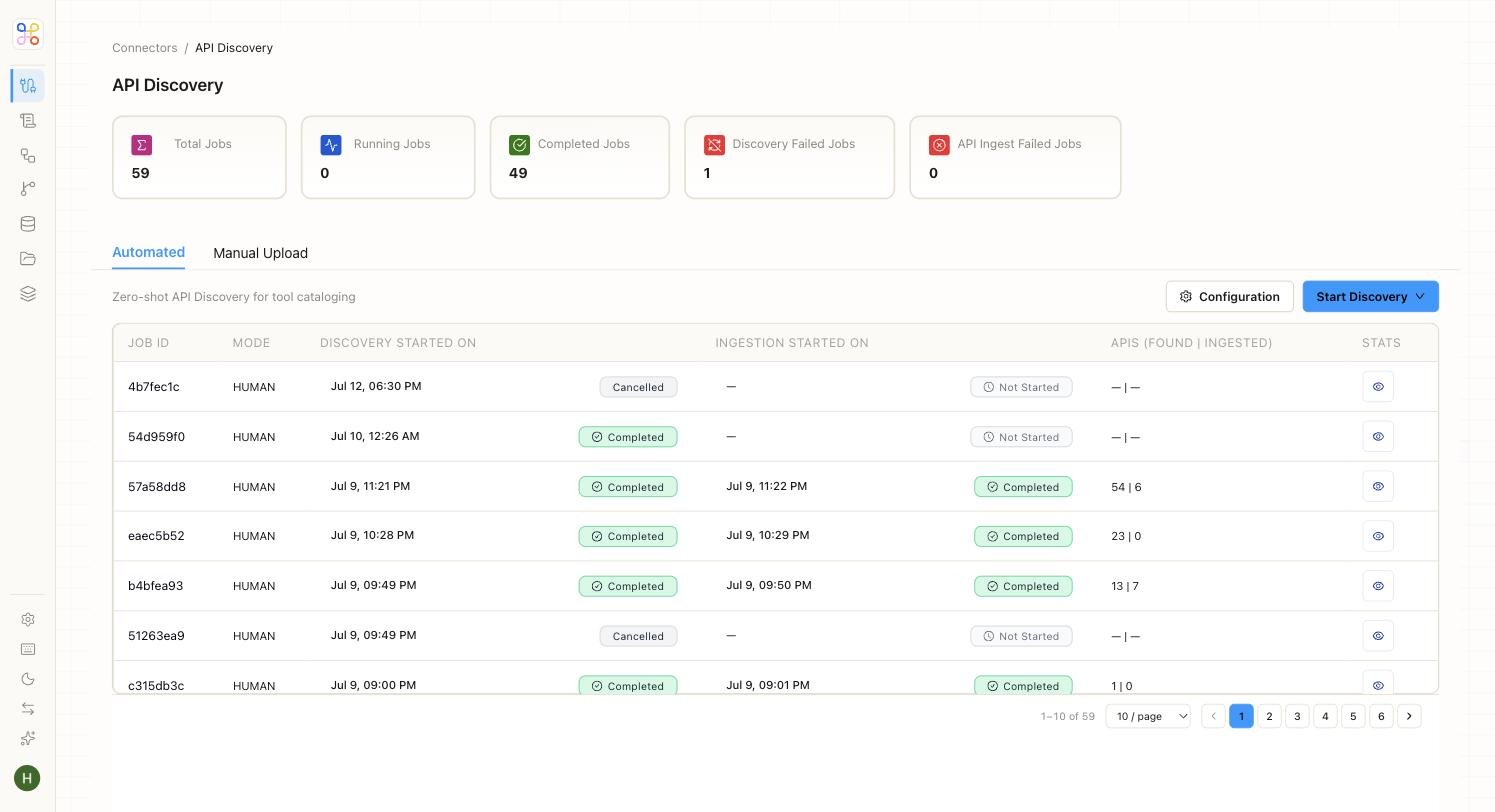 Each discovery run is logged with its mode, timing, and the number of APIs found and ingested. For the full mechanics of how this works, see [Zero Shot API Ingestion (ZAPI)](https://docs.adopt.ai/essentials/zero-shot-api-ingestion).
## Why Connectors Matter
Connectors are what make the platform stack-agnostic. Because they're defined once and reused everywhere, a single ledger connection powers every reconciliation skill, every close agent, and every pipeline that touches that ledger — no re-authentication, no duplication. Get your connectors right, and every layer above them just works.
## Next Steps
1. [Compose connectors into Skills](/accounting/skills)
2. [Use connectors as a Pipeline source](/accounting/pipelines)
3. [See how connectors fit the wider platform](/accounting/how-it-connects)
Each discovery run is logged with its mode, timing, and the number of APIs found and ingested. For the full mechanics of how this works, see [Zero Shot API Ingestion (ZAPI)](https://docs.adopt.ai/essentials/zero-shot-api-ingestion).
## Why Connectors Matter
Connectors are what make the platform stack-agnostic. Because they're defined once and reused everywhere, a single ledger connection powers every reconciliation skill, every close agent, and every pipeline that touches that ledger — no re-authentication, no duplication. Get your connectors right, and every layer above them just works.
## Next Steps
1. [Compose connectors into Skills](/accounting/skills)
2. [Use connectors as a Pipeline source](/accounting/pipelines)
3. [See how connectors fit the wider platform](/accounting/how-it-connects)