> ## Documentation Index
> Fetch the complete documentation index at: https://docs.adopt.ai/llms.txt
> Use this file to discover all available pages before exploring further.
# The End-User App
> Where your team runs agents day to day — pick an agent, scope it to a client, and resolve the decisions it raises.
Everything built in the Builder comes together here. The End-User App is the runtime front door: a person opens an agent, scopes it to a client, has a conversation, watches the work progress, and steps in whenever the agent asks for a decision. No configuration, no canvas — just the agents your team has been given and the work they're doing.
## What Is the End-User App?
The App is where [Agents](/accounting/agents) actually run. It surfaces only the agents published to a given user, presents each client as a [Workstream](/accounting/workstreams) to scope the work, and renders any human-in-the-loop gate as a clear "Action needed" step. It's the same underlying objects as the Builder, seen through a runtime lens.
## Agent Home
The home screen shows the agents your team has set up for you. Each card describes what the agent does and, importantly, whether anything is waiting on you.
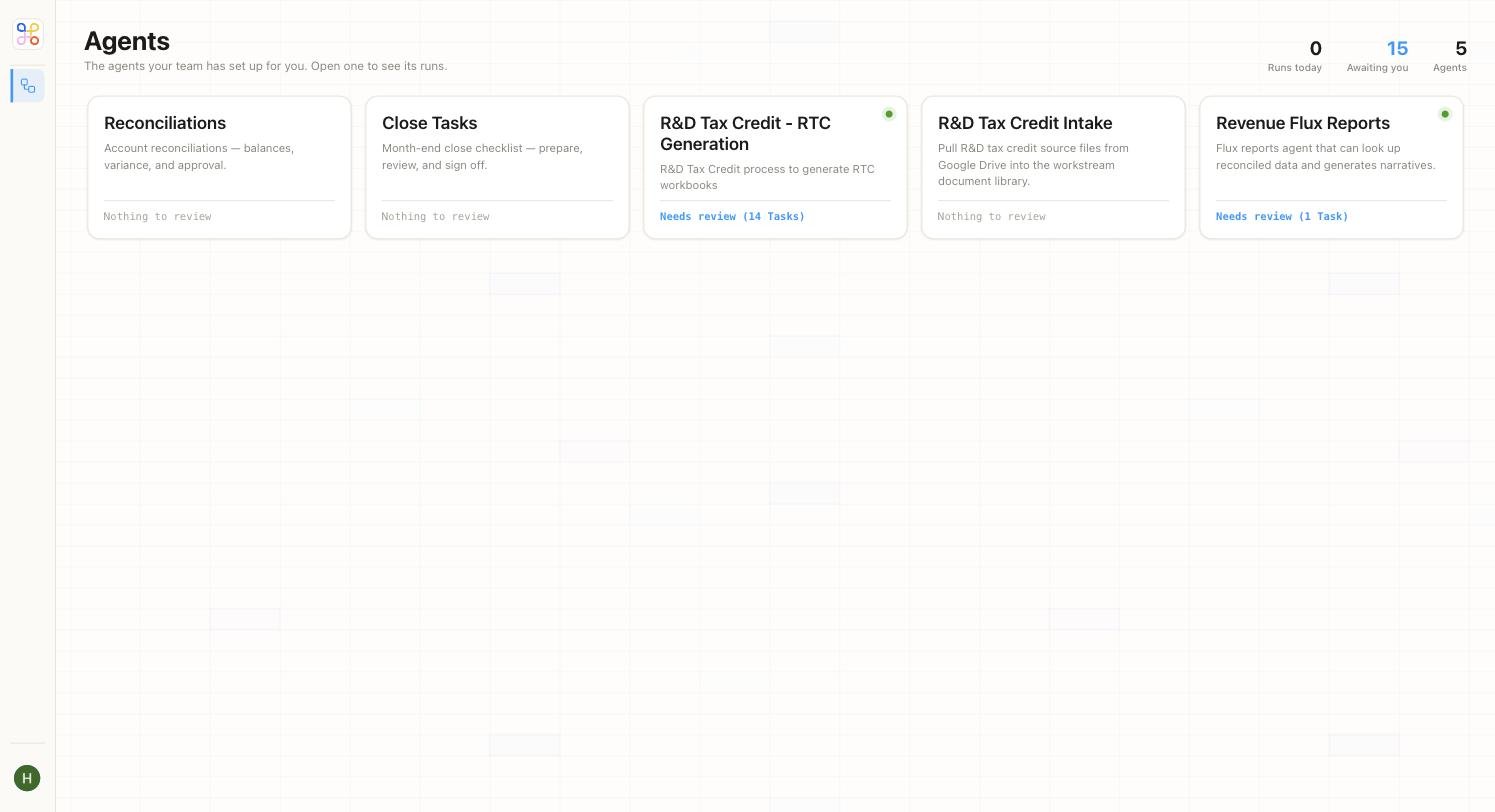 Across the top, three counters give you the state of play at a glance: **Runs today**, **Awaiting you**, and the number of **Agents** available. On each card, a status line tells you whether there's **Nothing to review** or a specific number of tasks that **Need review** — so you can go straight to what needs your attention.
## Starting a Run: Picking an Agent and a Workstream
Open an agent and you land on its live status view — its checkpoints and the workstreams it's running for.
Across the top, three counters give you the state of play at a glance: **Runs today**, **Awaiting you**, and the number of **Agents** available. On each card, a status line tells you whether there's **Nothing to review** or a specific number of tasks that **Need review** — so you can go straight to what needs your attention.
## Starting a Run: Picking an Agent and a Workstream
Open an agent and you land on its live status view — its checkpoints and the workstreams it's running for.
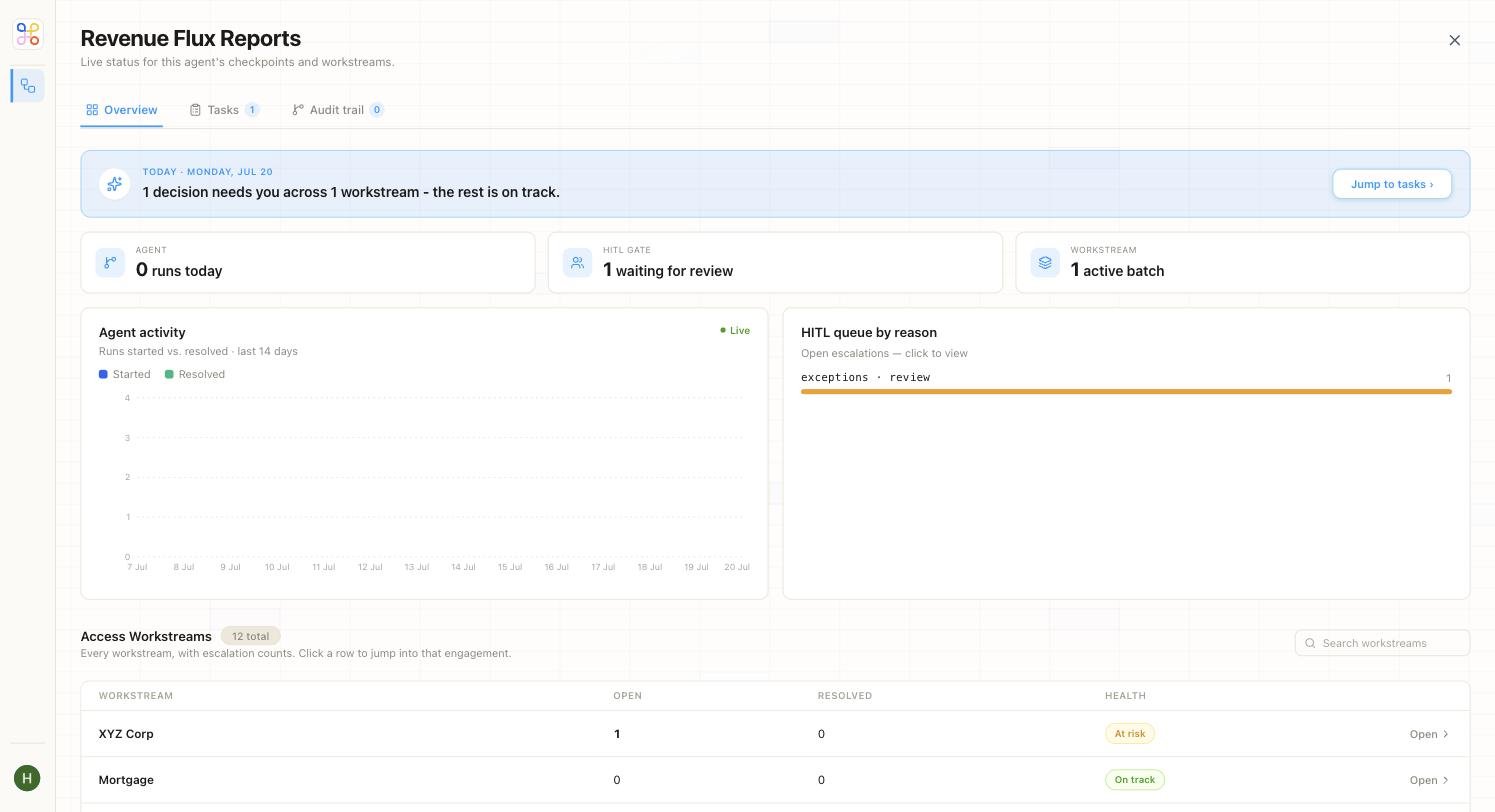 The overview summarizes where the agent stands: how many runs today, how many gates are waiting for review, and how each client is doing. The **Access Workstreams** table lists every client the agent runs for, with open and resolved counts and a health indicator (**On track** or **At risk**). Clicking a workstream row jumps straight into that client's engagement — the point where the agent's behaviour meets one client's isolated data.
## The Conversation and Workflow Tracker
Inside an engagement, the workspace has three zones: the client's files on the left, the conversation in the middle, and a live workflow tracker on the right.
The overview summarizes where the agent stands: how many runs today, how many gates are waiting for review, and how each client is doing. The **Access Workstreams** table lists every client the agent runs for, with open and resolved counts and a health indicator (**On track** or **At risk**). Clicking a workstream row jumps straight into that client's engagement — the point where the agent's behaviour meets one client's isolated data.
## The Conversation and Workflow Tracker
Inside an engagement, the workspace has three zones: the client's files on the left, the conversation in the middle, and a live workflow tracker on the right.
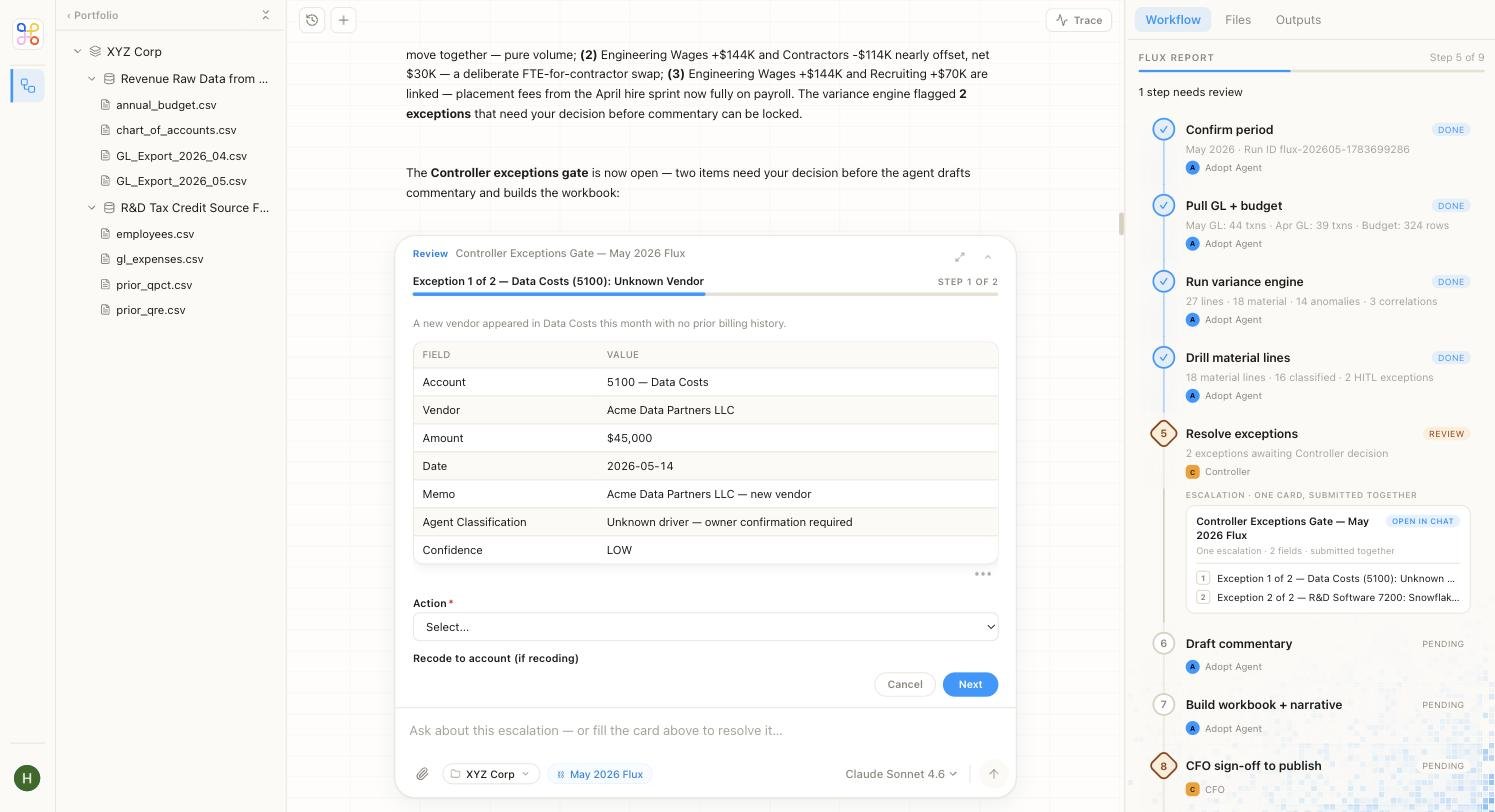 On the **left**, the workstream's files (from [File Explorer](/accounting/file-explorer)) — the exact documents the agent is working from, like `GL_Export_2026_05.csv` or the source PDFs.
In the **centre**, the conversation. You can ask anything in the workstream, and the agent narrates its work as it goes — for the Revenue Flux agent above, it walks through the variance drivers it found before pausing for your decision.
On the **right**, the **Workflow** panel — a live tracker of the run's steps. Each step shows its status, so you can see exactly where the run is and where it's waiting:
| Status | What it means |
| ----------- | -------------------------------------------------------------- |
| **Done** | The step completed. |
| **Review** | The step is paused, waiting on a human decision. |
| **Pending** | The step hasn't started yet — it's downstream of an open gate. |
In the flux example, the tracker shows steps like *Confirm period*, *Pull GL + budget*, and *Run variance engine* marked **Done**, *Resolve exceptions* marked **Review**, and *Draft commentary* and *CFO sign-off to publish* still **Pending**.
## Resolving a Human-in-the-Loop Step
When an agent opens a gate, it appears in the conversation as an **"Action needed"** card that arms you with everything you need to decide. The agent doesn't just ask a yes/no question — it lays out its work.
Take the flux example: the agent flagged a new vendor in Data Costs with no prior billing history and paused at the *Controller exceptions gate*. The review card shows the account, vendor, amount, date, the agent's classification, and its confidence — then asks you to pick an action before it continues.
You review, confirm or override, and the agent resumes with your decision injected back into its context. It then moves on to the pending steps — drafting the commentary and building the workbook — exactly as if it had known your answer all along. This is the only point where a human participates directly in a run, and it's by design: the agent prepares the work, you make the call.
## Why the App Matters
The App is where the value actually lands. All the connectors, skills, agents, and pipelines exist so that a team member can open one screen, see what's waiting on them, make a handful of informed decisions, and let the agents carry the rest. It turns a two-day analyst exercise into a few minutes of focused review — without ever taking the professional out of the loop.
## Next Steps
1. [Review how HITL gates are defined on the agent](/accounting/agents)
2. [Understand the workstream that scopes each run](/accounting/workstreams)
3. [See the design principles behind the App](/accounting/design-principles)
On the **left**, the workstream's files (from [File Explorer](/accounting/file-explorer)) — the exact documents the agent is working from, like `GL_Export_2026_05.csv` or the source PDFs.
In the **centre**, the conversation. You can ask anything in the workstream, and the agent narrates its work as it goes — for the Revenue Flux agent above, it walks through the variance drivers it found before pausing for your decision.
On the **right**, the **Workflow** panel — a live tracker of the run's steps. Each step shows its status, so you can see exactly where the run is and where it's waiting:
| Status | What it means |
| ----------- | -------------------------------------------------------------- |
| **Done** | The step completed. |
| **Review** | The step is paused, waiting on a human decision. |
| **Pending** | The step hasn't started yet — it's downstream of an open gate. |
In the flux example, the tracker shows steps like *Confirm period*, *Pull GL + budget*, and *Run variance engine* marked **Done**, *Resolve exceptions* marked **Review**, and *Draft commentary* and *CFO sign-off to publish* still **Pending**.
## Resolving a Human-in-the-Loop Step
When an agent opens a gate, it appears in the conversation as an **"Action needed"** card that arms you with everything you need to decide. The agent doesn't just ask a yes/no question — it lays out its work.
Take the flux example: the agent flagged a new vendor in Data Costs with no prior billing history and paused at the *Controller exceptions gate*. The review card shows the account, vendor, amount, date, the agent's classification, and its confidence — then asks you to pick an action before it continues.
You review, confirm or override, and the agent resumes with your decision injected back into its context. It then moves on to the pending steps — drafting the commentary and building the workbook — exactly as if it had known your answer all along. This is the only point where a human participates directly in a run, and it's by design: the agent prepares the work, you make the call.
## Why the App Matters
The App is where the value actually lands. All the connectors, skills, agents, and pipelines exist so that a team member can open one screen, see what's waiting on them, make a handful of informed decisions, and let the agents carry the rest. It turns a two-day analyst exercise into a few minutes of focused review — without ever taking the professional out of the loop.
## Next Steps
1. [Review how HITL gates are defined on the agent](/accounting/agents)
2. [Understand the workstream that scopes each run](/accounting/workstreams)
3. [See the design principles behind the App](/accounting/design-principles)