> ## Documentation Index
> Fetch the complete documentation index at: https://docs.adopt.ai/llms.txt
> Use this file to discover all available pages before exploring further.
# File Explorer
> A per-client document library of raw source files that both agents and people can search during a run.
Not all data is structured. A close depends on bank statements and invoices; a tax engagement depends on source PDFs and spreadsheets. File Explorer is where those raw documents live — the counterpart to the [Data Store](/accounting/data-store), which holds structured rows. Where the Data Store has tables, File Explorer has files.
## What Is File Explorer?
File Explorer stores source documents — `.pdf`, `.xlsx`, `.csv`, `.doc` — organized into folders called **Document Stores**. These are the files an agent can search and reason over during a run, and the same files appear to the person in the conversation, so everyone sees exactly what the agent is working from.
File Explorer is a scoped, searchable document library — a shared drive that both the agent and the human can open, per client.
## How to Access File Explorer
Click **File Explorer** in the left navigation, under the **Adopt Primitives** group.
 ## Document Stores
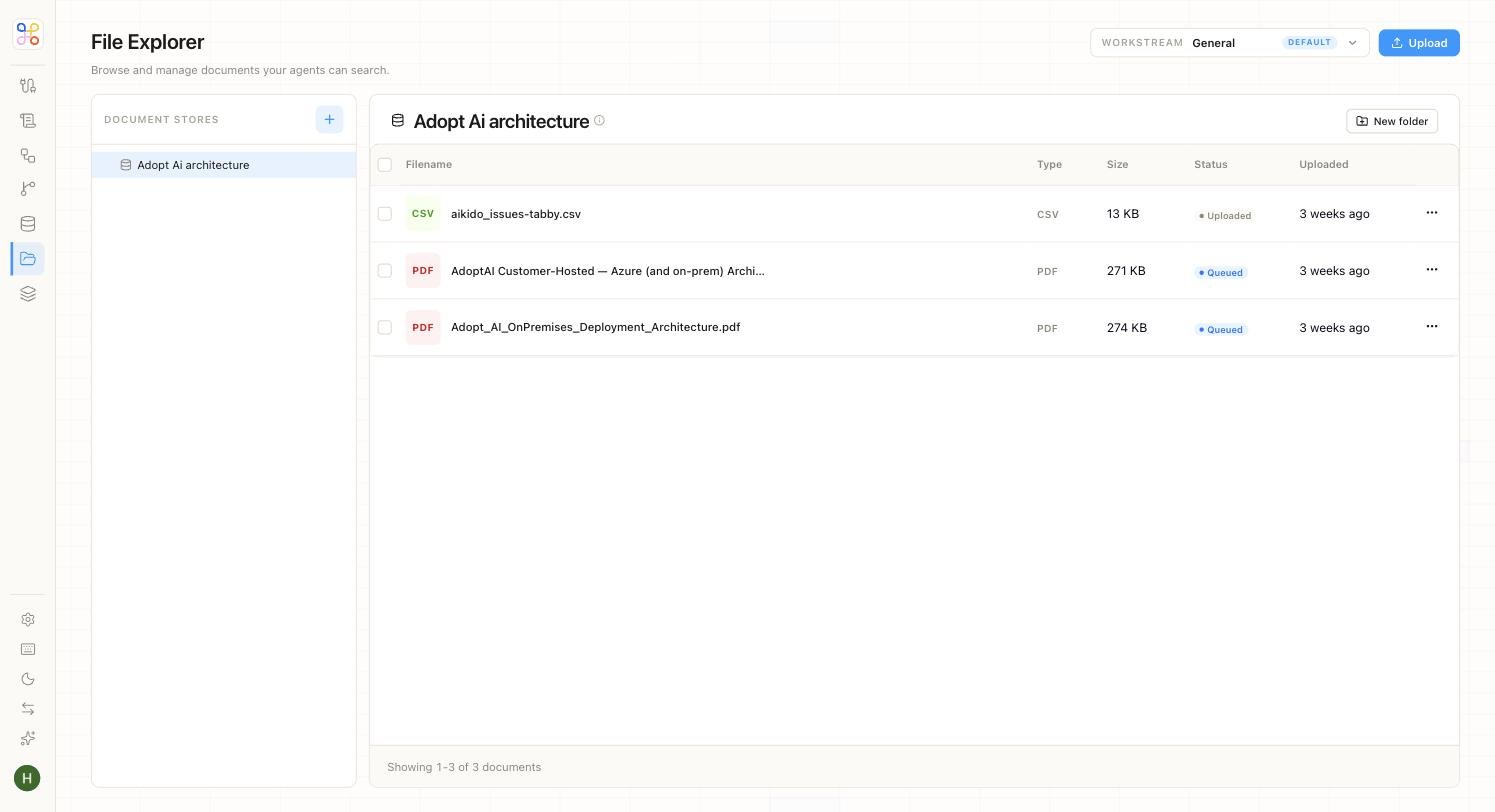
The left panel lists your **Document Stores** — the folders that group a client's source material. Use the **+** button to create a new store. Everything you see is scoped to the workstream selected in the **Workstream** picker at the top right, so switching clients switches the documents in view.
## Inside a Document Store
Selecting a store opens its file list. Each file is shown with the details you need to manage it:
| Column | What it shows |
| ------------ | --------------------------------------------------------------------------------------------------------- |
| **Filename** | The document's name, with a type icon. |
| **Type** | The file format — CSV, PDF, and so on. |
| **Size** | The file size. |
| **Status** | Where the file is in processing — for example, **Uploaded** (ready) or **Queued** (still being ingested). |
| **Uploaded** | When the file was added. |
A **New folder** button lets you organize documents into sub-folders within a store.
## How Files Get There
Documents reach a store in two ways. You can upload them directly with the **Upload** button. Or an intake agent or pipeline can populate the store automatically — for example, pulling a client's R\&D source files from a shared drive into the workstream's document library, which is exactly what the R\&D Tax Credit Intake agent does.
Because a document's **Status** reflects ingestion progress, a file marked **Queued** isn't yet searchable by an agent. Wait for it to reach **Uploaded** before running an agent that depends on it.
## Why File Explorer Matters
Accounting and tax work is document-heavy, and the source documents are often where the real answers live. File Explorer keeps each client's raw material tidy, searchable, and — critically — visible to both the agent and the reviewer. When an agent cites a figure from a bank statement, the reviewer can open that exact statement in the same view. No guessing about what the agent read.
## Next Steps
1. [See how structured data is handled in the Data Store](/accounting/data-store)
2. [Understand how Workstreams scope each client's documents](/accounting/workstreams)
3. [Watch files appear in a live run](/accounting/end-user-app)
## Document Stores
The left panel lists your **Document Stores** — the folders that group a client's source material. Use the **+** button to create a new store. Everything you see is scoped to the workstream selected in the **Workstream** picker at the top right, so switching clients switches the documents in view.
## Inside a Document Store
Selecting a store opens its file list. Each file is shown with the details you need to manage it:
| Column | What it shows |
| ------------ | --------------------------------------------------------------------------------------------------------- |
| **Filename** | The document's name, with a type icon. |
| **Type** | The file format — CSV, PDF, and so on. |
| **Size** | The file size. |
| **Status** | Where the file is in processing — for example, **Uploaded** (ready) or **Queued** (still being ingested). |
| **Uploaded** | When the file was added. |
A **New folder** button lets you organize documents into sub-folders within a store.
## How Files Get There
Documents reach a store in two ways. You can upload them directly with the **Upload** button. Or an intake agent or pipeline can populate the store automatically — for example, pulling a client's R\&D source files from a shared drive into the workstream's document library, which is exactly what the R\&D Tax Credit Intake agent does.
Because a document's **Status** reflects ingestion progress, a file marked **Queued** isn't yet searchable by an agent. Wait for it to reach **Uploaded** before running an agent that depends on it.
## Why File Explorer Matters
Accounting and tax work is document-heavy, and the source documents are often where the real answers live. File Explorer keeps each client's raw material tidy, searchable, and — critically — visible to both the agent and the reviewer. When an agent cites a figure from a bank statement, the reviewer can open that exact statement in the same view. No guessing about what the agent read.
## Next Steps
1. [See how structured data is handled in the Data Store](/accounting/data-store)
2. [Understand how Workstreams scope each client's documents](/accounting/workstreams)
3. [Watch files appear in a live run](/accounting/end-user-app)