> ## Documentation Index
> Fetch the complete documentation index at: https://docs.adopt.ai/llms.txt
> Use this file to discover all available pages before exploring further.
# Connecting a data source
> Step-by-step for linking a source (Google Drive, SharePoint, File Upload, S3) and syncing its files into a client's Doc Store.
This is how files get into Adopt: link a source, then sync its files into a client's Doc Store.
 ## Before you start
Decide which client (workstream) these files belong to. Files sync into **that** client's Doc Store and are isolated to it.
## Connect a source
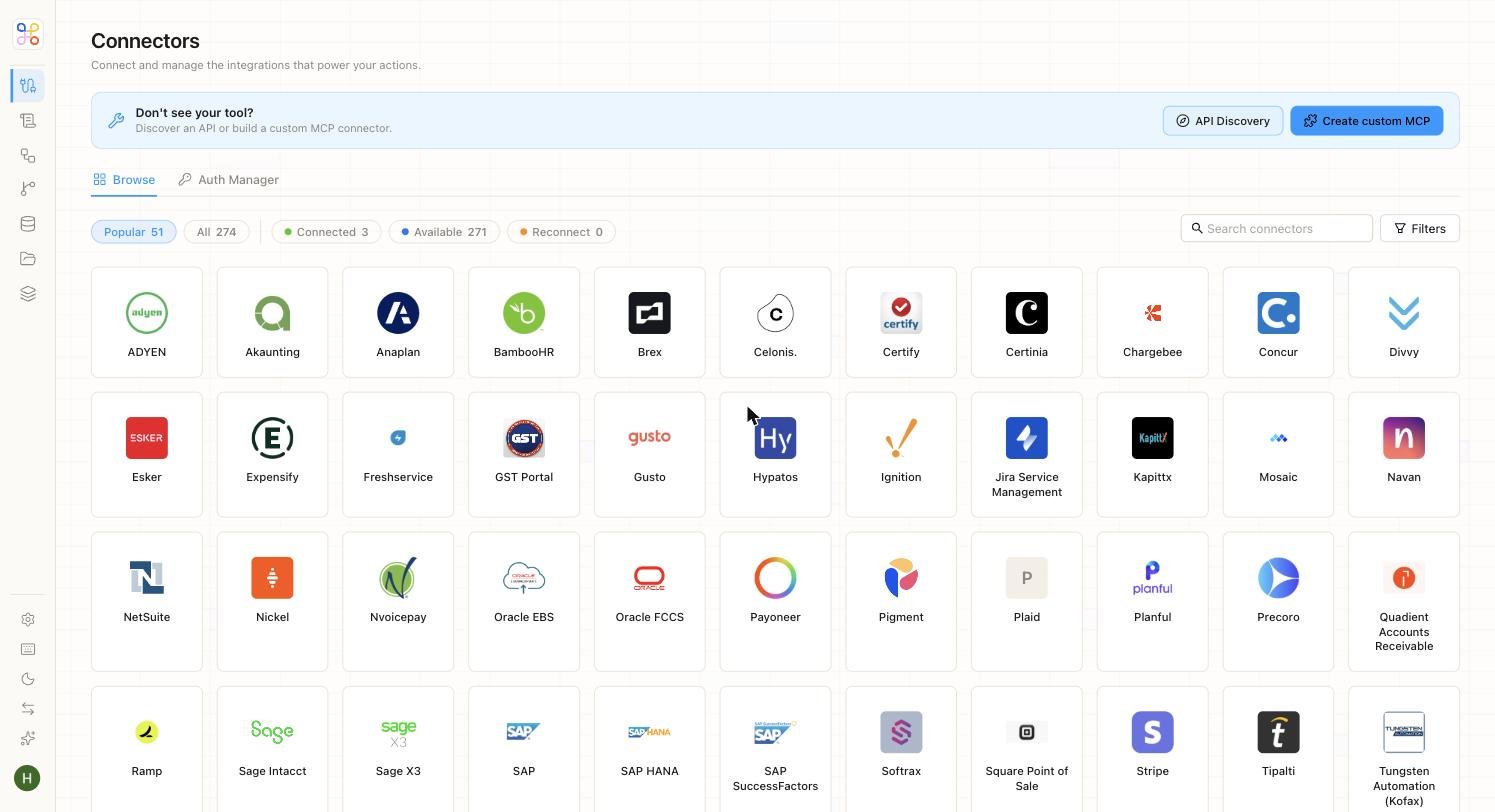
Open the Connectors area (or the "Add files" / "Sync data" step in setup).
* **Google Drive** — sync folders of documents.
* **SharePoint** — connect a site library.
* **File Upload** — drag in PDFs and spreadsheets directly (no external system).
* **Amazon S3** — sync a bucket prefix.
Provide the connection details the connector asks for, then select what to pull in — the folder, library, or bucket prefix.
## Run the sync
Once connected, run a **File Sync** to bring the files into the Doc Store. Run it once now, or set it to run on a schedule so new files come in automatically. See [Sync settings and filters](/builder-guide/sync-settings-and-filters).
After the sync, the files appear in the client's Doc Store (File Explorer). If they don't, see [Sync problems](/troubleshooting/sync-problems).
Choose the most privacy-preserving connection option a source offers, and scope the connector to the folder or prefix you actually need — not an entire drive. Connected sources are isolated per workstream, just like uploaded files.
## Next steps
1. [Sync settings and filters](/builder-guide/sync-settings-and-filters)
2. [Connectors and sync](/core-concepts/connectors-and-sync)
3. [Connector reference](/reference/connector-reference)
## Before you start
Decide which client (workstream) these files belong to. Files sync into **that** client's Doc Store and are isolated to it.
## Connect a source
Open the Connectors area (or the "Add files" / "Sync data" step in setup).
* **Google Drive** — sync folders of documents.
* **SharePoint** — connect a site library.
* **File Upload** — drag in PDFs and spreadsheets directly (no external system).
* **Amazon S3** — sync a bucket prefix.
Provide the connection details the connector asks for, then select what to pull in — the folder, library, or bucket prefix.
## Run the sync
Once connected, run a **File Sync** to bring the files into the Doc Store. Run it once now, or set it to run on a schedule so new files come in automatically. See [Sync settings and filters](/builder-guide/sync-settings-and-filters).
After the sync, the files appear in the client's Doc Store (File Explorer). If they don't, see [Sync problems](/troubleshooting/sync-problems).
Choose the most privacy-preserving connection option a source offers, and scope the connector to the folder or prefix you actually need — not an entire drive. Connected sources are isolated per workstream, just like uploaded files.
## Next steps
1. [Sync settings and filters](/builder-guide/sync-settings-and-filters)
2. [Connectors and sync](/core-concepts/connectors-and-sync)
3. [Connector reference](/reference/connector-reference)