> ## Documentation Index
> Fetch the complete documentation index at: https://docs.adopt.ai/llms.txt
> Use this file to discover all available pages before exploring further.
# Create a Data Store table
> How to add a structured table an agent can query, define its columns, and choose its scope.
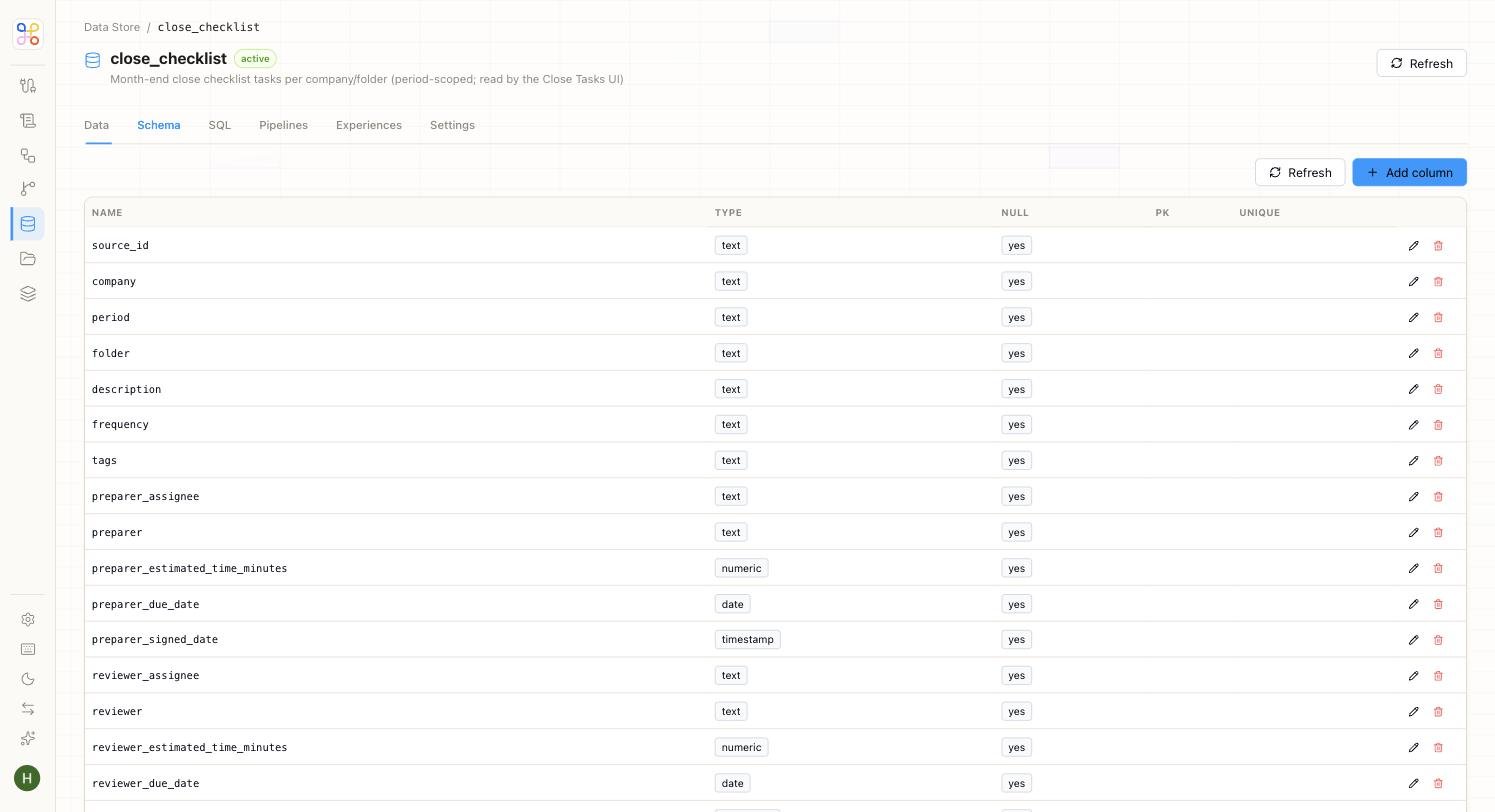
A Data Store table holds structured data — rows and columns — an agent can look things up in, distinct from the documents in a Doc Store. It's optional; add one only when the agent needs to *query* structured data.
 ## Create a table
1. In the Data Store area (or the "Create a Data Store table" step), choose to add a table.
2. **Table name** — lowercase with underscores, e.g. `client_management`.
3. **Columns** — define your fields, e.g. `client_name`, `industry`, `primary_contact`, `arr`, `status`. Standard columns (`id`, `created_at`, `updated_at`, `is_deleted`) are added automatically.
4. **Scope** — see below.
5. Review the SQL preview if shown, then create the table.
## Choosing scope
Scope uses the same two axes as everything in Adopt: which clients can see the rows, and which agents can read them.
* **Global** — org-wide; every workstream and agent reads it. Use for reference data that isn't client-specific (e.g. a table of tax rates).
* **Workstream-based (row-level security)** — each client sees only its own rows. The safe default for client data.
* **Workstream + Agent** — per client, and only readable by specifically tagged agents. The tightest option; use when even within a client, only one agent should read the table.
If you're unsure, choose **Workstream-based**. It's the default the Quick path applies.
## Populating it
Once created, the table can be filled via import or the API, and kept current the same way. (Verify the current import method in the app.)
## Letting an agent use it
Creating a table doesn't automatically let an agent read it — the agent needs the **Query Data Store** skill enabled and the appropriate access. See [Instructions and skills](/builder-guide/instructions-and-skills) and [Access scoping](/security-access/access-scoping).
## Next steps
1. [Doc Stores and Data Stores](/core-concepts/doc-stores-and-data-stores)
2. [Access scoping](/security-access/access-scoping)
3. [Schedule and publish](/builder-guide/schedule-and-publish)
## Create a table
1. In the Data Store area (or the "Create a Data Store table" step), choose to add a table.
2. **Table name** — lowercase with underscores, e.g. `client_management`.
3. **Columns** — define your fields, e.g. `client_name`, `industry`, `primary_contact`, `arr`, `status`. Standard columns (`id`, `created_at`, `updated_at`, `is_deleted`) are added automatically.
4. **Scope** — see below.
5. Review the SQL preview if shown, then create the table.
## Choosing scope
Scope uses the same two axes as everything in Adopt: which clients can see the rows, and which agents can read them.
* **Global** — org-wide; every workstream and agent reads it. Use for reference data that isn't client-specific (e.g. a table of tax rates).
* **Workstream-based (row-level security)** — each client sees only its own rows. The safe default for client data.
* **Workstream + Agent** — per client, and only readable by specifically tagged agents. The tightest option; use when even within a client, only one agent should read the table.
If you're unsure, choose **Workstream-based**. It's the default the Quick path applies.
## Populating it
Once created, the table can be filled via import or the API, and kept current the same way. (Verify the current import method in the app.)
## Letting an agent use it
Creating a table doesn't automatically let an agent read it — the agent needs the **Query Data Store** skill enabled and the appropriate access. See [Instructions and skills](/builder-guide/instructions-and-skills) and [Access scoping](/security-access/access-scoping).
## Next steps
1. [Doc Stores and Data Stores](/core-concepts/doc-stores-and-data-stores)
2. [Access scoping](/security-access/access-scoping)
3. [Schedule and publish](/builder-guide/schedule-and-publish)