> ## Documentation Index
> Fetch the complete documentation index at: https://docs.adopt.ai/llms.txt
> Use this file to discover all available pages before exploring further.
# Inviting members and setting access
> How to give people access to a client, scoped correctly so they see only what they should.
Access in Adopt is granted per client, not globally — which is exactly what keeps one client's work invisible to everyone who shouldn't see it.
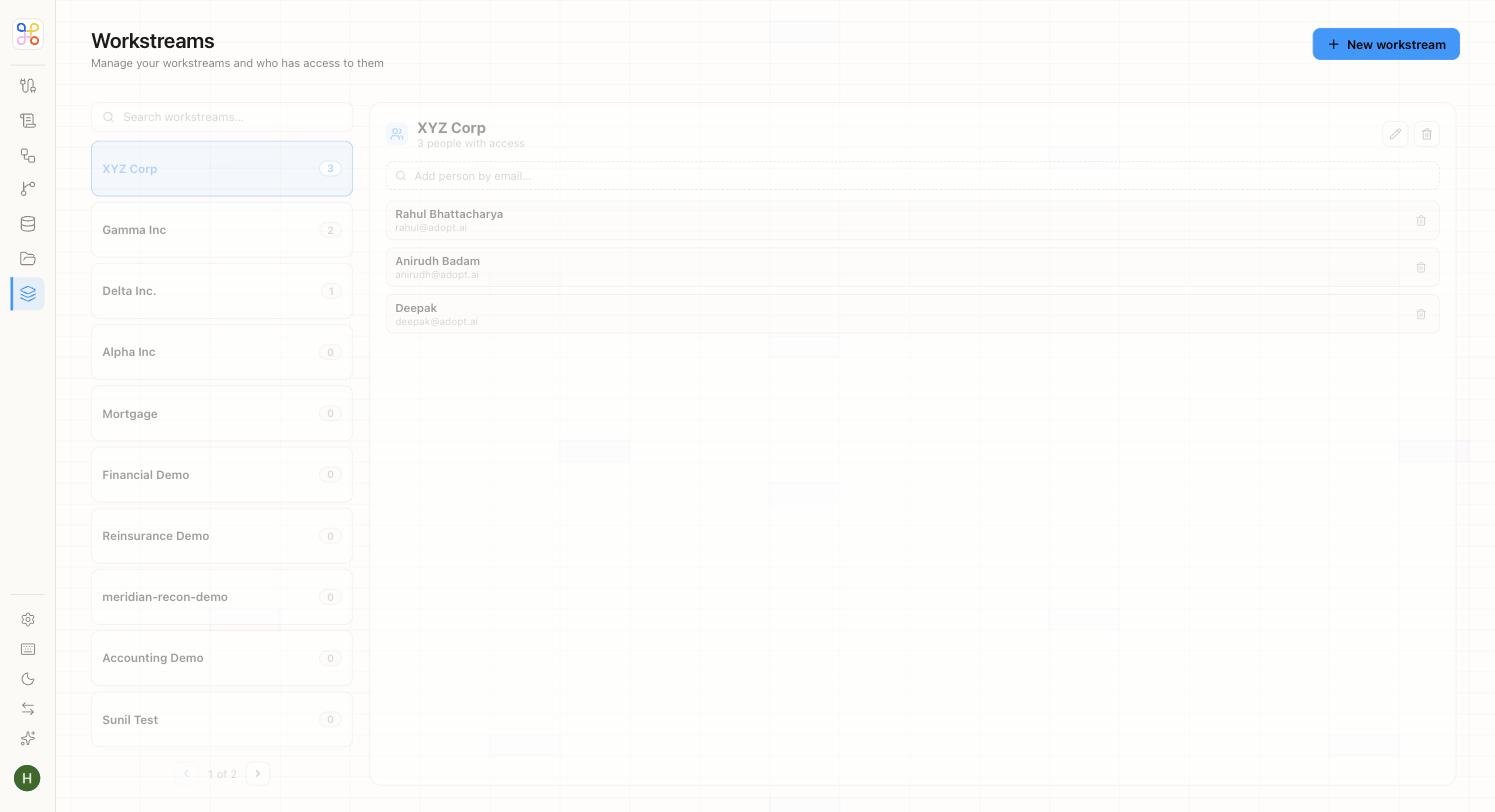 ## Access is per client (workstream)
Members are granted access **per workstream**. There's no global "see everything" for regular users — someone with access to Client A cannot see Client B unless separately granted. This is the mechanism behind client confidentiality.
## Invite someone to a client
1. Open the client (workstream).
2. Go to its **members / access** area.
3. Invite the person by email and set their **role** (see [Roles and permissions](/security-access/roles-and-permissions)).
They'll now see that client — and only that client — when they log in.
## Reviewers
Reviewers for the human-in-the-loop gate are assigned at the **engagement** (process) level, so the person who reviews R\&D work for a client can differ from who reviews their transfer-pricing work. Set reviewers when configuring the engagement.
## Removing access
Remove a member from a workstream to revoke their access to that client. For someone leaving the organization entirely, an admin should handle full deprovisioning — see [Managing members](/admin/managing-members).
## Next steps
1. [Roles and permissions](/security-access/roles-and-permissions)
2. [Access scoping](/security-access/access-scoping)
3. [Setting Doc Store access](/builder-guide/doc-store-access)
## Access is per client (workstream)
Members are granted access **per workstream**. There's no global "see everything" for regular users — someone with access to Client A cannot see Client B unless separately granted. This is the mechanism behind client confidentiality.
## Invite someone to a client
1. Open the client (workstream).
2. Go to its **members / access** area.
3. Invite the person by email and set their **role** (see [Roles and permissions](/security-access/roles-and-permissions)).
They'll now see that client — and only that client — when they log in.
## Reviewers
Reviewers for the human-in-the-loop gate are assigned at the **engagement** (process) level, so the person who reviews R\&D work for a client can differ from who reviews their transfer-pricing work. Set reviewers when configuring the engagement.
## Removing access
Remove a member from a workstream to revoke their access to that client. For someone leaving the organization entirely, an admin should handle full deprovisioning — see [Managing members](/admin/managing-members).
## Next steps
1. [Roles and permissions](/security-access/roles-and-permissions)
2. [Access scoping](/security-access/access-scoping)
3. [Setting Doc Store access](/builder-guide/doc-store-access)