> ## Documentation Index
> Fetch the complete documentation index at: https://docs.adopt.ai/llms.txt
> Use this file to discover all available pages before exploring further.
# Working with clients and files
> How to add or update the files an agent works from, and why you can only ever see the clients you've been given access to.
Agents work from the files you give them, scoped to one client at a time. Here's how to add files, keep them current, and understand why you only see certain clients.
## Clients are kept separate
Each client in Adopt is completely isolated. If you have access to one client, you cannot see another client's files or results — and they can't see yours. This is how Adopt protects client confidentiality, and it's not something you can accidentally switch off.
You'll only see the clients you've been granted access to. If you think you're missing one, ask whoever administers Adopt for your firm to add you.
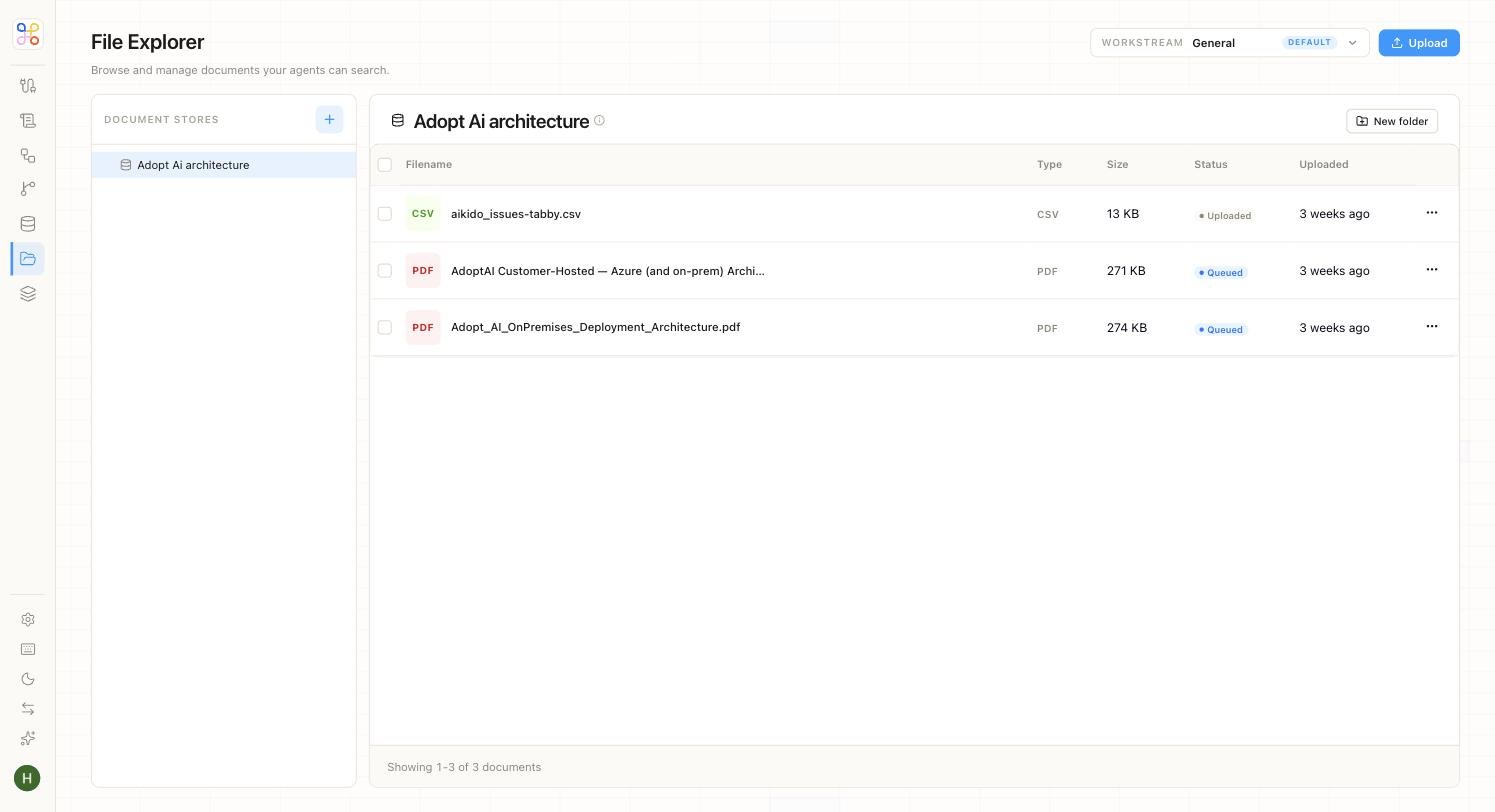 ## Adding files
Open the client and use **Add files**. You can:
* **Drag and drop** documents directly (PDFs, spreadsheets, and so on), or
* **Connect a source** like Google Drive or SharePoint, so files sync in automatically.
Newly added files are available to the next run.
## Keeping files current
If an agent's output looks like it used stale data, the fix is usually to refresh the files:
* For **uploaded files**, add the newer version.
* For a **connected source**, files sync automatically — but a very recent change might not have synced yet. A builder or admin can trigger a fresh sync (see [Sync settings and filters](/builder-guide/sync-settings-and-filters)).
## Who can see a client
Access is set per client. When a client is created, specific people are invited. If you need to give a colleague access, that's an access change — see [Roles and permissions](/security-access/roles-and-permissions) or ask an admin.
## Next steps
1. [Connectors and sync](/core-concepts/connectors-and-sync)
2. [Isolation and multi-tenancy](/security-access/isolation-and-multi-tenancy)
3. [Roles and permissions](/security-access/roles-and-permissions)
## Adding files
Open the client and use **Add files**. You can:
* **Drag and drop** documents directly (PDFs, spreadsheets, and so on), or
* **Connect a source** like Google Drive or SharePoint, so files sync in automatically.
Newly added files are available to the next run.
## Keeping files current
If an agent's output looks like it used stale data, the fix is usually to refresh the files:
* For **uploaded files**, add the newer version.
* For a **connected source**, files sync automatically — but a very recent change might not have synced yet. A builder or admin can trigger a fresh sync (see [Sync settings and filters](/builder-guide/sync-settings-and-filters)).
## Who can see a client
Access is set per client. When a client is created, specific people are invited. If you need to give a colleague access, that's an access change — see [Roles and permissions](/security-access/roles-and-permissions) or ask an admin.
## Next steps
1. [Connectors and sync](/core-concepts/connectors-and-sync)
2. [Isolation and multi-tenancy](/security-access/isolation-and-multi-tenancy)
3. [Roles and permissions](/security-access/roles-and-permissions)