> ## Documentation Index
> Fetch the complete documentation index at: https://docs.adopt.ai/llms.txt
> Use this file to discover all available pages before exploring further.
# Creating Your First Action
> Step-by-step walkthrough for building your first action from scratch
## Starting Simple
The best way to learn is by creating a straightforward action. This section walks through building a practical example: an action that fetches upcoming license renewals.
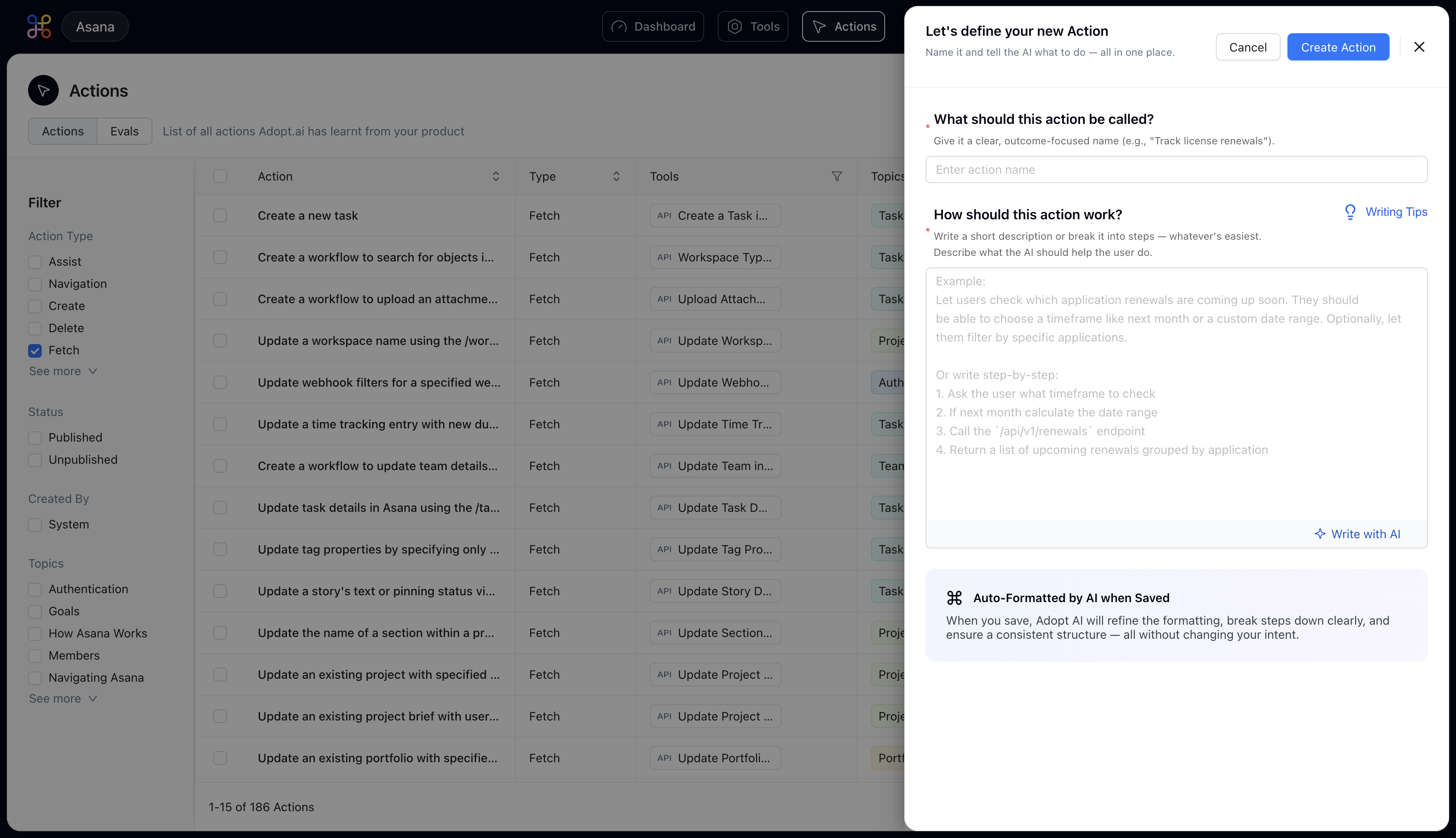
**Click the "+ New Action" button** to open the creation dialog. You'll see two main questions to answer.
 ## Naming Your Action
Give your action a name that clearly describes what it accomplishes. Start with a verb—Track, Get, Update, Generate, etc.—and be specific enough that someone reading the name immediately understands the purpose.
**Examples of Effective Nomenclature:**
* Track software license renewals
* Generate monthly sales report
* Update user permissions
* Create support ticket
**Nomenclature to Avoid:**
* License stuff (too vague)
* Get data (what data?)
* Action 1 (not descriptive)
The name appears throughout the system, so make it count. Your team members and the AI both rely on it to understand what the action does.
## Describing What You Want
This is where the magic happens. You're going to describe exactly what you want to accomplish, just as if you were explaining it to a colleague. The AI will read this description and build the entire workflow for you.
**You have two approaches:**
**Approach 1: Natural Description** Write a few sentences explaining the task:
```
Let users check which software licenses are expiring in the next 30, 60, or 90 days.
They should be able to filter by specific applications if they want. Return a list
showing the license name, expiration date, cost, and who's responsible for renewal.
```
**Approach 2: Step-by-Step** Break it down into numbered steps:
```
1. Ask the user what timeframe they want (next month, next quarter, or custom date range)
2. If they choose custom, get the start and end dates
3. Call the /api/licenses/upcoming endpoint with the date parameters
4. Filter the results if the user specified particular applications
5. Return a formatted table with columns: License Name, Expiration Date, Annual Cost, Owner
```
**Which approach should you use?** If you have a clear mental model of the steps involved, use the step-by-step format—it gives the AI more precise guidance. If you're not sure about the technical details, the natural description works great. The AI will figure out the steps.
## Subsequent Process
After clicking "Create Action," the AI processes your request. Within approximately 10-15 seconds, the system will:
* Analyze your description to understand the intent
* Identify which APIs or data sources are needed
* Break the task into discrete steps
* Assign the appropriate step types to each operation
* Generate the complete workflow logic
You'll then land on the Action Details page, where you can review everything the AI created, test it out, and make refinements.
The action creation process is designed to handle both simple and complex workflows. Start with a clear description, and the AI will translate your intent into a functional workflow that you can test and refine.
As next steps, we will learn on how the actions are edited and refined by [Understanding Your Action's Workflow](/essentials/understanding-your-actions-workflow)
## Naming Your Action
Give your action a name that clearly describes what it accomplishes. Start with a verb—Track, Get, Update, Generate, etc.—and be specific enough that someone reading the name immediately understands the purpose.
**Examples of Effective Nomenclature:**
* Track software license renewals
* Generate monthly sales report
* Update user permissions
* Create support ticket
**Nomenclature to Avoid:**
* License stuff (too vague)
* Get data (what data?)
* Action 1 (not descriptive)
The name appears throughout the system, so make it count. Your team members and the AI both rely on it to understand what the action does.
## Describing What You Want
This is where the magic happens. You're going to describe exactly what you want to accomplish, just as if you were explaining it to a colleague. The AI will read this description and build the entire workflow for you.
**You have two approaches:**
**Approach 1: Natural Description** Write a few sentences explaining the task:
```
Let users check which software licenses are expiring in the next 30, 60, or 90 days.
They should be able to filter by specific applications if they want. Return a list
showing the license name, expiration date, cost, and who's responsible for renewal.
```
**Approach 2: Step-by-Step** Break it down into numbered steps:
```
1. Ask the user what timeframe they want (next month, next quarter, or custom date range)
2. If they choose custom, get the start and end dates
3. Call the /api/licenses/upcoming endpoint with the date parameters
4. Filter the results if the user specified particular applications
5. Return a formatted table with columns: License Name, Expiration Date, Annual Cost, Owner
```
**Which approach should you use?** If you have a clear mental model of the steps involved, use the step-by-step format—it gives the AI more precise guidance. If you're not sure about the technical details, the natural description works great. The AI will figure out the steps.
## Subsequent Process
After clicking "Create Action," the AI processes your request. Within approximately 10-15 seconds, the system will:
* Analyze your description to understand the intent
* Identify which APIs or data sources are needed
* Break the task into discrete steps
* Assign the appropriate step types to each operation
* Generate the complete workflow logic
You'll then land on the Action Details page, where you can review everything the AI created, test it out, and make refinements.
The action creation process is designed to handle both simple and complex workflows. Start with a clear description, and the AI will translate your intent into a functional workflow that you can test and refine.
As next steps, we will learn on how the actions are edited and refined by [Understanding Your Action's Workflow](/essentials/understanding-your-actions-workflow)