> ## Documentation Index
> Fetch the complete documentation index at: https://docs.adopt.ai/llms.txt
> Use this file to discover all available pages before exploring further.
# Publishing, Sharing & Access Control
> Move an Experience from Draft to Published, control who can access it, and share it via link or embed.
Building an Experience is only half the work — getting it in front of the right people is the other half. The publishing, sharing, and access system gives you precise control over when something goes live, who can see it, and how it gets delivered.
## Draft vs. Published
Every Experience starts as a **Draft**. A Draft is only visible to editors inside the Experience Builder — it's never accessible via share link or embed until you explicitly publish it.
When you're ready to make it live, click `Publish` in the top toolbar. The status badge updates from **DRAFT** to **PUBLISHED** and the Experience becomes accessible to anyone you've shared it with.
Publishing captures the current saved state of the Experience. If you make further edits after publishing, those changes won't be visible to viewers until you publish again. Use `Save` to save your work in the builder, then `Publish` when you're ready to push it live.
### Republishing After Edits
Published Experiences can be edited at any time — edits go into a new draft state while the previously published version stays live. When your changes are ready, click `Publish` again to replace the live version. Viewers will see the update immediately on their next page refresh.
## Access Control
By default, a Published Experience is publicly accessible — anyone with the link can view it. If your Experience contains sensitive data or is intended for a specific audience, you should restrict access by adding Viewers or Editors.
Click **Access** in the top toolbar to open the Access Control panel.
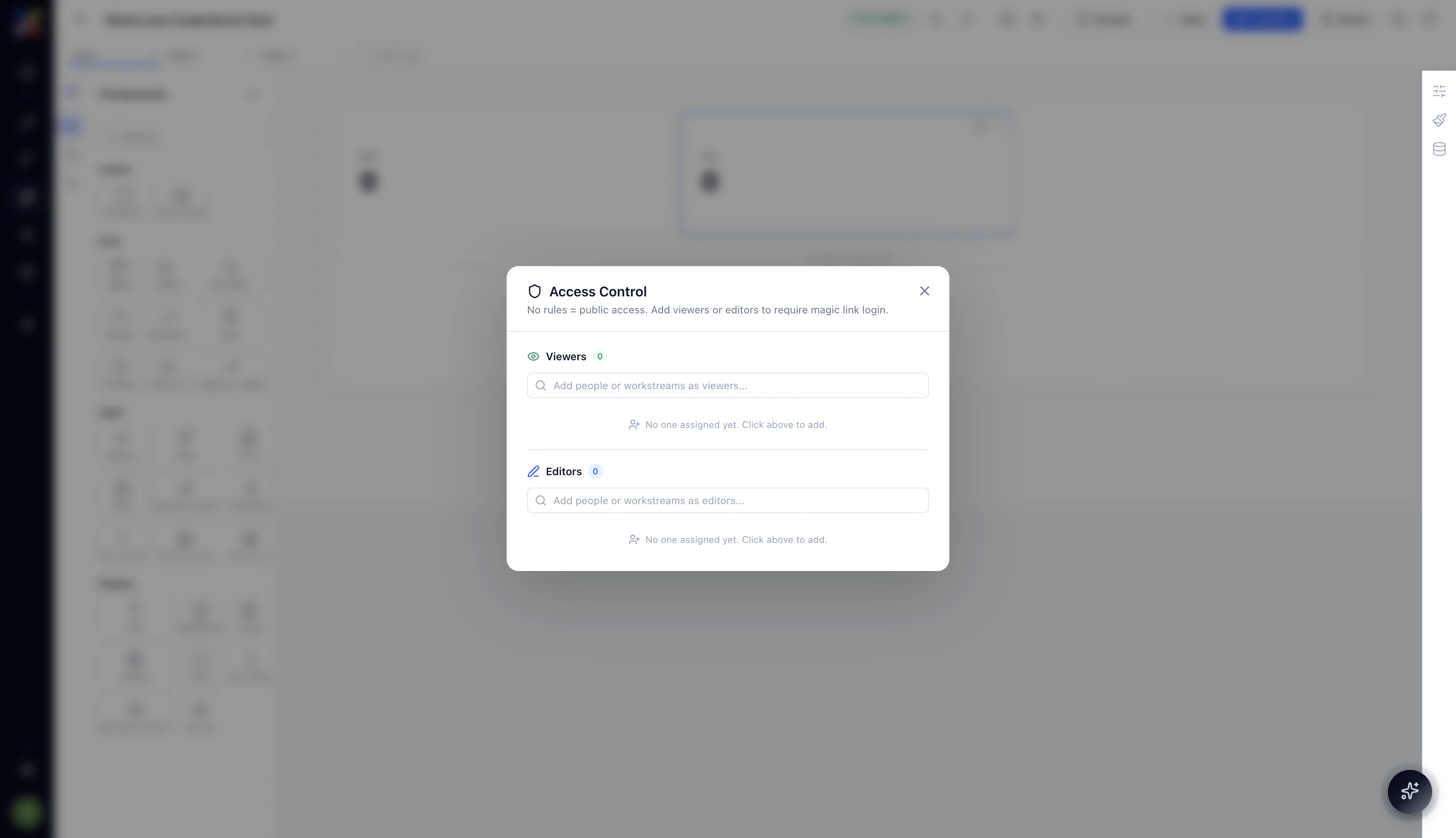 The panel explains the rule clearly at the top: **No rules = public access. Add viewers or editors to require magic link login.**
| Role | What they can do |
| ---------- | ------------------------------------------------------------------------------------- |
| **Viewer** | Open and interact with the published Experience. Cannot edit anything in the builder. |
| **Editor** | Access the Experience Builder and make changes. Can also save and publish. |
### Adding People or Groups
Type a name or email in the **Viewers** or **Editors** search field to find people in your workspace and add them. You can also add groups if your workspace uses team-based permissions.
### Magic Link Authentication
Once you add at least one Viewer or Editor, access becomes restricted. Anyone who tries to open the Experience via its share link will be required to authenticate via a **magic link** — a one-time login link sent to their email.
This means you don't need to manage passwords or OAuth integrations for your Experience viewers. They get a link, click the email, and they're in.
Magic link login is required only when access rules are in place. Removing all Viewers and Editors reverts the Experience to public access. Double-check your access settings before sharing a link to sensitive data.
## Sharing Your Experience
Click **Share** in the top toolbar to open the share panel.
The panel explains the rule clearly at the top: **No rules = public access. Add viewers or editors to require magic link login.**
| Role | What they can do |
| ---------- | ------------------------------------------------------------------------------------- |
| **Viewer** | Open and interact with the published Experience. Cannot edit anything in the builder. |
| **Editor** | Access the Experience Builder and make changes. Can also save and publish. |
### Adding People or Groups
Type a name or email in the **Viewers** or **Editors** search field to find people in your workspace and add them. You can also add groups if your workspace uses team-based permissions.
### Magic Link Authentication
Once you add at least one Viewer or Editor, access becomes restricted. Anyone who tries to open the Experience via its share link will be required to authenticate via a **magic link** — a one-time login link sent to their email.
This means you don't need to manage passwords or OAuth integrations for your Experience viewers. They get a link, click the email, and they're in.
Magic link login is required only when access rules are in place. Removing all Viewers and Editors reverts the Experience to public access. Double-check your access settings before sharing a link to sensitive data.
## Sharing Your Experience
Click **Share** in the top toolbar to open the share panel.
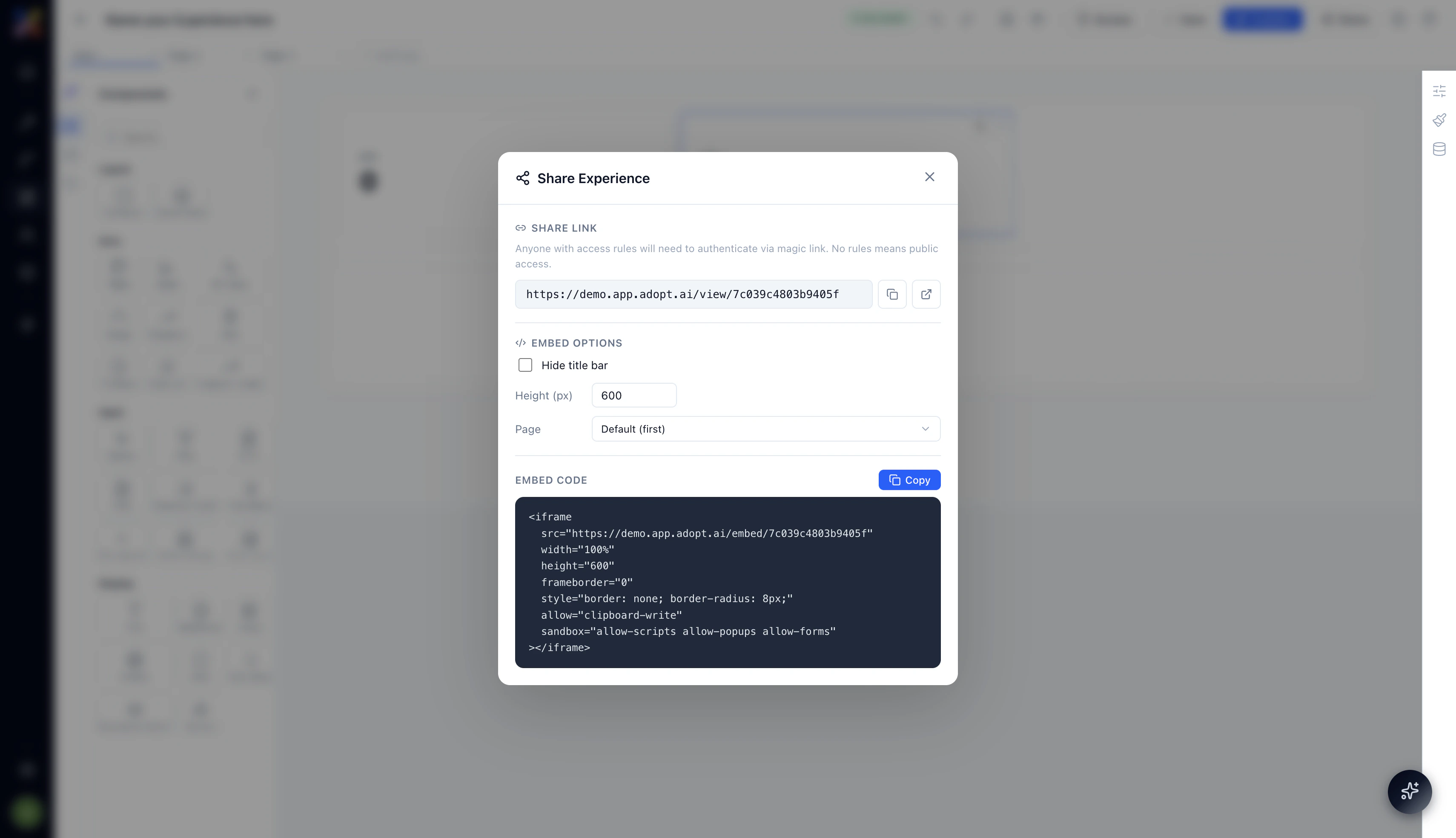 ### Share Link
The share link is a direct URL to the published Experience:
```text theme={null}
https://[your-workspace].app.adopt.ai/view/[experience-id]
```
Copy the link with the copy icon or open it directly in a new tab with the external link icon. Send this link to anyone you want to give access — viewers with magic link authentication will be prompted to verify their email before seeing the Experience.
### Embedding the Experience
You can embed any published Experience directly into another application — an internal portal, a Notion page, a CRM record view, or any platform that accepts iframes. The Share panel provides a ready-to-use embed code.
**Embed options:**
| Option | What it controls |
| ------------------ | --------------------------------------------------------------------------------------------------------------------- |
| **Hide title bar** | Remove the Experience name and nav header from the embedded view — useful when the host page provides its own context |
| **Height (px)** | Set the iframe height. Default is 600px |
| **Page** | Choose which page the embed opens on by default. Defaults to the first page |
The embed code is generated automatically based on your selections:
```html theme={null}
```
Click **Copy** to copy the full embed code to your clipboard.
The embed URL is separate from the view URL. Embed links render the Experience in a frameless layout optimized for iframes — no Adopt nav chrome, just the Experience content.
## Why This Matters
Experiences only create value when the right people see them. The access system is designed to make sharing easy without making it careless — public by default for internal tools, restricted with one click when the data warrants it. And because the embed system is a standard iframe, you can bring your Experience into whatever environment your team already works in.
### Share Link
The share link is a direct URL to the published Experience:
```text theme={null}
https://[your-workspace].app.adopt.ai/view/[experience-id]
```
Copy the link with the copy icon or open it directly in a new tab with the external link icon. Send this link to anyone you want to give access — viewers with magic link authentication will be prompted to verify their email before seeing the Experience.
### Embedding the Experience
You can embed any published Experience directly into another application — an internal portal, a Notion page, a CRM record view, or any platform that accepts iframes. The Share panel provides a ready-to-use embed code.
**Embed options:**
| Option | What it controls |
| ------------------ | --------------------------------------------------------------------------------------------------------------------- |
| **Hide title bar** | Remove the Experience name and nav header from the embedded view — useful when the host page provides its own context |
| **Height (px)** | Set the iframe height. Default is 600px |
| **Page** | Choose which page the embed opens on by default. Defaults to the first page |
The embed code is generated automatically based on your selections:
```html theme={null}
```
Click **Copy** to copy the full embed code to your clipboard.
The embed URL is separate from the view URL. Embed links render the Experience in a frameless layout optimized for iframes — no Adopt nav chrome, just the Experience content.
## Why This Matters
Experiences only create value when the right people see them. The access system is designed to make sharing easy without making it careless — public by default for internal tools, restricted with one click when the data warrants it. And because the embed system is a standard iframe, you can bring your Experience into whatever environment your team already works in.