> ## Documentation Index
> Fetch the complete documentation index at: https://docs.adopt.ai/llms.txt
> Use this file to discover all available pages before exploring further.
# Managing Versions and Deployment
> Safely deploy action changes using version control and deployment strategies
Actions aren't static—they evolve as your needs change. The versioning system lets you safely make improvements without breaking what's already working.
## Understanding Versions
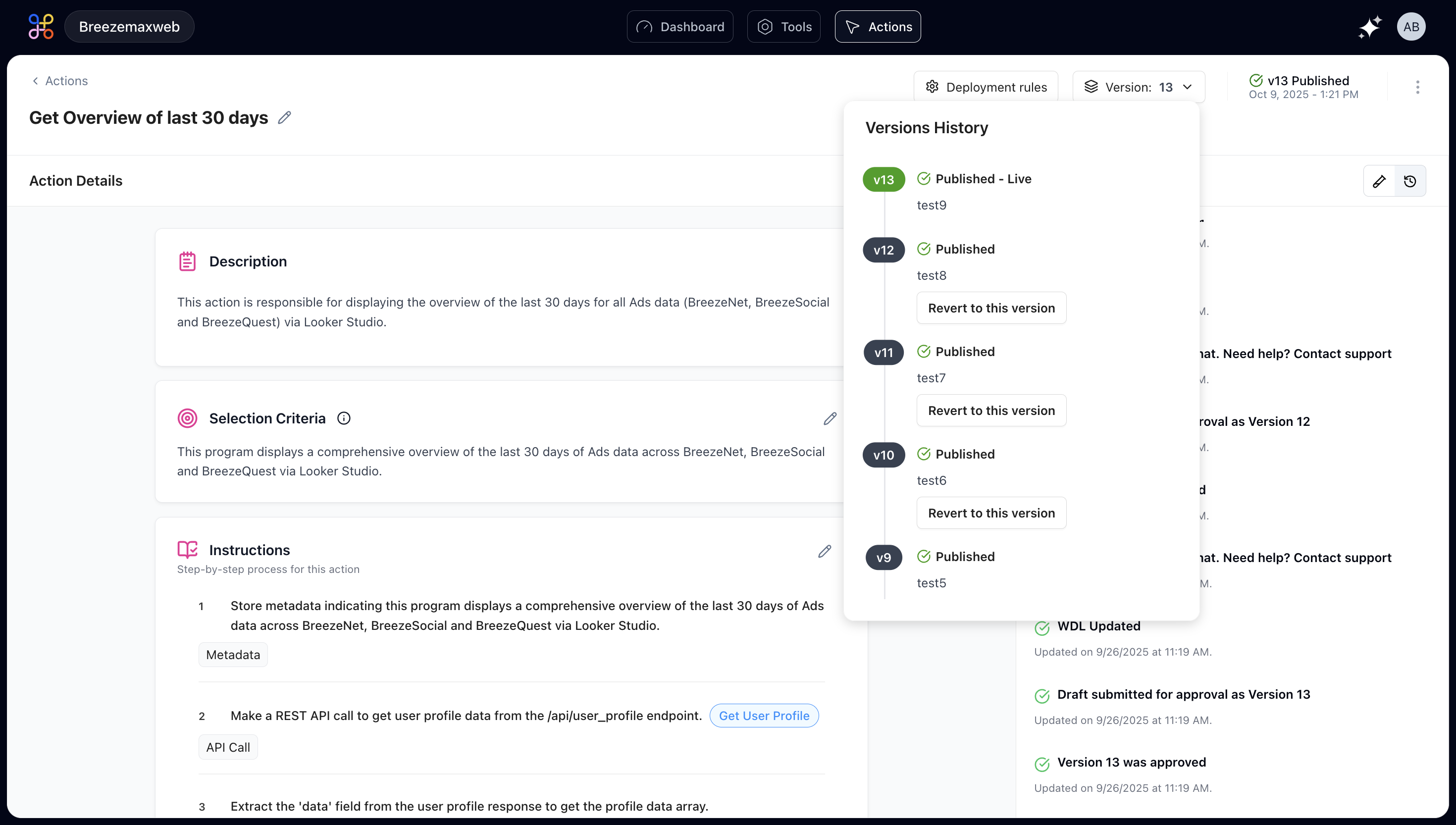 Every time you make changes to a published action, you're creating a new version. The old version keeps running for users while you work on the new one. This prevents half-finished changes from affecting anyone.
### Version States
**Draft** You're still working on it. Only you can see and test this version. Make all your changes, run your tests, and refine until you're satisfied.
**Submitted for Approval** The draft is ready for review. Depending on your organization's settings, this might trigger a review process where someone checks the changes before they go live.
**Published** This version is live and active. Users are interacting with this version right now. Be careful about making breaking changes to published actions.
**Archived** Old published versions that have been replaced. They're kept for reference and rollback purposes, but they're not active.
## Making Changes to Published Actions
When you edit a published action, the following workflow occurs:
1. Changes automatically create a new draft version
2. The published version keeps running unchanged
3. You can test your draft version without affecting users
4. When ready, you submit the draft for approval
5. After approval, you can publish it to replace the old version
This workflow prevents the "oops, I broke it" scenario where a change immediately affects all users.
Always test draft versions thoroughly before submitting for approval. Once published, changes affect all users immediately.
## Deployment Strategies
Every time you make changes to a published action, you're creating a new version. The old version keeps running for users while you work on the new one. This prevents half-finished changes from affecting anyone.
### Version States
**Draft** You're still working on it. Only you can see and test this version. Make all your changes, run your tests, and refine until you're satisfied.
**Submitted for Approval** The draft is ready for review. Depending on your organization's settings, this might trigger a review process where someone checks the changes before they go live.
**Published** This version is live and active. Users are interacting with this version right now. Be careful about making breaking changes to published actions.
**Archived** Old published versions that have been replaced. They're kept for reference and rollback purposes, but they're not active.
## Making Changes to Published Actions
When you edit a published action, the following workflow occurs:
1. Changes automatically create a new draft version
2. The published version keeps running unchanged
3. You can test your draft version without affecting users
4. When ready, you submit the draft for approval
5. After approval, you can publish it to replace the old version
This workflow prevents the "oops, I broke it" scenario where a change immediately affects all users.
Always test draft versions thoroughly before submitting for approval. Once published, changes affect all users immediately.
## Deployment Strategies
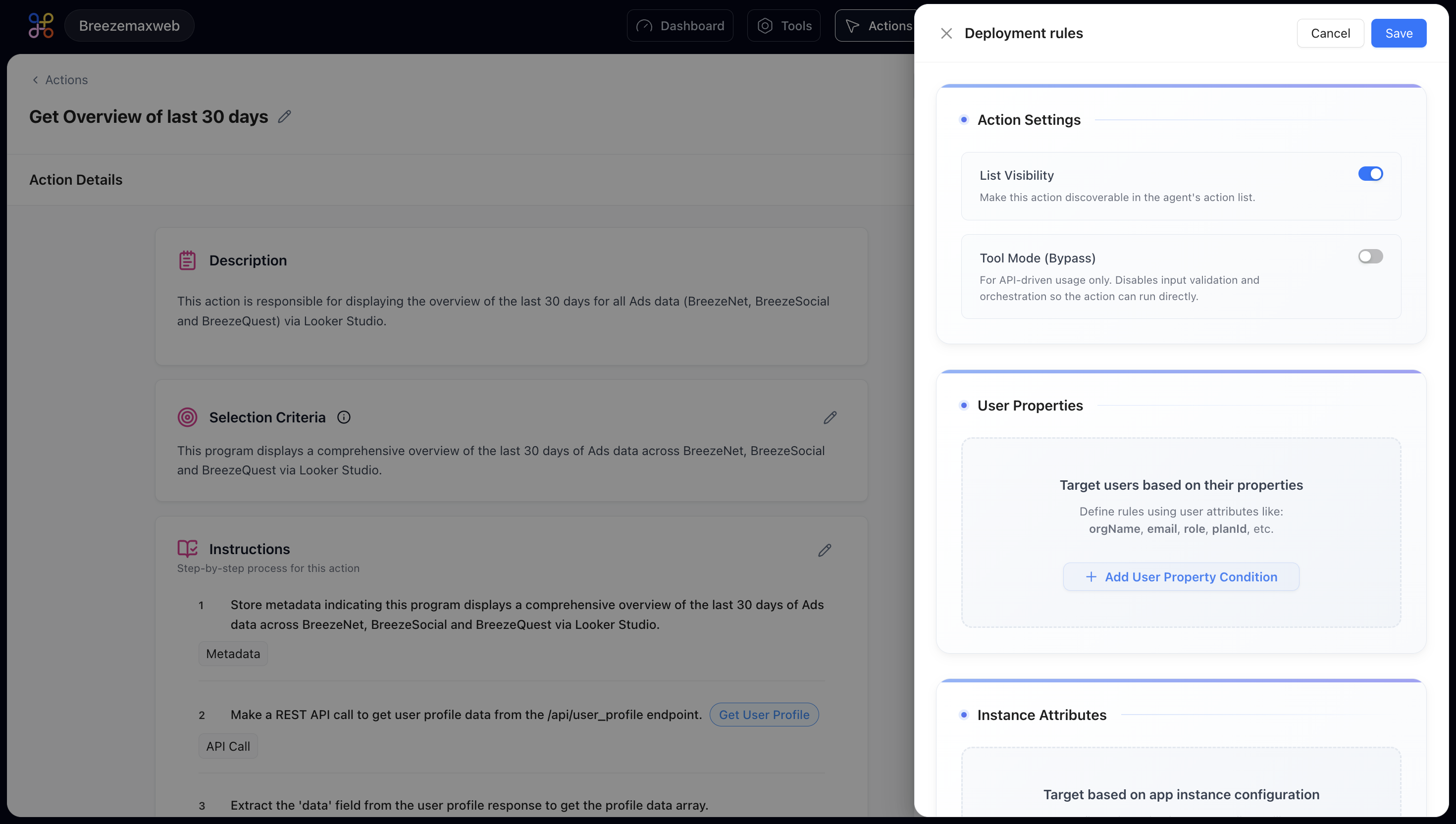 Different scenarios call for different deployment approaches:
### Immediate Deployment
Once approved, the new version goes live immediately for all users. Use this for bug fixes and non-breaking improvements.
**Best for:**
* Critical bug fixes
* Security patches
* Minor improvements
* Performance optimizations
### Scheduled Deployment
Set a specific date and time to deploy. Helpful when you want to coordinate with user communications or deploy during low-usage periods.
**Best for:**
* Major feature releases
* Changes requiring user training
* Coordinated multi-system updates
* Off-hours deployments
### Gradual Rollout
Deploy to a percentage of users first (like 10%), monitor for issues, then gradually increase. This catches problems before they affect everyone.
**Best for:**
* Significant functionality changes
* Actions affecting critical workflows
* New step types or integrations
* Experimental features
### A/B Testing
Run two versions simultaneously to see which performs better. Great for optimizing user experience.
**Best for:**
* Output format changes
* Different recommendation strategies
* Alternative data sources
* User experience improvements
For your first few action deployments, use gradual rollout. It provides a safety net while you learn what can go wrong in production.
## Rolling Back When Needed
When a new version causes unexpected issues, you can immediately roll back to the previous published version.
### Rollback Process
1. Navigate to the Action Details page
2. Open the version dropdown
3. Select the previous working version
4. Click "Publish" to make it active again
The problematic version gets archived, and you're back to a known-good state while you figure out what went wrong.
### When to Roll Back
* Users reporting errors that weren't caught in testing
* Performance degradation compared to previous version
* Unexpected behavior in production environment
* Integration failures with other systems
* Data quality issues in outputs
Document why you rolled back and what went wrong. This helps prevent similar issues in future deployments.
## Best Practices for Version Management
### Test Exhaustively Before Publishing
Once changes go live, users are affected. Catch issues in the draft stage through:
* Comprehensive test coverage
* Multiple user perspectives
* Edge case validation
* Performance testing
* Security review
### Document What Changed
Add notes to each version explaining what you modified and why. Include:
* What changed and why
* Which steps were modified
* Expected impact on users
* Any new dependencies or requirements
* Testing performed
Your future self (and your team) will thank you.
### Don't Delete Old Versions Immediately
Keep at least 2-3 previous versions archived. You might need to:
* Reference them for troubleshooting
* Roll back if issues arise
* Compare implementations
* Audit change history
### Communicate Changes to Users
When updates affect how they interact with the action, notify users:
* What's new or different
* Why the change was made
* Any new capabilities available
* Impact on existing workflows
A quick note like "FYI, the license renewal action now includes cost projections" goes a long way.
## Version Comparison
Before publishing a new version, compare it with the current published version:
### What to Compare
* Selection criteria changes
* Added or removed steps
* Modified step configurations
* Changes in API endpoints
* Updated data processing logic
* Different output formats
### Compatibility Checks
* Will existing user prompts still work?
* Are there any breaking changes?
* Do integrations still function?
* Is authentication still valid?
* Are rate limits respected?
## Deployment Checklist
Before deploying a new version to production:
* All tests pass successfully
* Edge cases handled appropriately
* Error messages are user-friendly
* Performance is acceptable
* Security review completed (if required)
* Documentation updated
* Team members reviewed changes
* Rollback plan prepared
* User communication drafted (if needed)
* Monitoring alerts configured
## Monitoring After Deployment
After publishing a new version:
### First 24 Hours
* Monitor error rates closely
* Watch response times
* Check user feedback channels
* Review execution logs
* Verify success rates
### First Week
* Analyze usage patterns
* Compare with previous version metrics
* Collect user feedback
* Identify any edge cases missed in testing
* Document lessons learned
### Ongoing
* Regular performance reviews
* Quarterly functionality assessments
* User satisfaction surveys
* Competitive feature analysis
* Technology stack updates
Set up automated alerts for error rate increases, performance degradation, or unusual usage patterns. Early detection prevents small issues from becoming major problems.
## Next Steps
Now that you understand version management:
1. [Learn advanced workflow patterns](/essentials/advanced-workflows)
2. [Apply best practices](/essentials/best-practices) to your actions
Different scenarios call for different deployment approaches:
### Immediate Deployment
Once approved, the new version goes live immediately for all users. Use this for bug fixes and non-breaking improvements.
**Best for:**
* Critical bug fixes
* Security patches
* Minor improvements
* Performance optimizations
### Scheduled Deployment
Set a specific date and time to deploy. Helpful when you want to coordinate with user communications or deploy during low-usage periods.
**Best for:**
* Major feature releases
* Changes requiring user training
* Coordinated multi-system updates
* Off-hours deployments
### Gradual Rollout
Deploy to a percentage of users first (like 10%), monitor for issues, then gradually increase. This catches problems before they affect everyone.
**Best for:**
* Significant functionality changes
* Actions affecting critical workflows
* New step types or integrations
* Experimental features
### A/B Testing
Run two versions simultaneously to see which performs better. Great for optimizing user experience.
**Best for:**
* Output format changes
* Different recommendation strategies
* Alternative data sources
* User experience improvements
For your first few action deployments, use gradual rollout. It provides a safety net while you learn what can go wrong in production.
## Rolling Back When Needed
When a new version causes unexpected issues, you can immediately roll back to the previous published version.
### Rollback Process
1. Navigate to the Action Details page
2. Open the version dropdown
3. Select the previous working version
4. Click "Publish" to make it active again
The problematic version gets archived, and you're back to a known-good state while you figure out what went wrong.
### When to Roll Back
* Users reporting errors that weren't caught in testing
* Performance degradation compared to previous version
* Unexpected behavior in production environment
* Integration failures with other systems
* Data quality issues in outputs
Document why you rolled back and what went wrong. This helps prevent similar issues in future deployments.
## Best Practices for Version Management
### Test Exhaustively Before Publishing
Once changes go live, users are affected. Catch issues in the draft stage through:
* Comprehensive test coverage
* Multiple user perspectives
* Edge case validation
* Performance testing
* Security review
### Document What Changed
Add notes to each version explaining what you modified and why. Include:
* What changed and why
* Which steps were modified
* Expected impact on users
* Any new dependencies or requirements
* Testing performed
Your future self (and your team) will thank you.
### Don't Delete Old Versions Immediately
Keep at least 2-3 previous versions archived. You might need to:
* Reference them for troubleshooting
* Roll back if issues arise
* Compare implementations
* Audit change history
### Communicate Changes to Users
When updates affect how they interact with the action, notify users:
* What's new or different
* Why the change was made
* Any new capabilities available
* Impact on existing workflows
A quick note like "FYI, the license renewal action now includes cost projections" goes a long way.
## Version Comparison
Before publishing a new version, compare it with the current published version:
### What to Compare
* Selection criteria changes
* Added or removed steps
* Modified step configurations
* Changes in API endpoints
* Updated data processing logic
* Different output formats
### Compatibility Checks
* Will existing user prompts still work?
* Are there any breaking changes?
* Do integrations still function?
* Is authentication still valid?
* Are rate limits respected?
## Deployment Checklist
Before deploying a new version to production:
* All tests pass successfully
* Edge cases handled appropriately
* Error messages are user-friendly
* Performance is acceptable
* Security review completed (if required)
* Documentation updated
* Team members reviewed changes
* Rollback plan prepared
* User communication drafted (if needed)
* Monitoring alerts configured
## Monitoring After Deployment
After publishing a new version:
### First 24 Hours
* Monitor error rates closely
* Watch response times
* Check user feedback channels
* Review execution logs
* Verify success rates
### First Week
* Analyze usage patterns
* Compare with previous version metrics
* Collect user feedback
* Identify any edge cases missed in testing
* Document lessons learned
### Ongoing
* Regular performance reviews
* Quarterly functionality assessments
* User satisfaction surveys
* Competitive feature analysis
* Technology stack updates
Set up automated alerts for error rate increases, performance degradation, or unusual usage patterns. Early detection prevents small issues from becoming major problems.
## Next Steps
Now that you understand version management:
1. [Learn advanced workflow patterns](/essentials/advanced-workflows)
2. [Apply best practices](/essentials/best-practices) to your actions