

Step 1: Create SAML Application
-
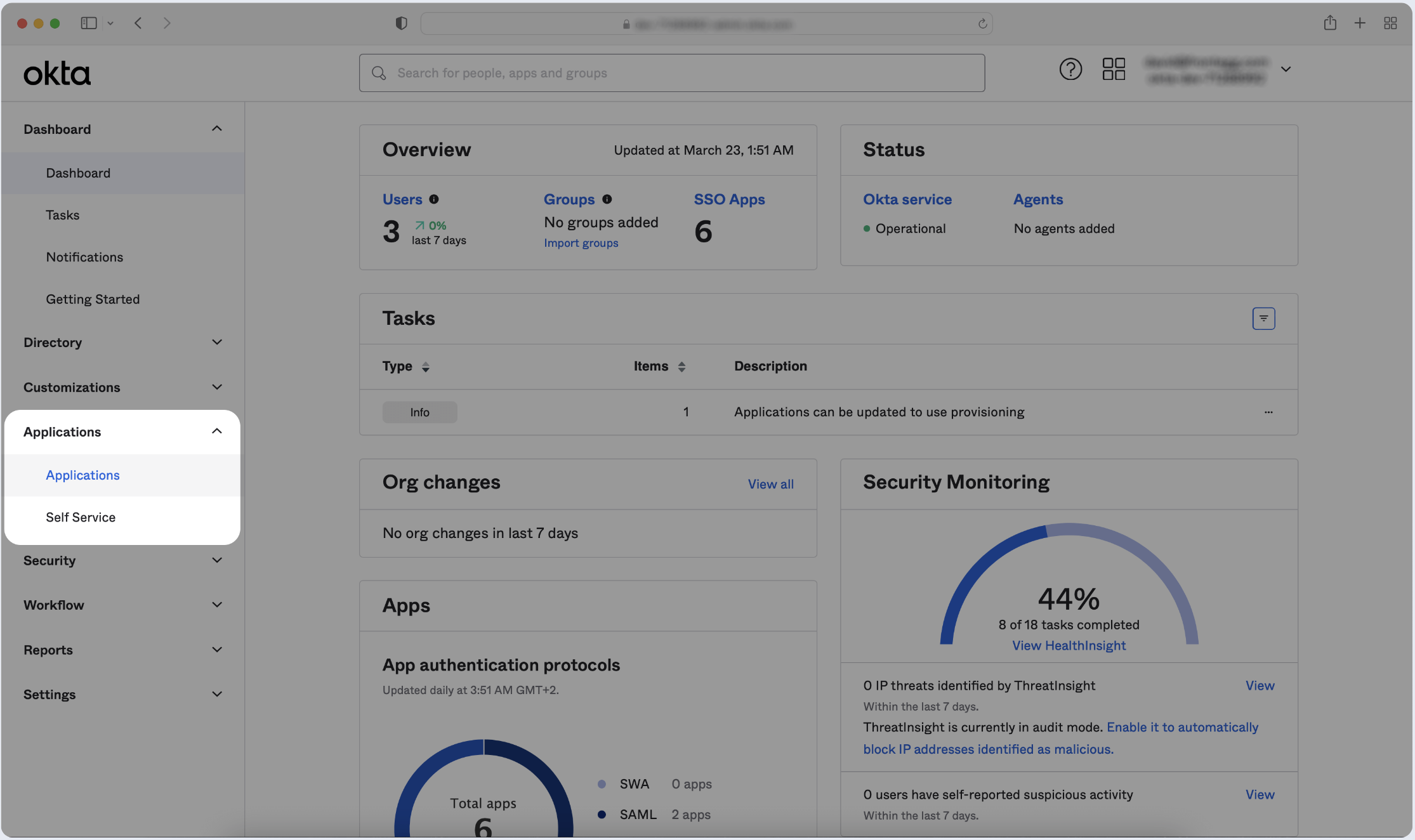
Log in to your Okta Application Dashboard and click Applications in the sidebar.
-
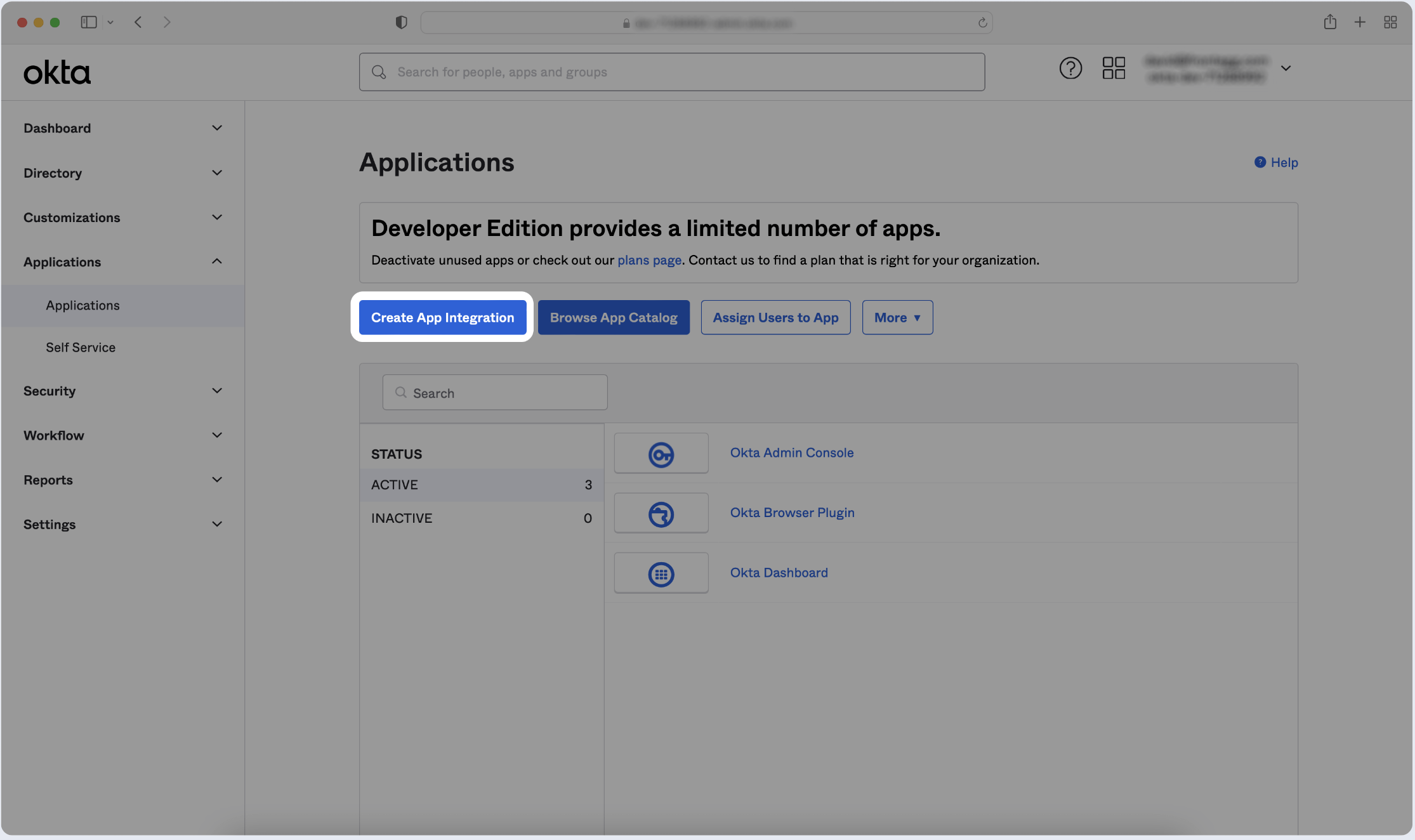
Click Create App Integration.
-
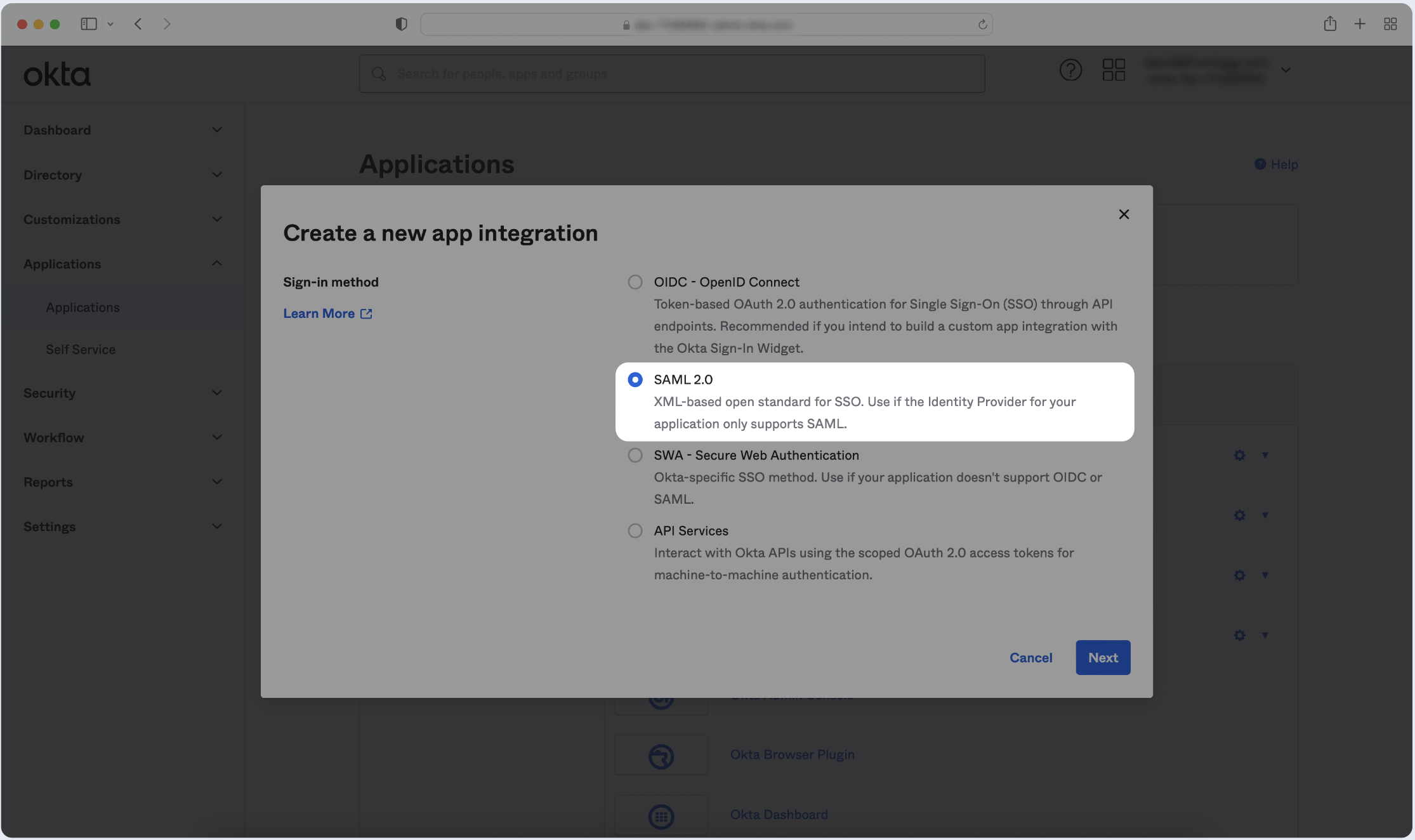
Click Create New App and choose SAML 2.0 as the Sign-in method. Then, click Next.
-
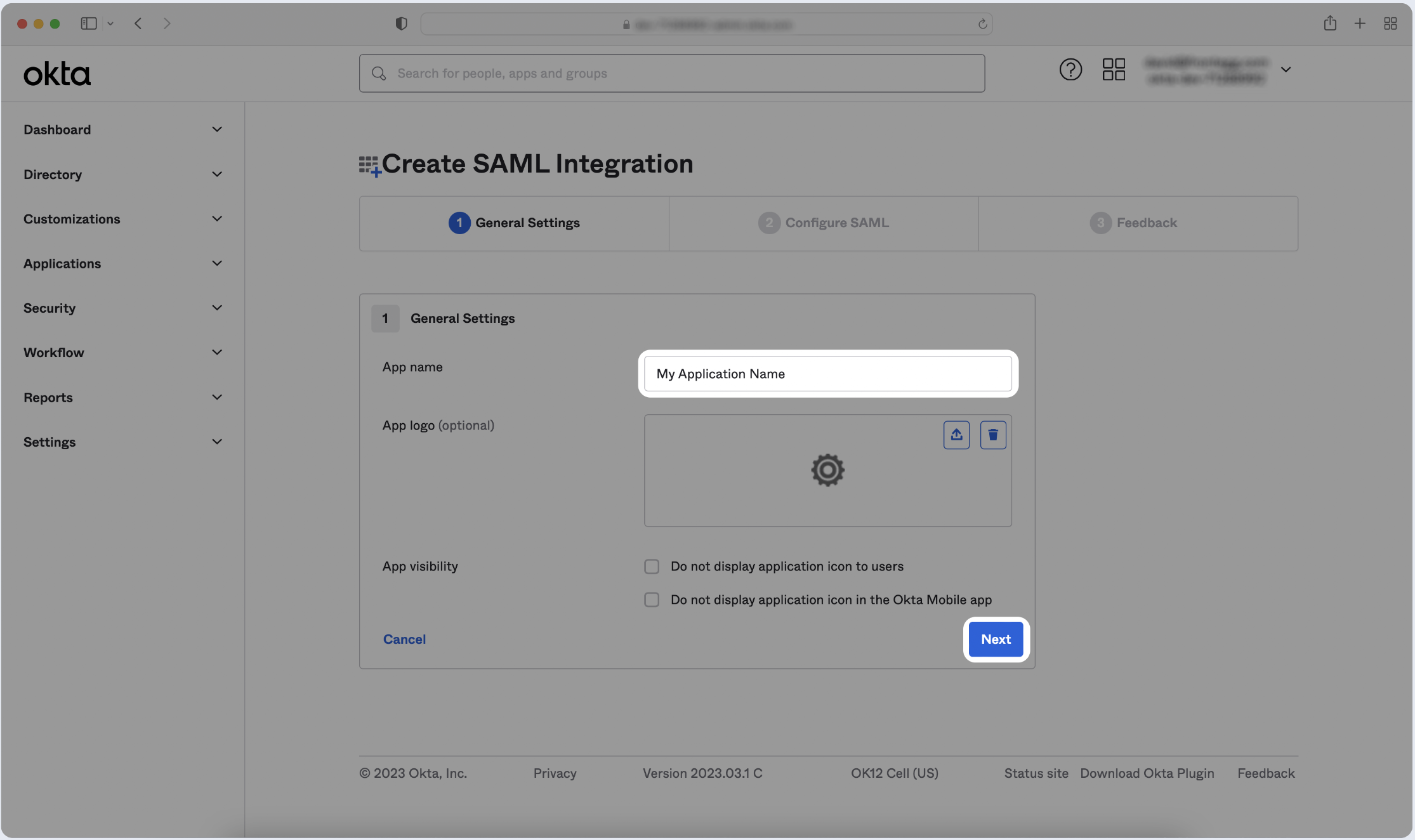
Enter the name of your application, then click Next.
-
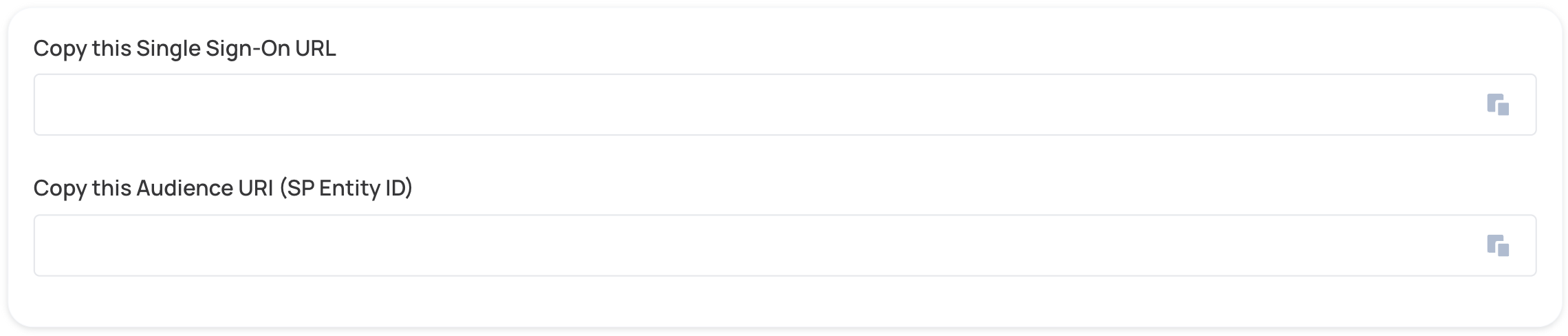
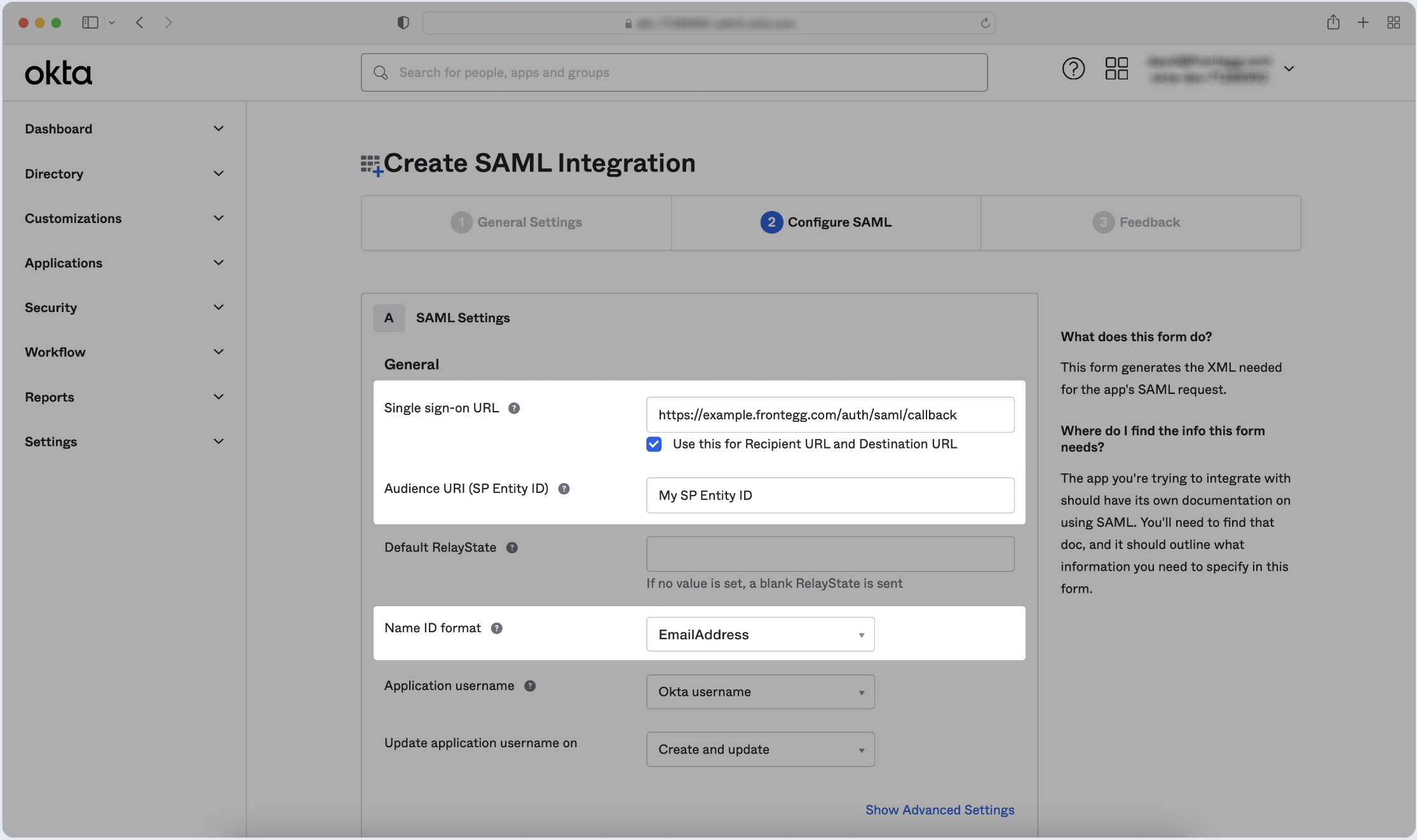
Copy and paste the values into the relevant fields in the SAML Settings section.
Step 2: Fill Attribute Statements (Optional)
-
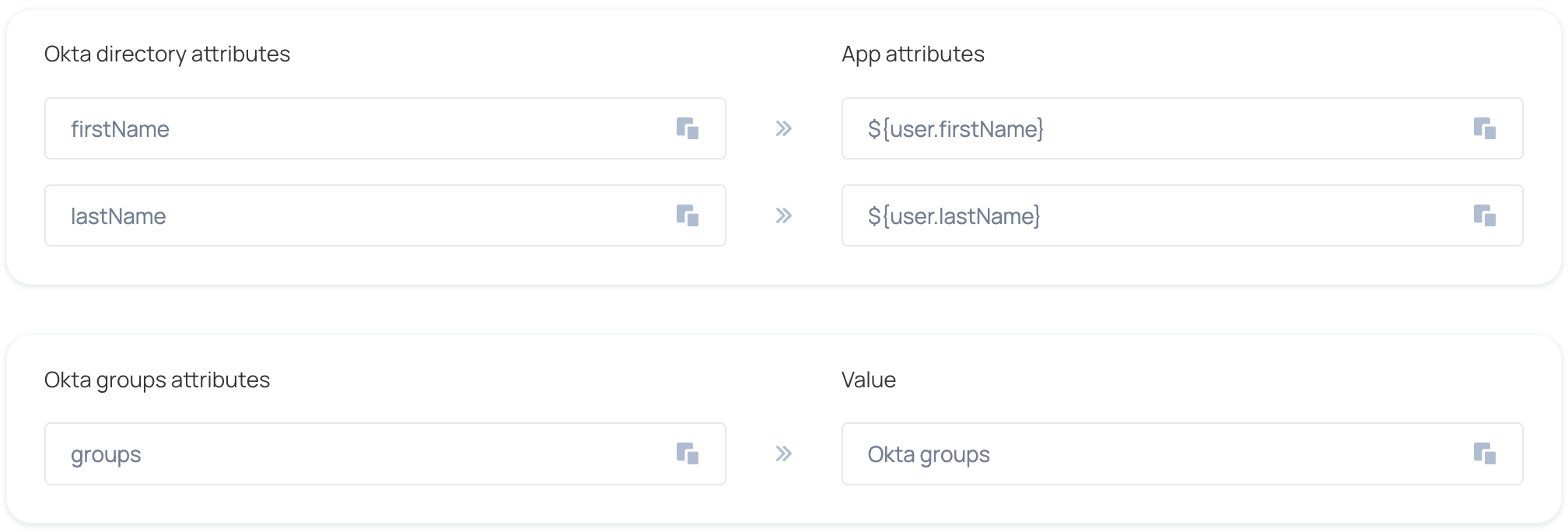
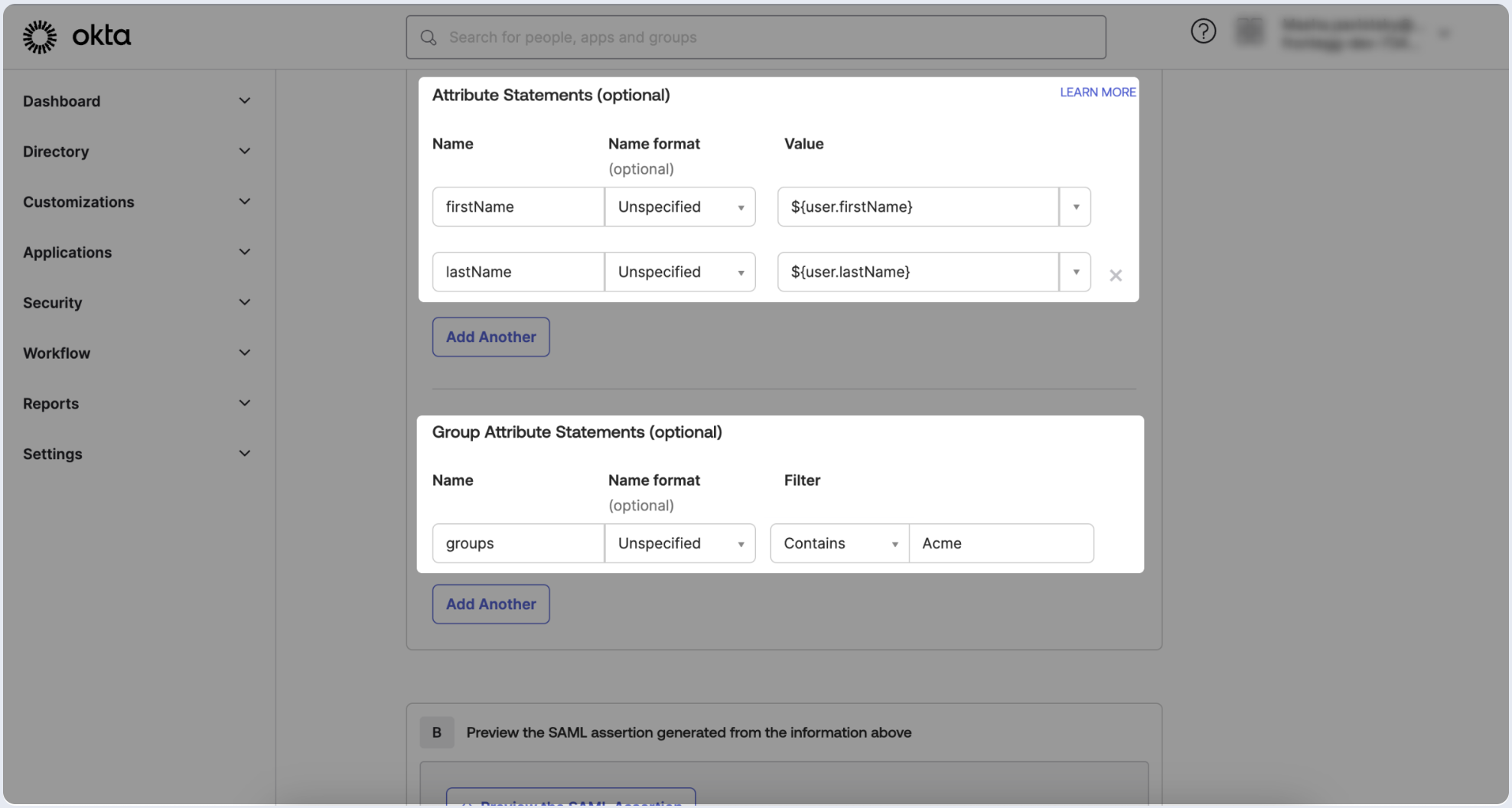
Go to Attribute Statements (optional) configuration in SAML Settings. Fill in the following Attribute Statements and click Next.
-
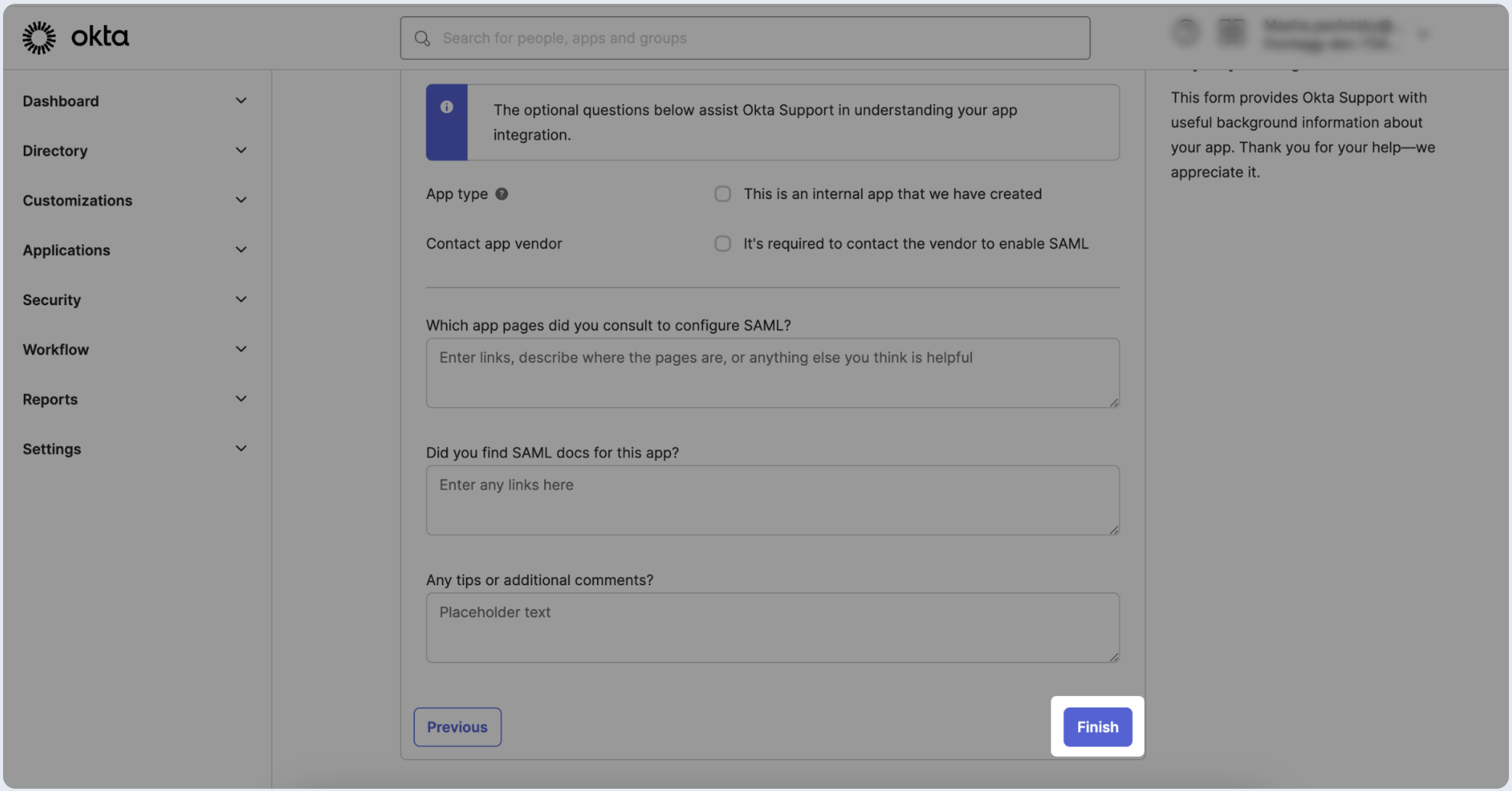
To complete the app creation process, proceed to the next page and skip or fill out the survey. Click on Finish.
Step 3: Assign Users
Define which groups should be allowed to log in via SAML SSO in Okta using the app you’ve created.-
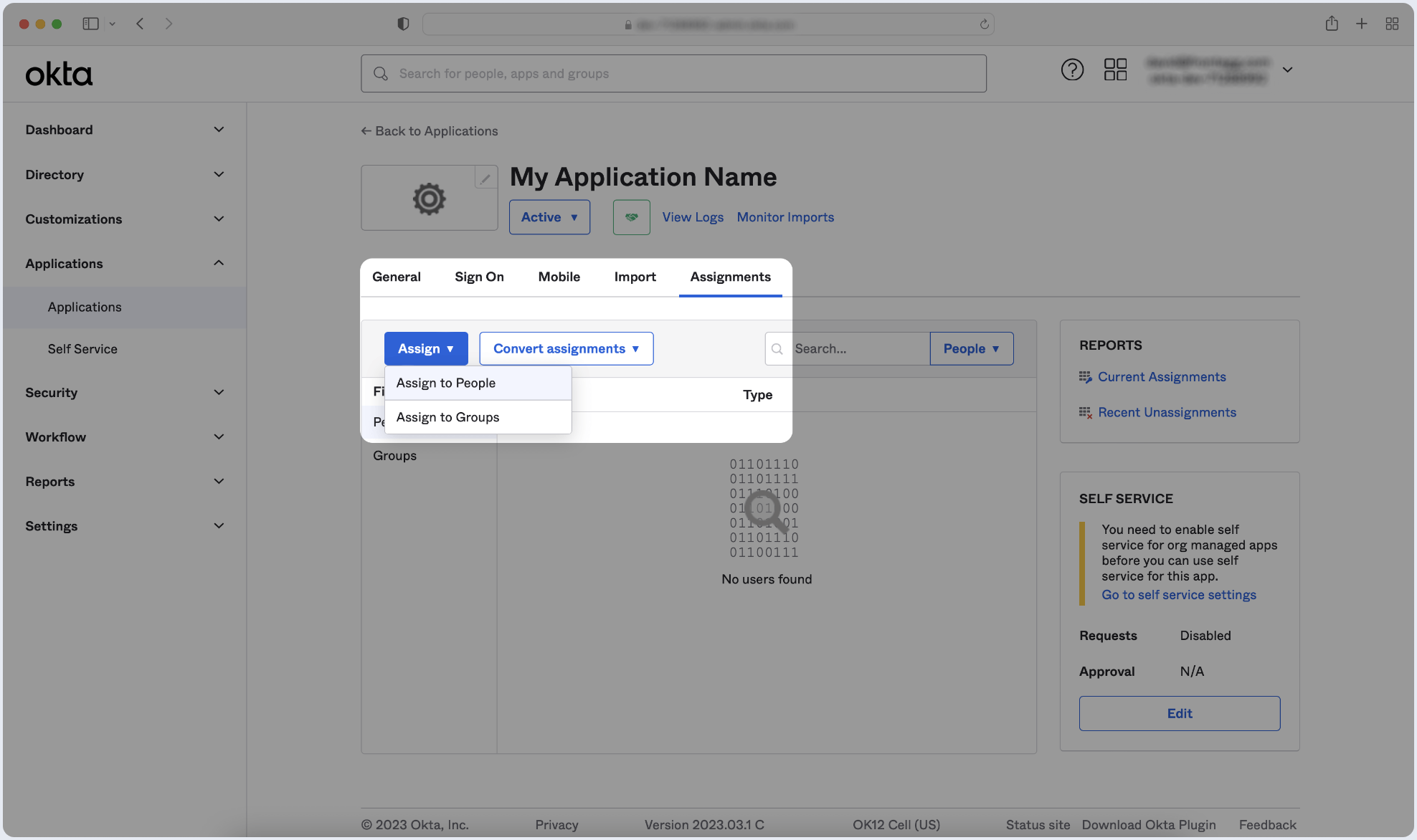
Switch to the Assignments tab. Click Assign and choose Assign to Groups.
-
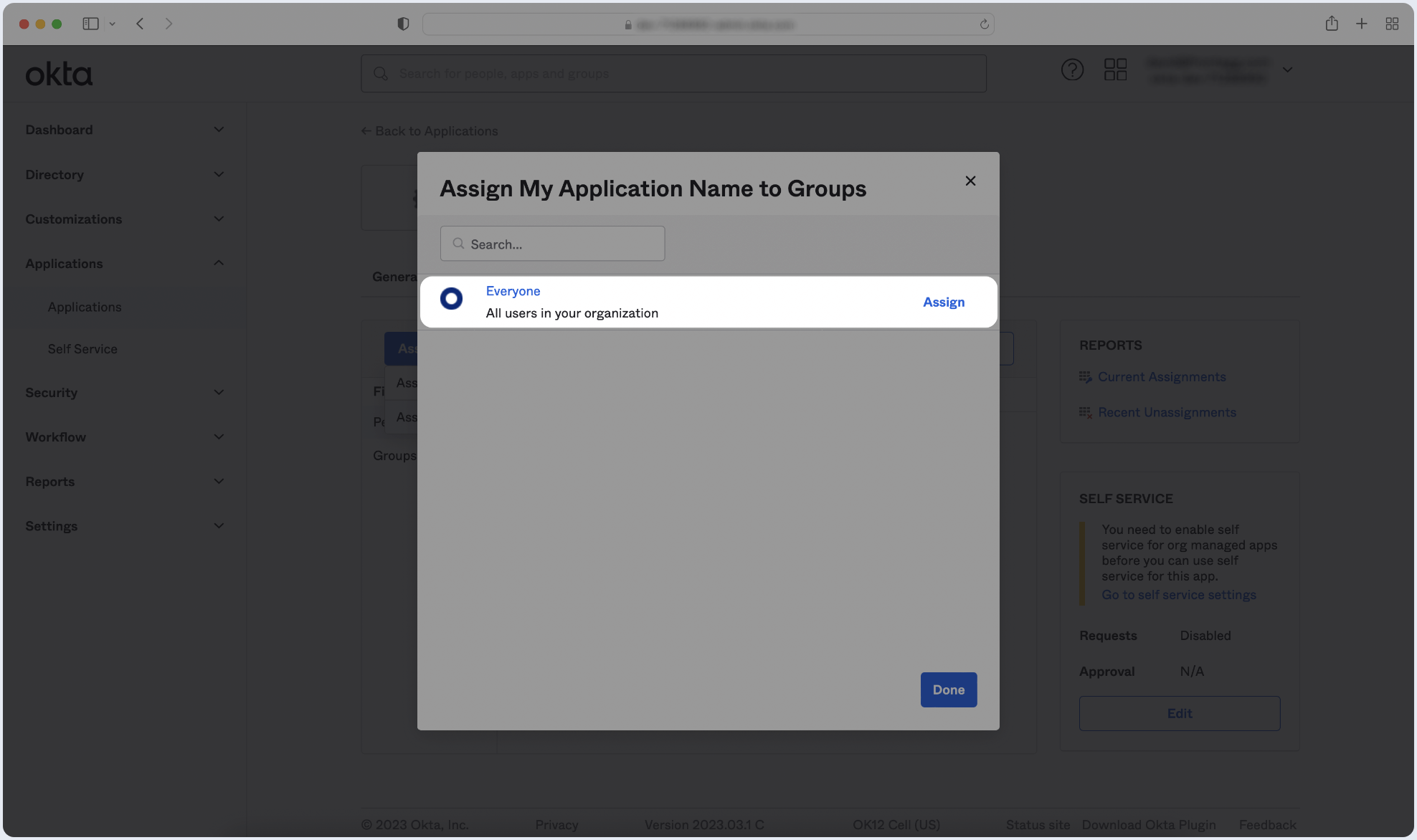
Locate the specific group(s) you wish to assign to the app and click Assign next to each of them. Once finished, click Done.
Step 4: Submit Metadata
To complete the implementation of SAML SSO, you need to provide the application with your identity provider’s metadata.Automatic Configuration
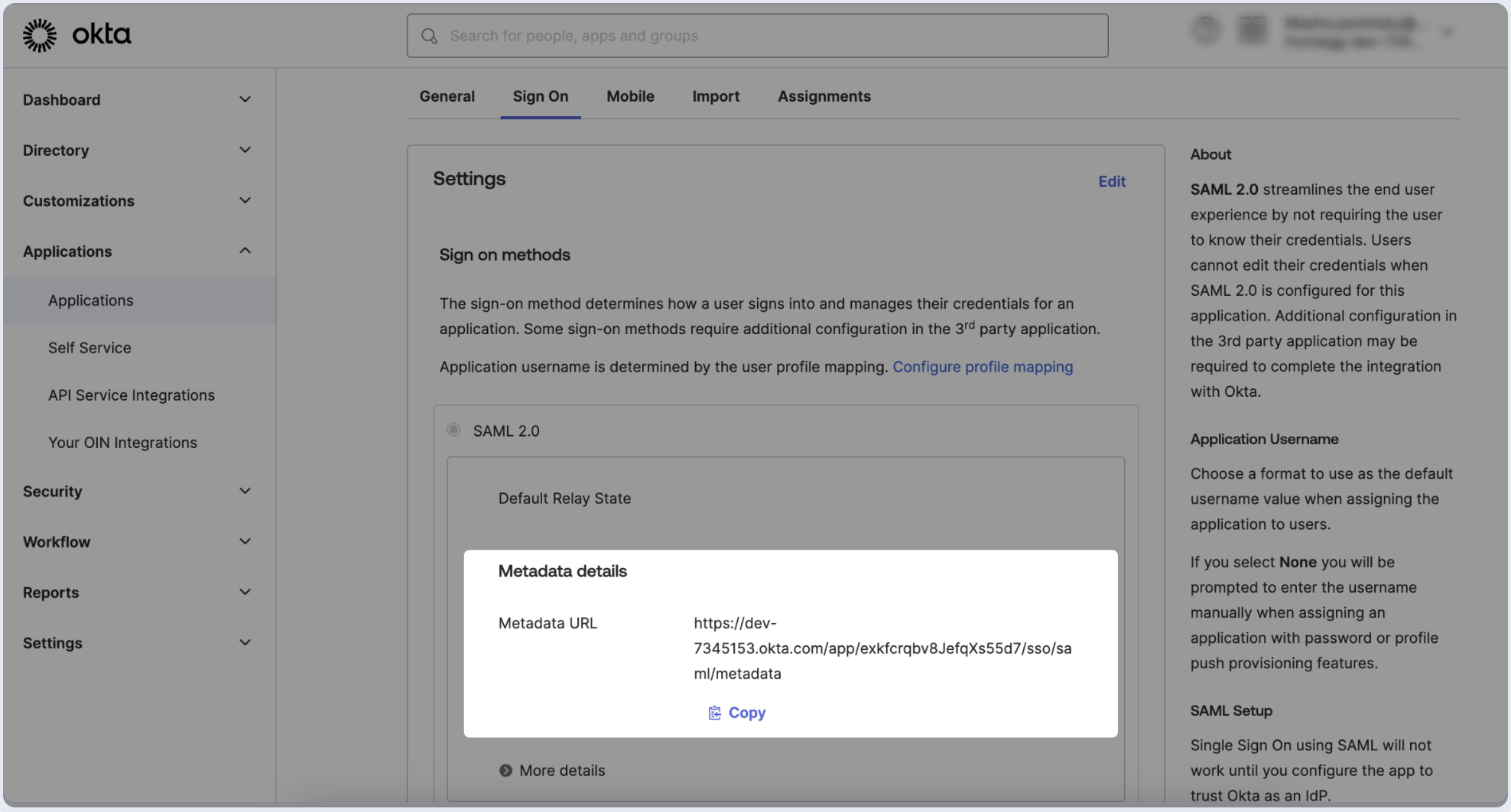
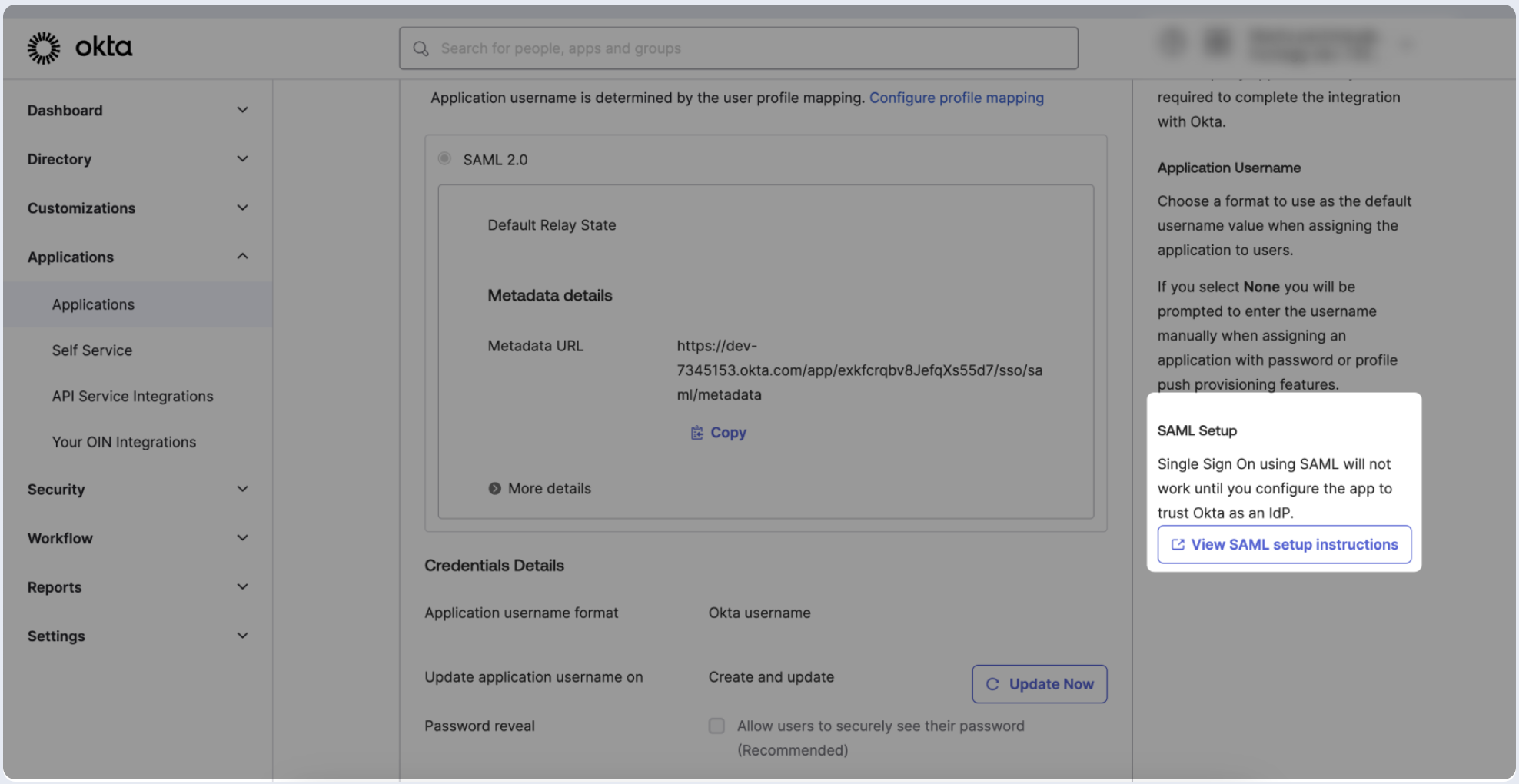
- Click on the Sign On tab of the SAML app you just created.
-
Copy the Metadata URL and paste it into the configuration form.

Manual Configuration
- Click on the Sign On tab of the SAML app you just created.
- Click on View SAML setup instructions.
-
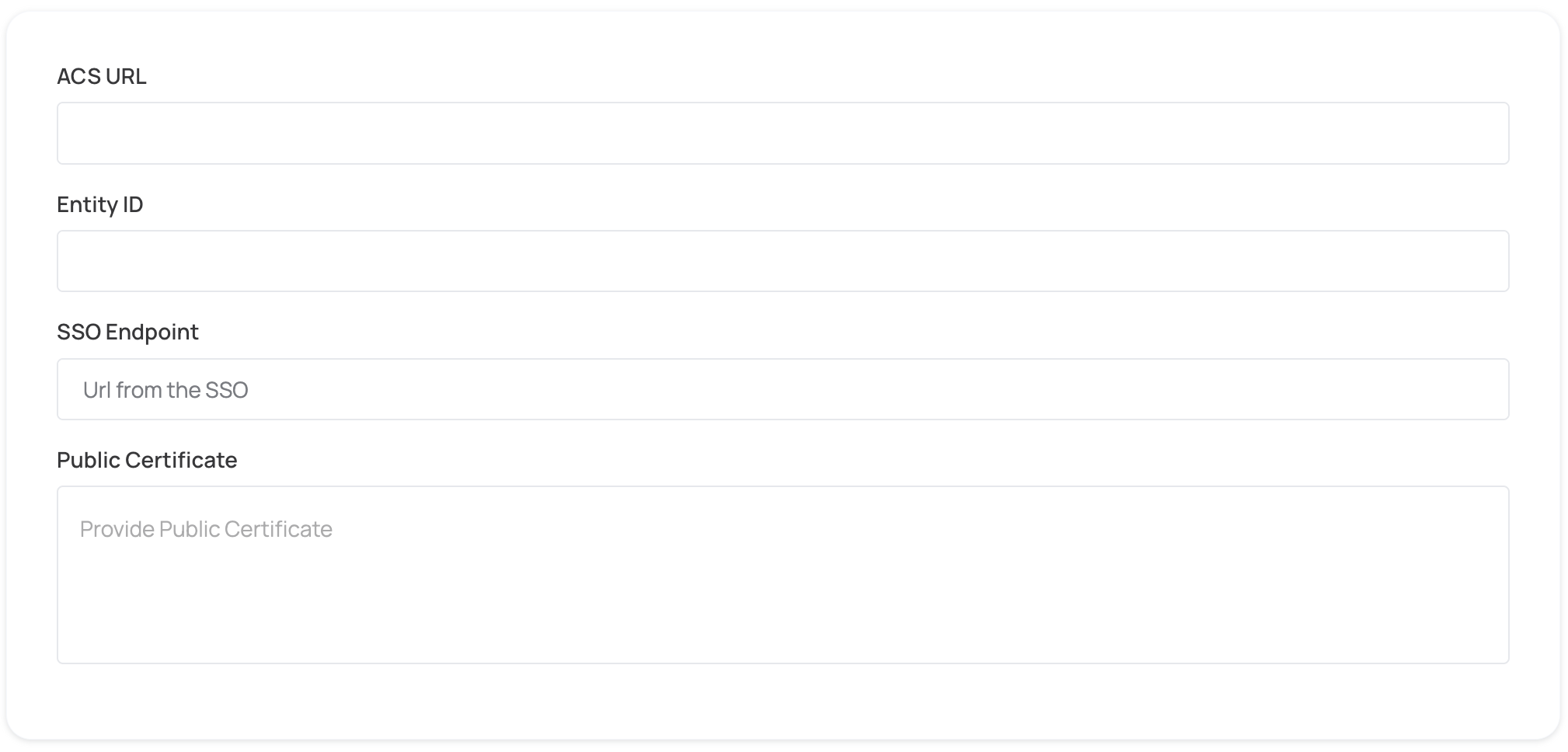
Copy the value of the following fields and paste them into the appropriate fields in the form:
- Identity Provider Single Sign-On URL
- X.509 Certificate
Step 5: Complete Domain Claiming and Role Assignment
- Click on Proceed with domain claiming and role assignment to confirm the completion of the IDP form configuration.
- Follow the instructions in the Self-service SAML configuration guide to complete this step and manage authorization.