Building a skill is one thing; stringing several together into a workflow that actually completes a close or files a return is another. That’s what Agents do. An Agent composes multiple Skills and the glue logic between them — sequencing, routing, branching, and model reasoning — to accomplish a larger goal. It’s where behaviour is defined, and it’s where a human gets pulled into the loop.
What Are Agents?
Agents are the primary build surface and the unit of deployment — the End-User App runs agents, not raw skills or connectors. The skills an agent composes bring their own connector access and primitive associations; the agent orchestrates them into one execution context, holding state across every step of a run.
An Agent is an orchestrated workflow with built-in checkpoints — it coordinates capabilities, data, decisions, and human sign-off toward a defined outcome. Agents can even call other agents.
How to Access Agents
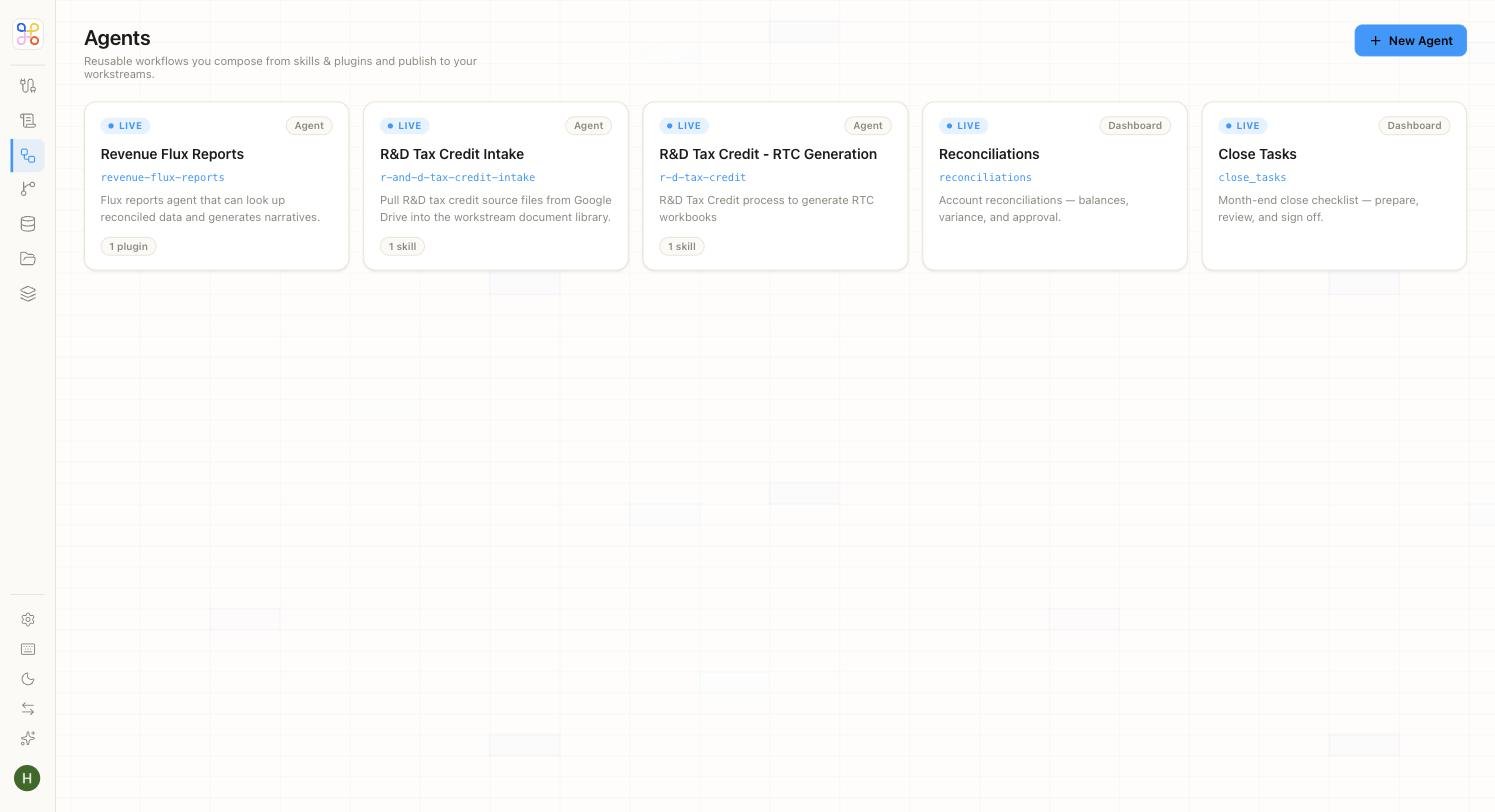
Click Agents in the left navigation, under the Build group. This opens the agent library.
Each card shows the agent’s status (LIVE when published), a type badge, its name and slug, a short description, and how many skills or plugins it uses. The library above includes real accounting agents — Revenue Flux Reports, R&D Tax Credit Intake and Generation, Reconciliations, and Close Tasks.
Agent and Dashboard Types
Agents come in two flavours, shown by the badge on each card:
What an Agent Is Composed Of
You build an agent through a five-step wizard. Each step captures one part of the agent’s definition.
Basics
Give the agent its name and identity.
Capabilities
Pick the skills and plugins this agent may use. Your selections appear as chips — this is where the agent’s abilities are assembled.
Instructions
Describe how the agent should behave and sequence its work. This is the glue logic that ties the skills together.
Workstreams
Choose which workstreams this agent runs for. Agents bind to their workstreams at build time.
Review
Confirm the configuration and create the agent.
Human-in-the-Loop Gates
Human review isn’t an afterthought bolted onto an agent — it’s a first-class part of how an agent is built. Within its logic, an agent can open a gate that pauses execution and asks a person to review, confirm, or override before it continues.
An agent halts at the gate, a human acts, and the agent resumes with that input injected back into its context. Gates can be conditional — you might open one only when confidence is low, only on flagged exceptions, or always.
A human-in-the-loop gate stops the agent until a person responds. Place gates at the moments that genuinely need a professional’s sign-off — posting journal entries, publishing a report, filing a return — not on routine steps, or you’ll create unnecessary waiting.
Why Agents Matter
Agents are where isolated skills become real work. A reconciliation skill on its own reconciles; an agent turns that into a month-end close — running the reconcile, drafting the entries, gating the exceptions for a controller, and publishing the package once it’s approved. And because human review lives inside the agent, the professional’s judgment is built into the workflow rather than tacked on at the end.
Next Steps
- Run an agent in the End-User App
- Set up the Workstreams an agent runs for
- Follow the full build → run sequence