

Draft vs. Published
Every Experience starts as a Draft. A Draft is only visible to editors inside the Experience Builder — it’s never accessible via share link or embed until you explicitly publish it. When you’re ready to make it live, clickPublish in the top toolbar. The status badge updates from DRAFT to PUBLISHED and the Experience becomes accessible to anyone you’ve shared it with.
Publishing captures the current saved state of the Experience. If you make further edits after publishing, those changes won’t be visible to viewers until you publish again. Use
Save to save your work in the builder, then Publish when you’re ready to push it live.Republishing After Edits
Published Experiences can be edited at any time — edits go into a new draft state while the previously published version stays live. When your changes are ready, clickPublish again to replace the live version. Viewers will see the update immediately on their next page refresh.
Access Control
By default, a Published Experience is publicly accessible — anyone with the link can view it. If your Experience contains sensitive data or is intended for a specific audience, you should restrict access by adding Viewers or Editors. Click Access in the top toolbar to open the Access Control panel.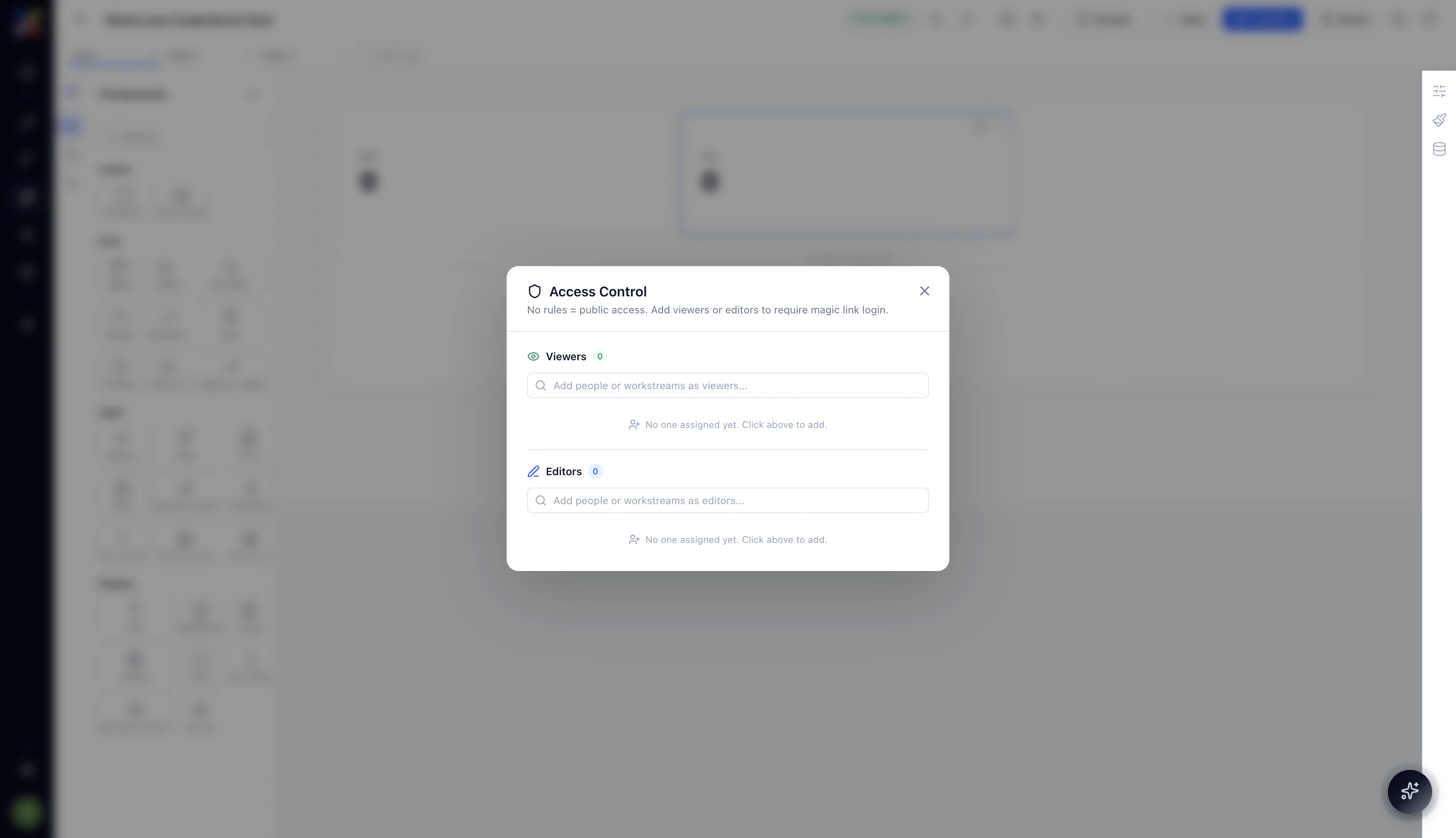
Adding People or Groups
Type a name or email in the Viewers or Editors search field to find people in your workspace and add them. You can also add groups if your workspace uses team-based permissions.Magic Link Authentication
Once you add at least one Viewer or Editor, access becomes restricted. Anyone who tries to open the Experience via its share link will be required to authenticate via a magic link — a one-time login link sent to their email. This means you don’t need to manage passwords or OAuth integrations for your Experience viewers. They get a link, click the email, and they’re in.Sharing Your Experience
Click Share in the top toolbar to open the share panel.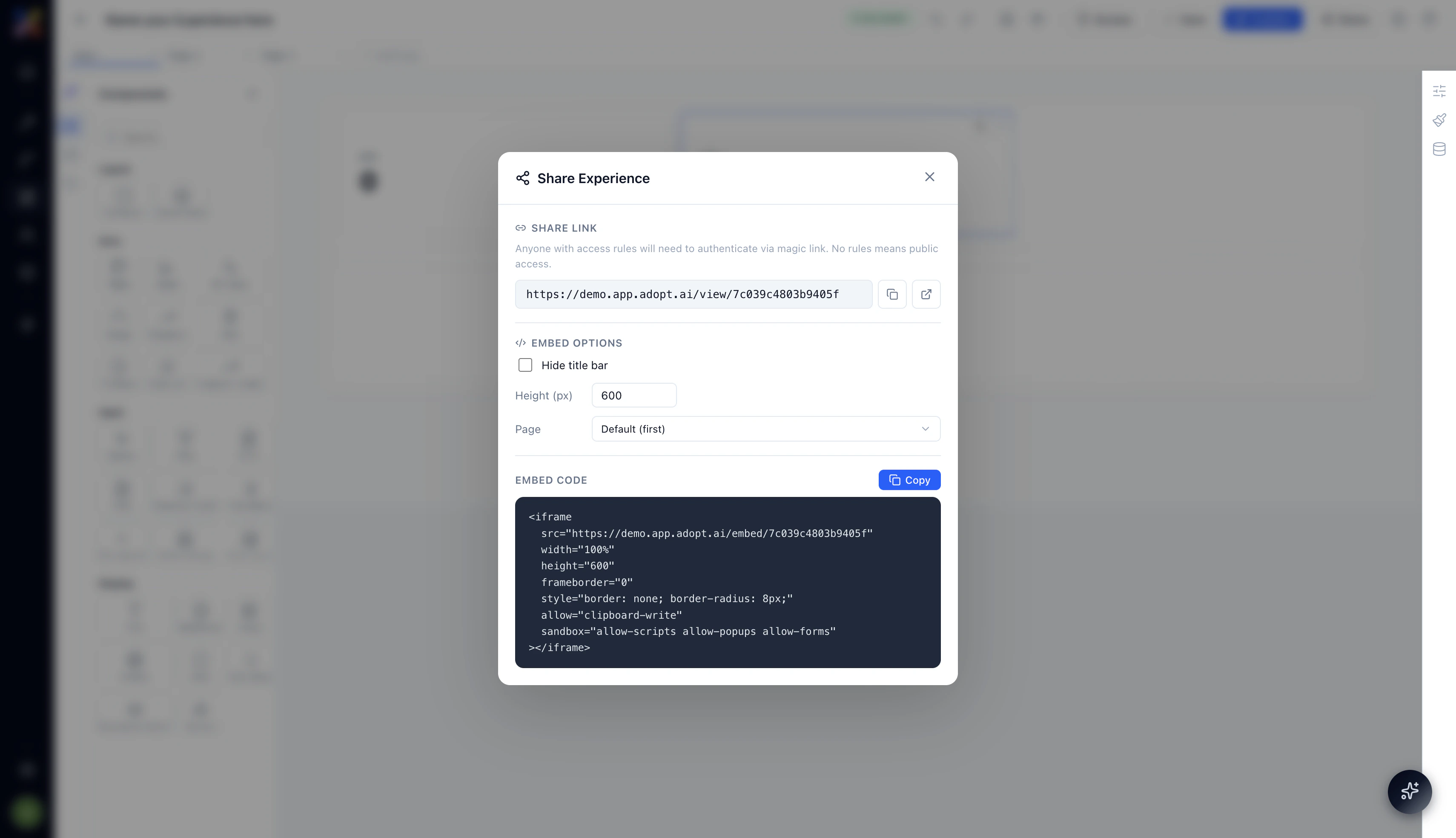
Share Link
The share link is a direct URL to the published Experience:Embedding the Experience
You can embed any published Experience directly into another application — an internal portal, a Notion page, a CRM record view, or any platform that accepts iframes. The Share panel provides a ready-to-use embed code. Embed options:
The embed code is generated automatically based on your selections: