

Overview
Experiences in Adopt AI are the Human-in-the-Loop (HITL) interfaces where human reviewers inspect, validate, and approve agent work. Pipelines power the data layer of these interfaces — you bind a Pipeline Outcome to a table, chart, or data component in the Experience Builder, and the component automatically displays the most recent data from that outcome. This means reviewers see real, structured business data (not a static mock) every time they open an Experience.Why Bind Pipelines to Experiences?
Without Pipeline bindings, an Experience would either show static data or require the agent to pass all necessary context at runtime — which is inefficient and brittle. With Pipeline bindings:- Data is always fresh — the Pipeline runs on its schedule; the Experience always reflects the latest outcome
- Dashboards load instantly — no live API calls when the reviewer opens the interface
- Consistent data model — the same Pipeline outcome can drive multiple Experience components
- Separation of concerns — data preparation (Pipeline) is decoupled from data presentation (Experience)
How Pipeline Bindings Work
In the Experience Builder, each data-displaying component (table, chart, metric card) has a Data Source configuration. You select a Pipeline Outcome as the data source, map the outcome’s columns to the component’s fields, and the component renders live data when the Experience is opened. The binding is configured once; the data refreshes automatically each time the Pipeline runs.Setting Up a Pipeline Binding
Step 1 — Open the Experience Builder
Navigate to your Experience in the Orchestration section and open it in the builder.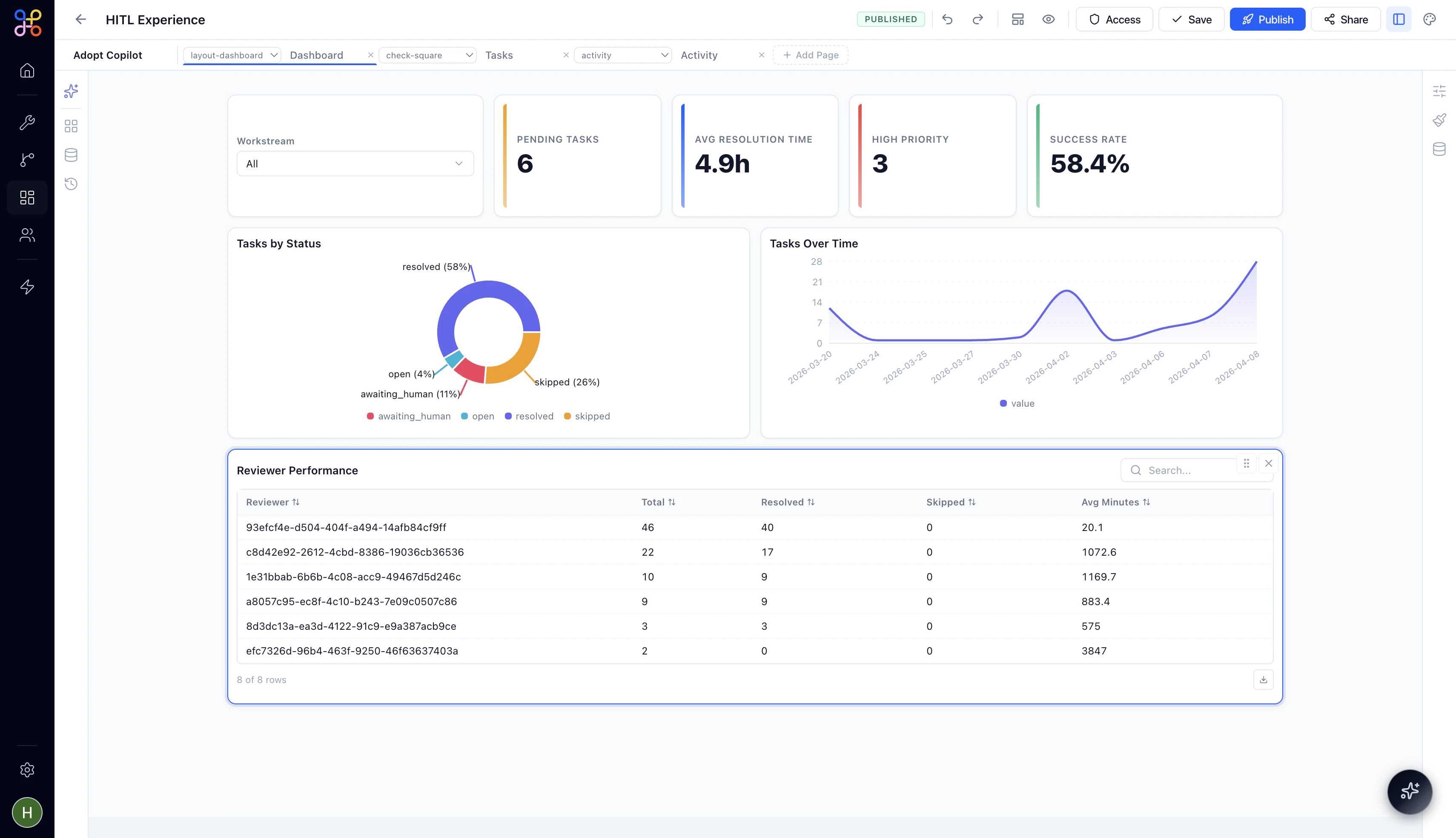
Step 2 — Add a data component
From the component palette, drag a Table, Chart, or Metric component onto the canvas.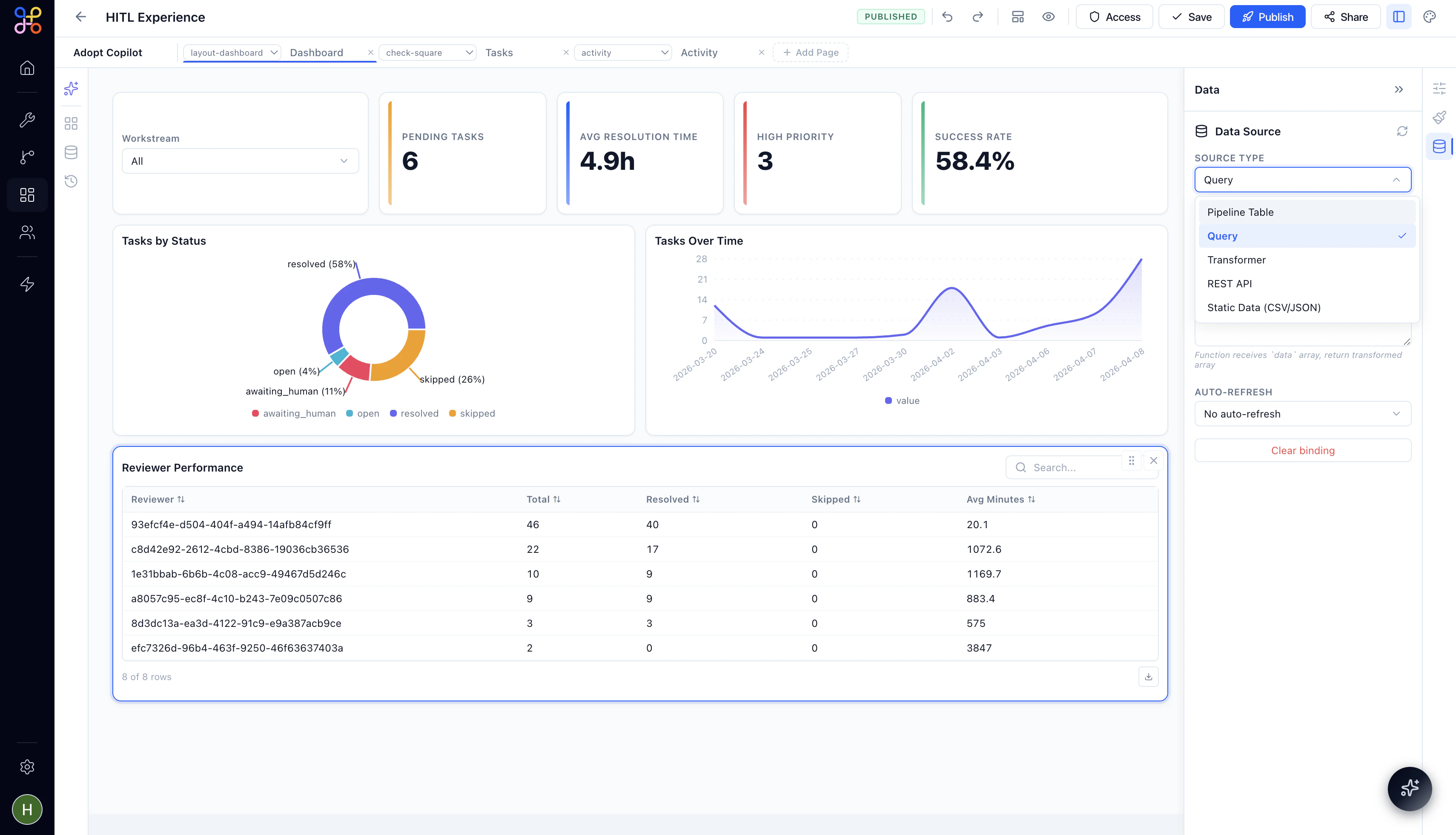
Step 3 — Configure the data source
Click on the component to open its configuration panel. Under Data Source, select Pipeline Outcome.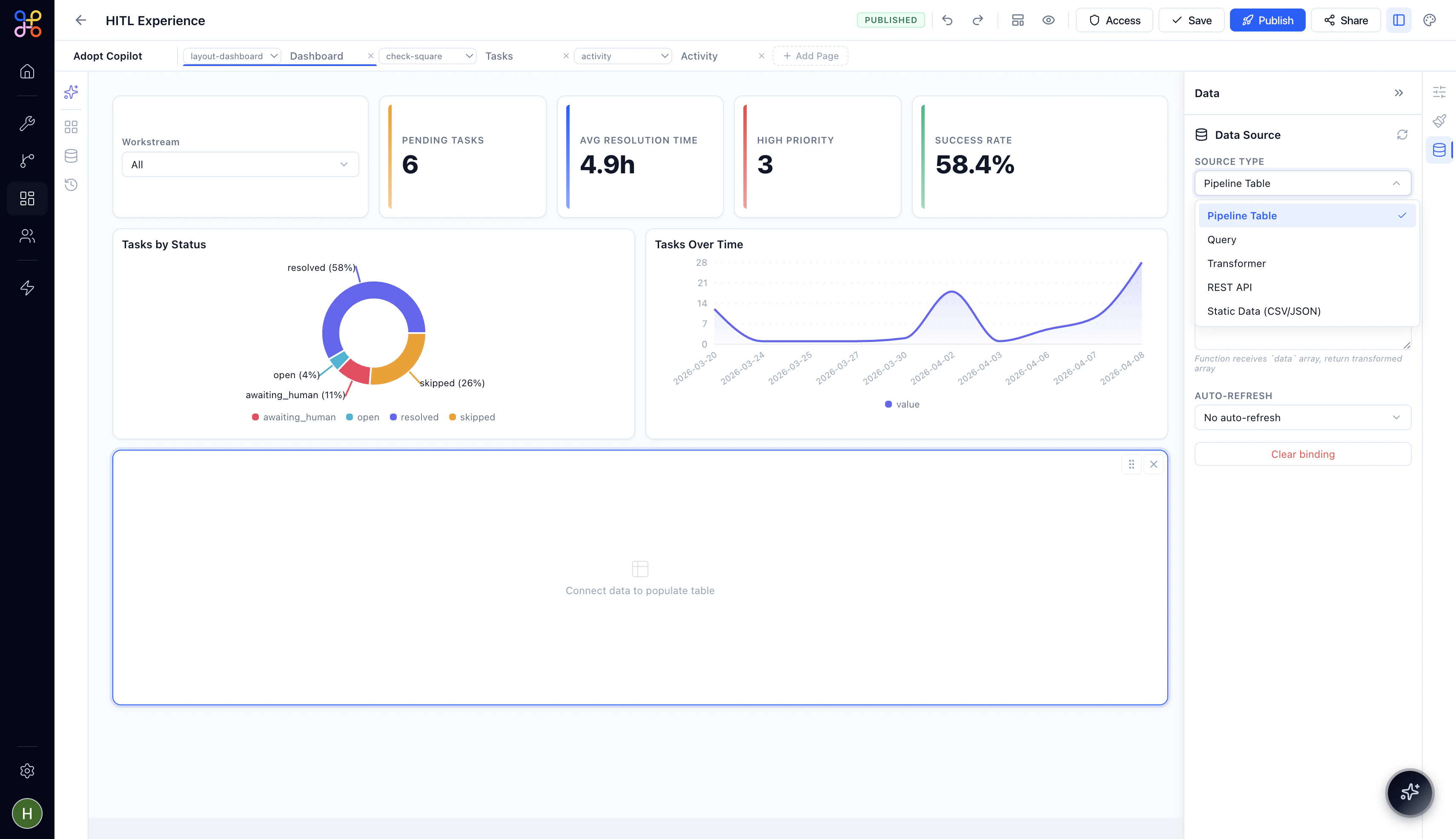
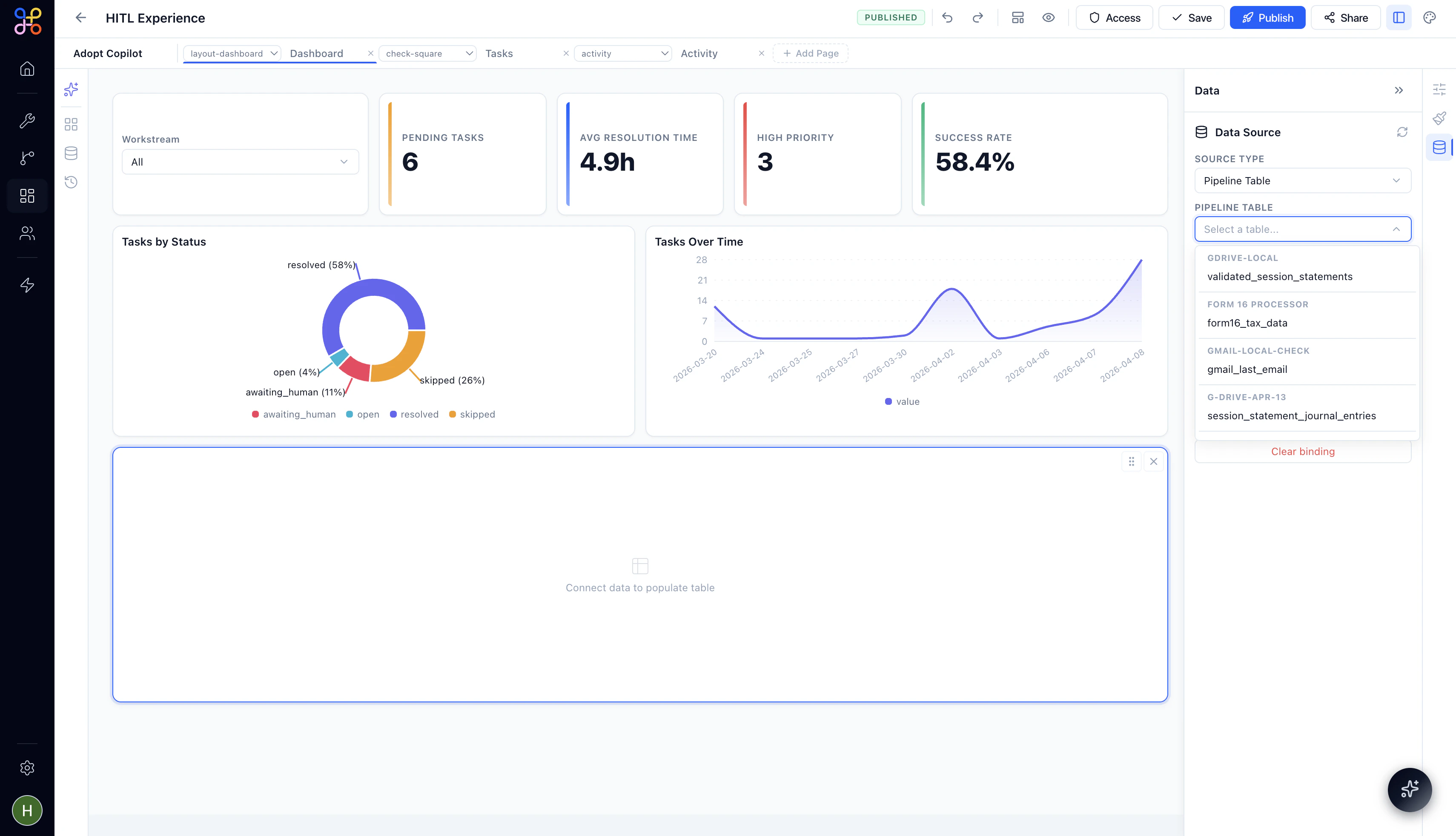
Step 4 — Select the Outcome
Once a pipeline is selected, choose the specific Outcome (the named output table). For example, if your pipeline producesdeals_over_10k, select that.
Step 5 — Map columns to component fields
The builder will display the columns available in the selected outcome. Map them to the component’s display fields:- For a Table: each outcome column becomes a table column
- For a Chart: map outcome columns to X-axis, Y-axis, and series fields
- For a Metric card: select the outcome column to aggregate (sum, count, average)
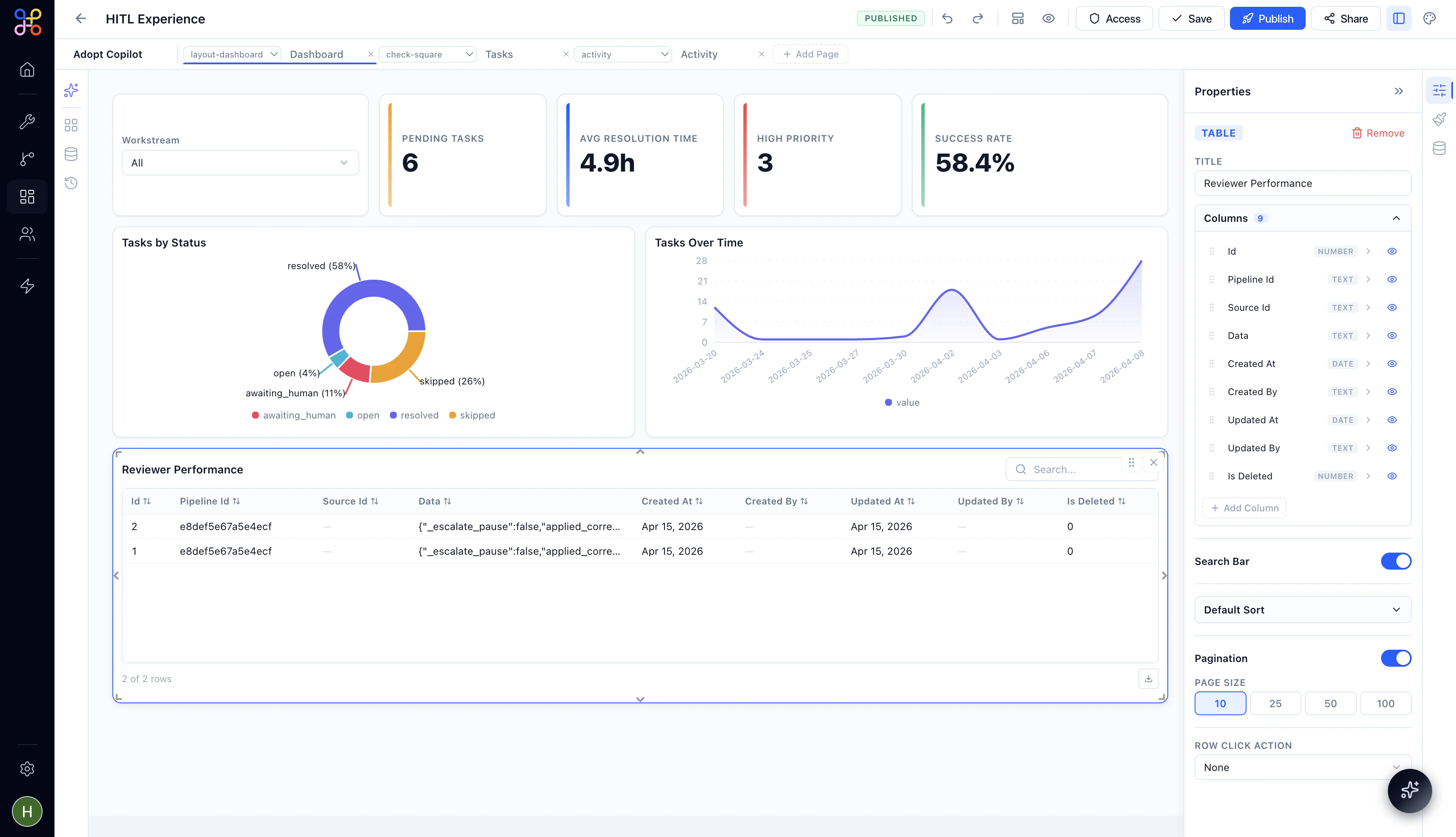
Step 6 — Preview and publish
Use the Preview mode to see how the component will render with real Pipeline data. Once satisfied, publish the Experience.Example: Expense Review Dashboard
Use case: A finance team reviews AI-generated expense categorizations before final submission. Pipeline:QuickBooks Expense Aggregation — daily, produces aggregated_expenses with columns: category, total_amount, transaction_count, period.
Experience layout:
Example: Risk Monitoring Dashboard
Use case: A compliance team monitors deals flagged for risk review. Pipeline:Deals Over Threshold — hourly, produces deals_over_10k with columns: deal_name, amount, risk_score, assigned_rep.
Experience layout:
- A Table showing all deals above the threshold, sorted by risk score
- A Metric card showing total deal value at risk
- An Approve / Escalate action panel for the reviewer
Multiple Components, One Pipeline
A single Pipeline Outcome can power multiple components within the same Experience. For example,aggregated_expenses could drive both a summary table and a bar chart on the same dashboard — both stay in sync because they’re bound to the same outcome.
Pipeline Data Refresh in Experiences
Experiences display Pipeline data as of the most recent successful Pipeline run. They do not trigger Pipeline runs themselves. If a reviewer needs the most current data possible:- Navigate to the Pipeline and click Test Run (or wait for the next scheduled run)
- Reload the Experience after the run completes
Future versions of Adopt AI may support on-demand refresh directly from within the Experience. Check the product changelog for updates.
Next Steps
- Best Practices — design patterns for reliable pipeline-experience integrations