

Understanding Versions
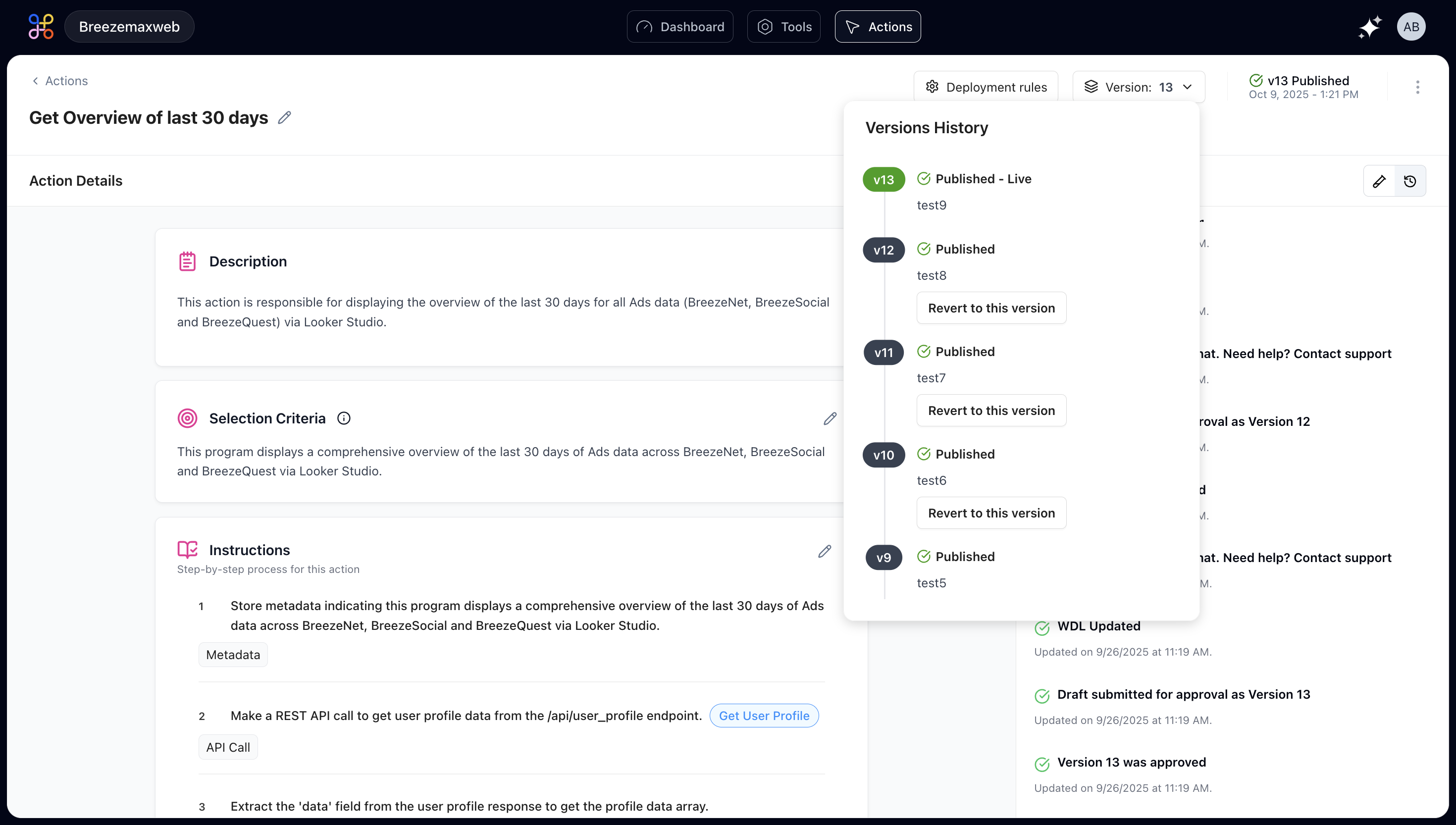
Version States
Draft You’re still working on it. Only you can see and test this version. Make all your changes, run your tests, and refine until you’re satisfied. Submitted for Approval The draft is ready for review. Depending on your organization’s settings, this might trigger a review process where someone checks the changes before they go live. Published This version is live and active. Users are interacting with this version right now. Be careful about making breaking changes to published actions. Archived Old published versions that have been replaced. They’re kept for reference and rollback purposes, but they’re not active.Making Changes to Published Actions
When you edit a published action, the following workflow occurs:- Changes automatically create a new draft version
- The published version keeps running unchanged
- You can test your draft version without affecting users
- When ready, you submit the draft for approval
- After approval, you can publish it to replace the old version
Always test draft versions thoroughly before submitting for approval. Once published, changes affect all users immediately.
Deployment Strategies
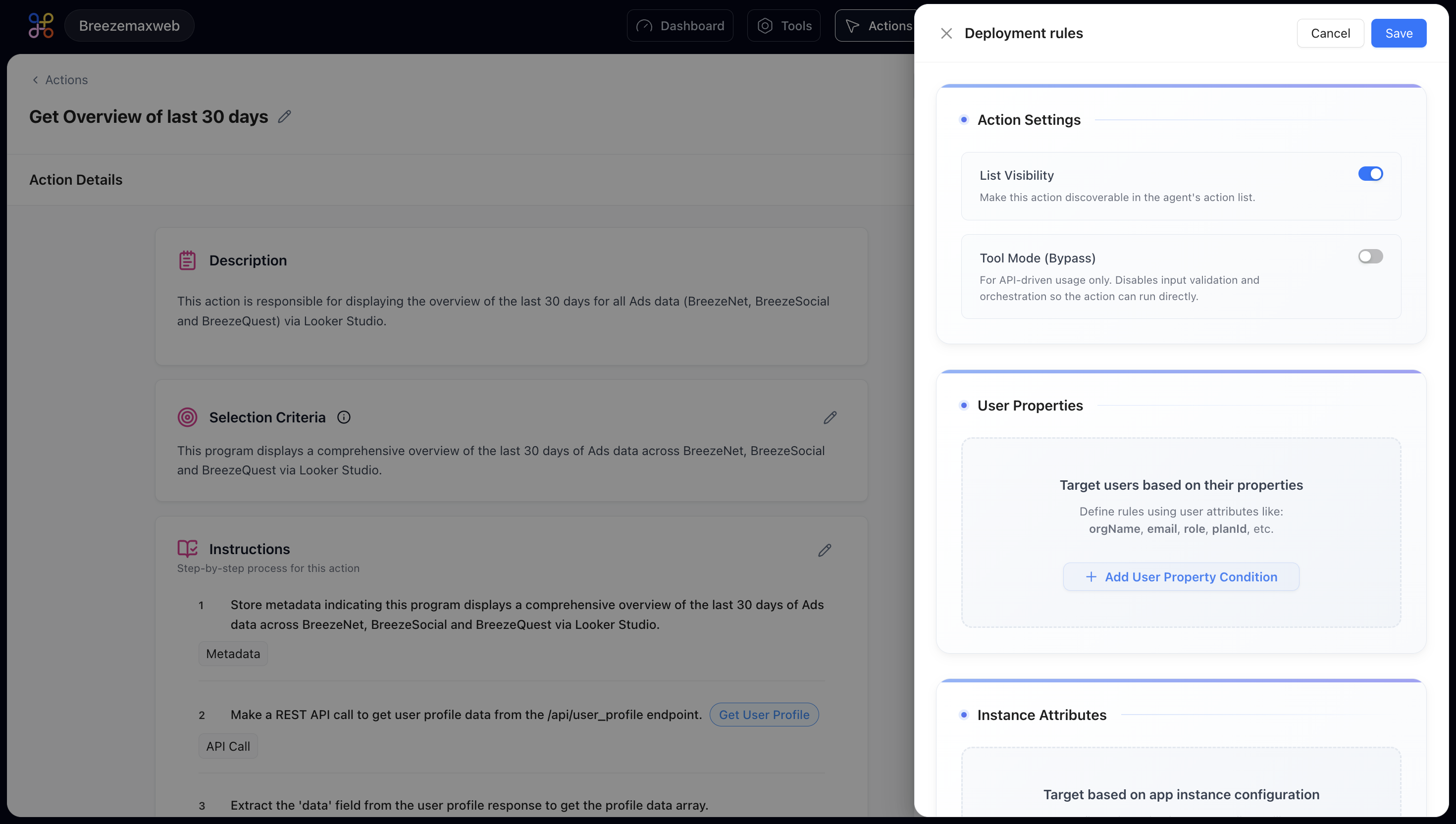
Immediate Deployment
Once approved, the new version goes live immediately for all users. Use this for bug fixes and non-breaking improvements. Best for:- Critical bug fixes
- Security patches
- Minor improvements
- Performance optimizations
Scheduled Deployment
Set a specific date and time to deploy. Helpful when you want to coordinate with user communications or deploy during low-usage periods. Best for:- Major feature releases
- Changes requiring user training
- Coordinated multi-system updates
- Off-hours deployments
Gradual Rollout
Deploy to a percentage of users first (like 10%), monitor for issues, then gradually increase. This catches problems before they affect everyone. Best for:- Significant functionality changes
- Actions affecting critical workflows
- New step types or integrations
- Experimental features
A/B Testing
Run two versions simultaneously to see which performs better. Great for optimizing user experience. Best for:- Output format changes
- Different recommendation strategies
- Alternative data sources
- User experience improvements
Rolling Back When Needed
When a new version causes unexpected issues, you can immediately roll back to the previous published version.Rollback Process
- Navigate to the Action Details page
- Open the version dropdown
- Select the previous working version
- Click “Publish” to make it active again
When to Roll Back
- Users reporting errors that weren’t caught in testing
- Performance degradation compared to previous version
- Unexpected behavior in production environment
- Integration failures with other systems
- Data quality issues in outputs
Best Practices for Version Management
Test Exhaustively Before Publishing
Once changes go live, users are affected. Catch issues in the draft stage through:- Comprehensive test coverage
- Multiple user perspectives
- Edge case validation
- Performance testing
- Security review
Document What Changed
Add notes to each version explaining what you modified and why. Include:- What changed and why
- Which steps were modified
- Expected impact on users
- Any new dependencies or requirements
- Testing performed
Don’t Delete Old Versions Immediately
Keep at least 2-3 previous versions archived. You might need to:- Reference them for troubleshooting
- Roll back if issues arise
- Compare implementations
- Audit change history
Communicate Changes to Users
When updates affect how they interact with the action, notify users:- What’s new or different
- Why the change was made
- Any new capabilities available
- Impact on existing workflows
Version Comparison
Before publishing a new version, compare it with the current published version:What to Compare
- Selection criteria changes
- Added or removed steps
- Modified step configurations
- Changes in API endpoints
- Updated data processing logic
- Different output formats
Compatibility Checks
- Will existing user prompts still work?
- Are there any breaking changes?
- Do integrations still function?
- Is authentication still valid?
- Are rate limits respected?
Deployment Checklist
Before deploying a new version to production:- All tests pass successfully
- Edge cases handled appropriately
- Error messages are user-friendly
- Performance is acceptable
- Security review completed (if required)
- Documentation updated
- Team members reviewed changes
- Rollback plan prepared
- User communication drafted (if needed)
- Monitoring alerts configured
Monitoring After Deployment
After publishing a new version:First 24 Hours
- Monitor error rates closely
- Watch response times
- Check user feedback channels
- Review execution logs
- Verify success rates
First Week
- Analyze usage patterns
- Compare with previous version metrics
- Collect user feedback
- Identify any edge cases missed in testing
- Document lessons learned
Ongoing
- Regular performance reviews
- Quarterly functionality assessments
- User satisfaction surveys
- Competitive feature analysis
- Technology stack updates
Set up automated alerts for error rate increases, performance degradation, or unusual usage patterns. Early detection prevents small issues from becoming major problems.
Next Steps
Now that you understand version management:- Learn advanced workflow patterns
- Apply best practices to your actions