

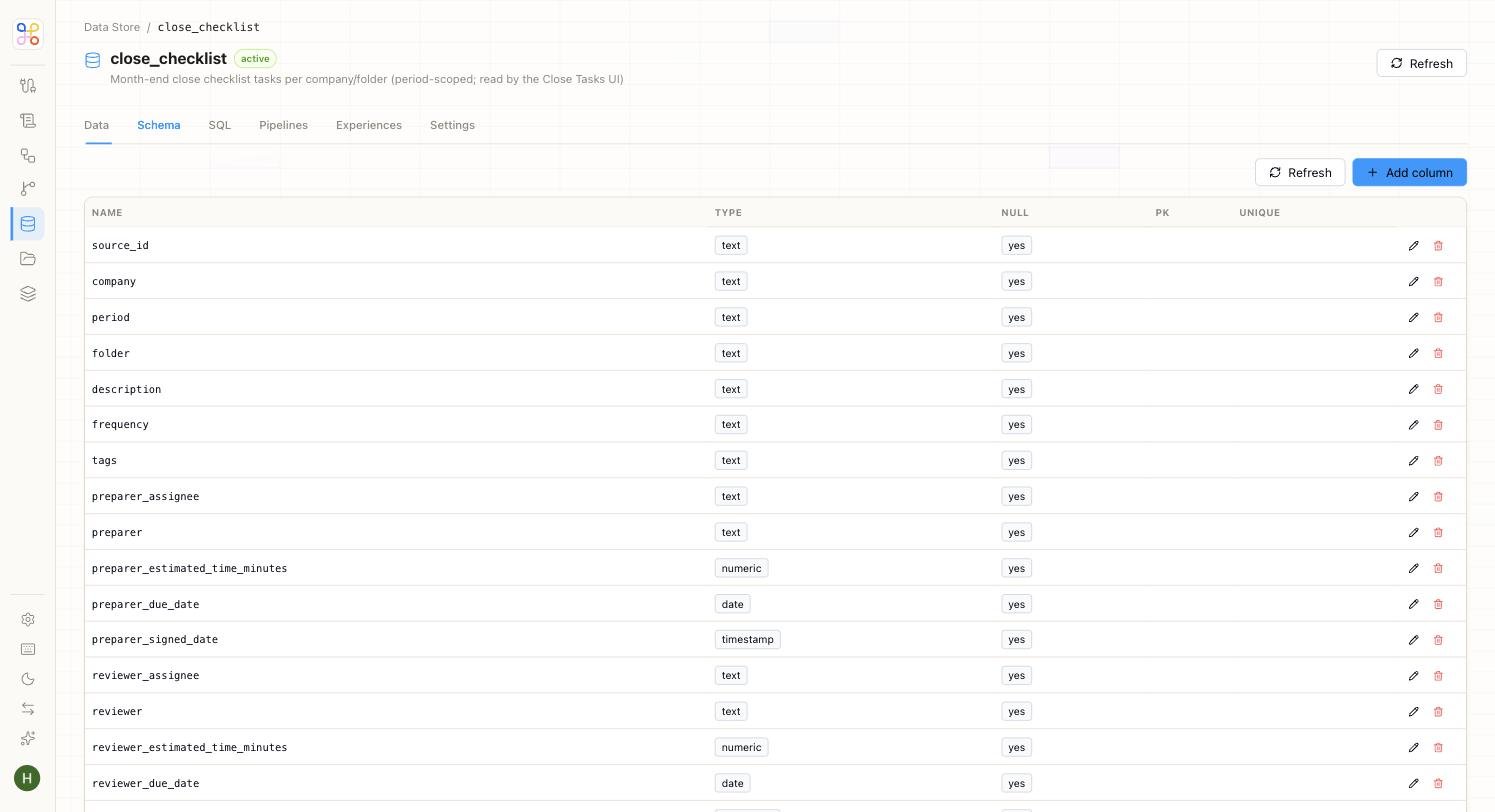
Create a table
- In the Data Store area (or the “Create a Data Store table” step), choose to add a table.
- Table name — lowercase with underscores, e.g.
client_management. - Columns — define your fields, e.g.
client_name,industry,primary_contact,arr,status. Standard columns (id,created_at,updated_at,is_deleted) are added automatically. - Scope — see below.
- Review the SQL preview if shown, then create the table.
Choosing scope
Scope uses the same two axes as everything in Adopt: which clients can see the rows, and which agents can read them.- Global — org-wide; every workstream and agent reads it. Use for reference data that isn’t client-specific (e.g. a table of tax rates).
- Workstream-based (row-level security) — each client sees only its own rows. The safe default for client data.
- Workstream + Agent — per client, and only readable by specifically tagged agents. The tightest option; use when even within a client, only one agent should read the table.
If you’re unsure, choose Workstream-based. It’s the default the Quick path applies.