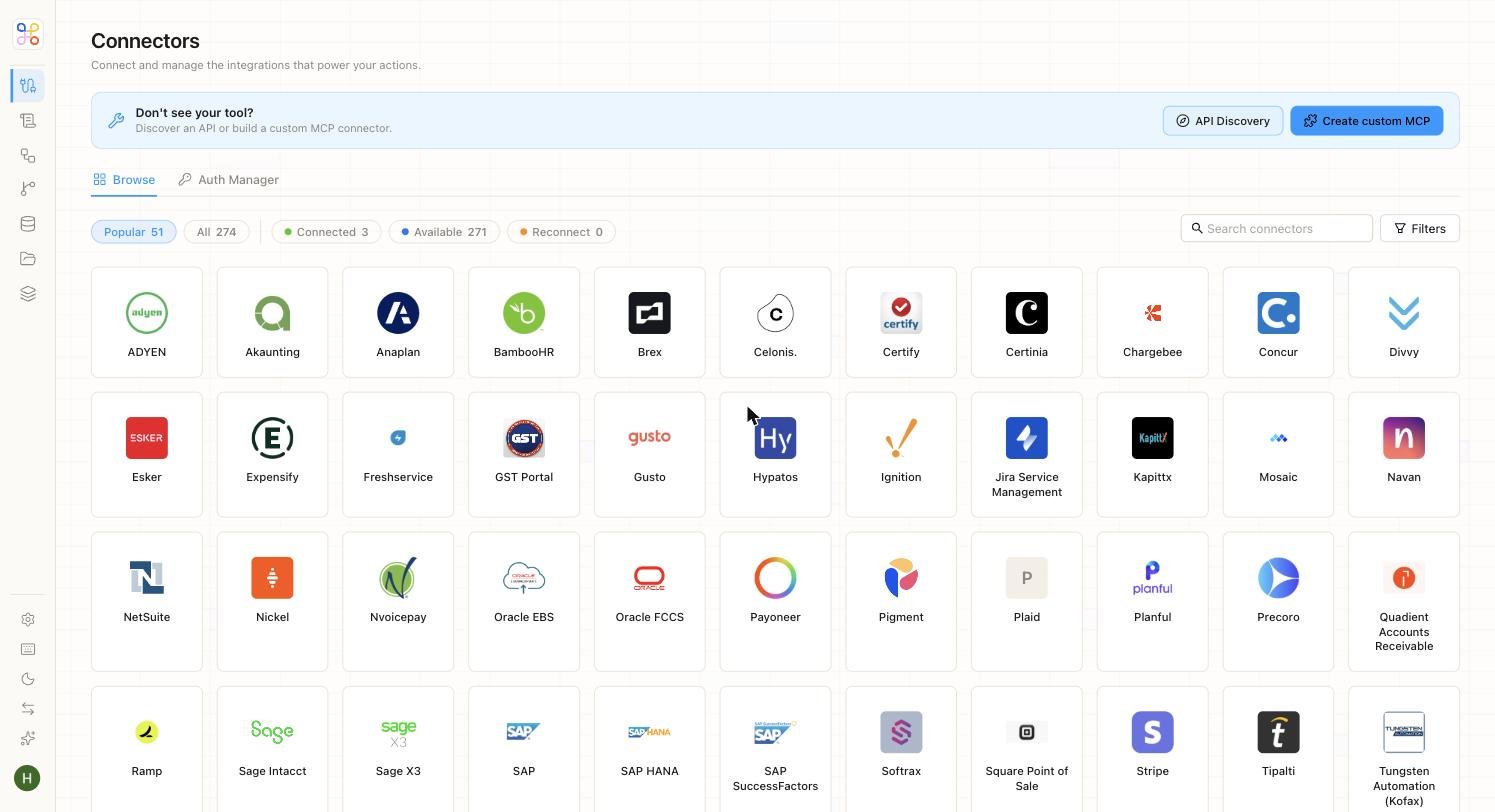
This is how files get into Adopt: link a source, then sync its files into a client’s Doc Store.
Before you start
Decide which client (workstream) these files belong to. Files sync into that client’s Doc Store and are isolated to it.
Connect a source
Open Connectors
Open the Connectors area (or the “Add files” / “Sync data” step in setup).
Choose a connector
- Google Drive — sync folders of documents.
- SharePoint — connect a site library.
- File Upload — drag in PDFs and spreadsheets directly (no external system).
- Amazon S3 — sync a bucket prefix.
Authorize and scope it
Provide the connection details the connector asks for, then select what to pull in — the folder, library, or bucket prefix.
Run the sync
Once connected, run a File Sync to bring the files into the Doc Store. Run it once now, or set it to run on a schedule so new files come in automatically. See Sync settings and filters.
After the sync, the files appear in the client’s Doc Store (File Explorer). If they don’t, see Sync problems.
Choose the most privacy-preserving connection option a source offers, and scope the connector to the folder or prefix you actually need — not an entire drive. Connected sources are isolated per workstream, just like uploaded files.
Next steps
- Sync settings and filters
- Connectors and sync
- Connector reference